Interpreting Reports
Download
Mode fokus
Ukuran font
Overview
PTS displays the results of a round of performance testing in a performance testing report. Performance testing reports are available in two statuses: real-time reports and historical reports. The former allows you to view data in real time during the performance testing, while the latter is for viewing historical data after the performance testing is completed.
Note:
PTS historical reports are retained for 45 days, after which expired reports will be automatically cleared. You can download the performance testing report in PDF format as a backup before the report expires.
Real-Time Report
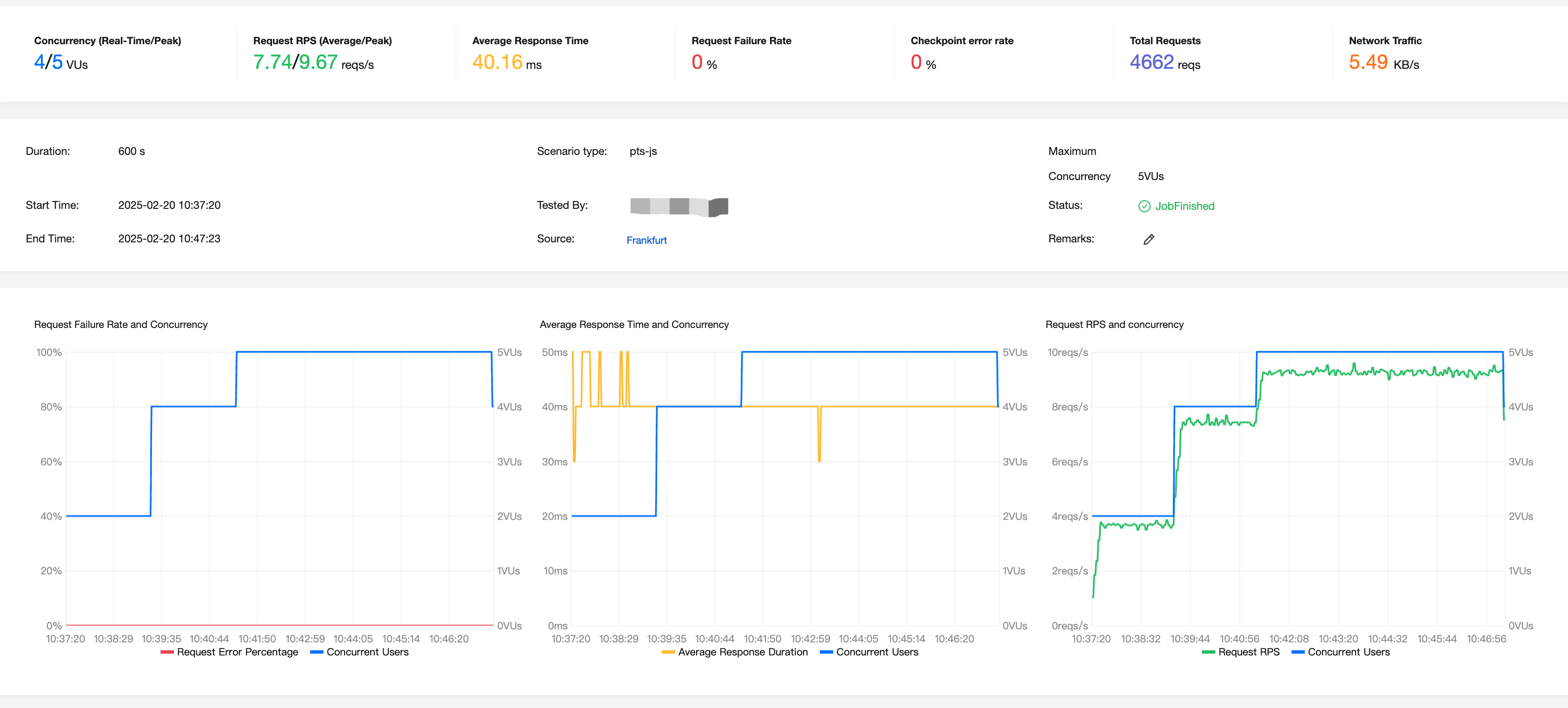
When you trigger the execution of your performance testing scenario, PTS goes through a series of resource preparation steps and then creates a performance testing task for you. Once the task is created, the console dynamically displays the performance testing data for that task and refreshes it in real time at a certain frequency.
Historical Report
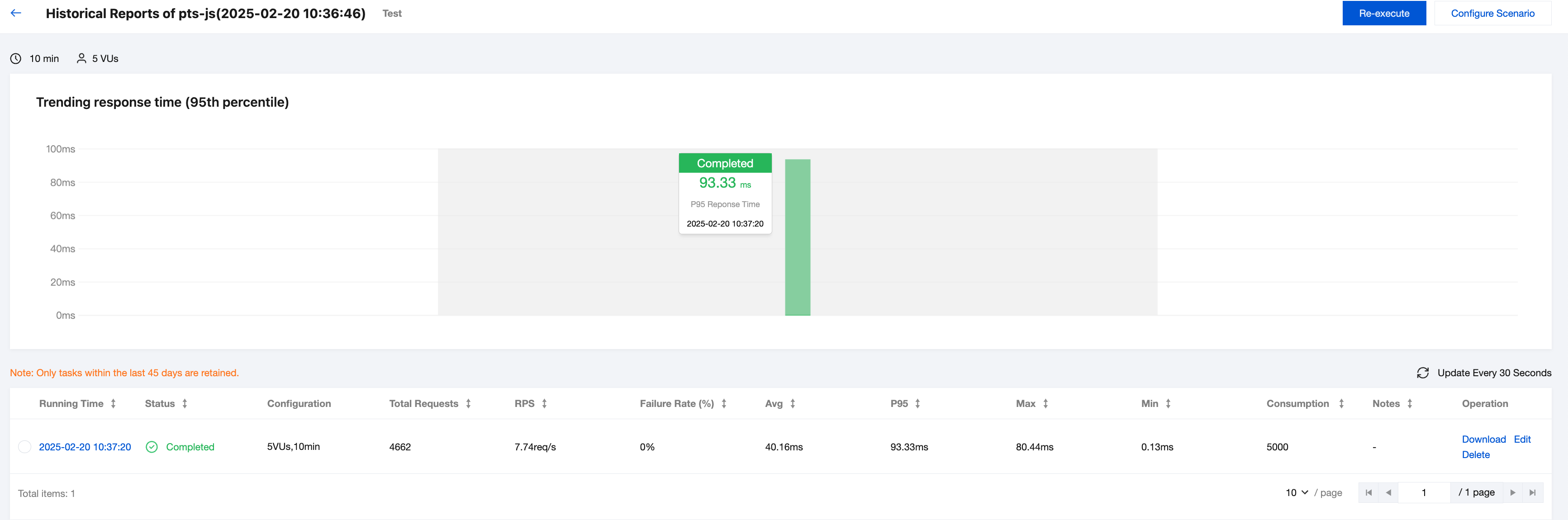
When a performance testing task for your performance testing scenario is completed, you can find the historical report for that task from the historical reports overview page of the scenario. You can click this historical report to review the historical data.
Report Data
Overview
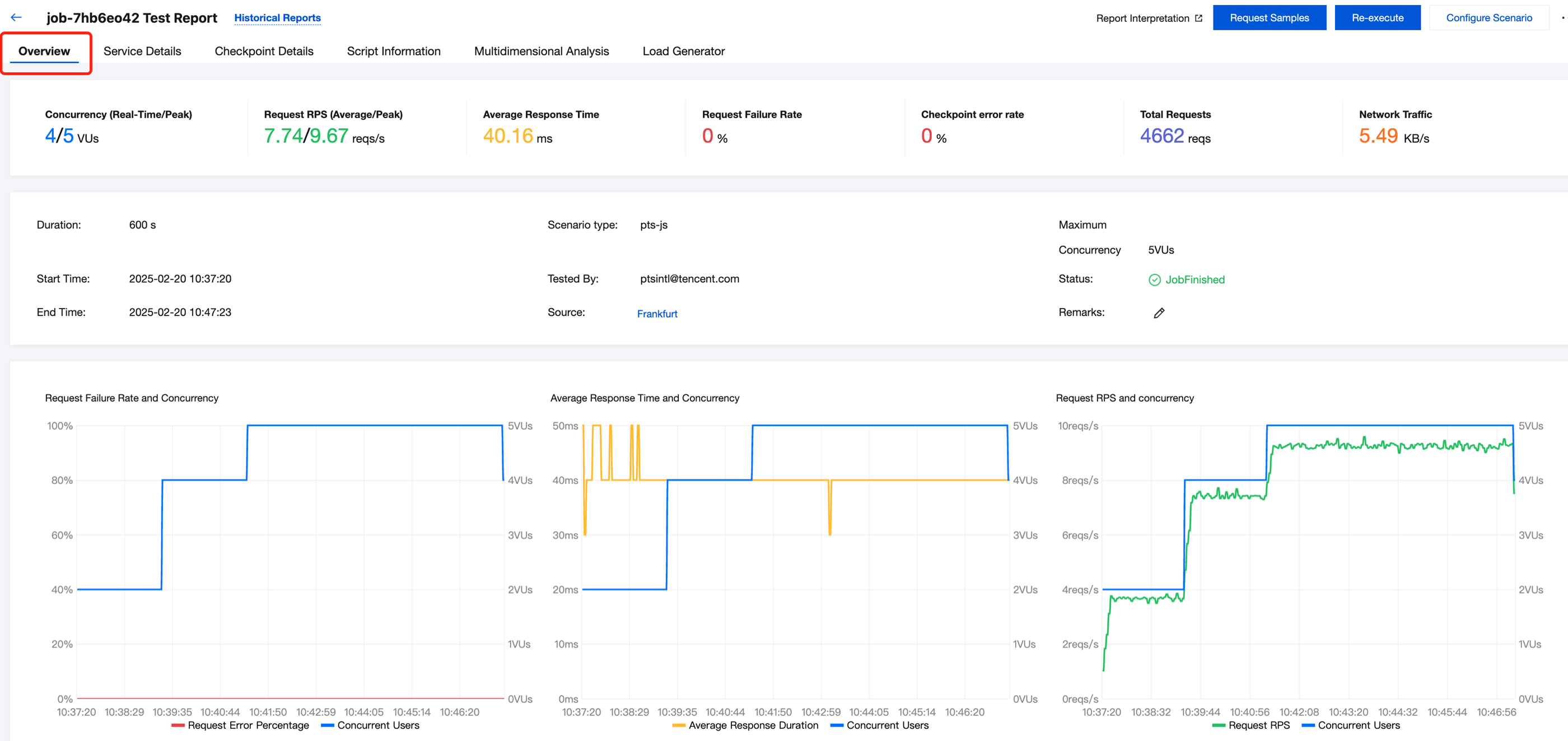
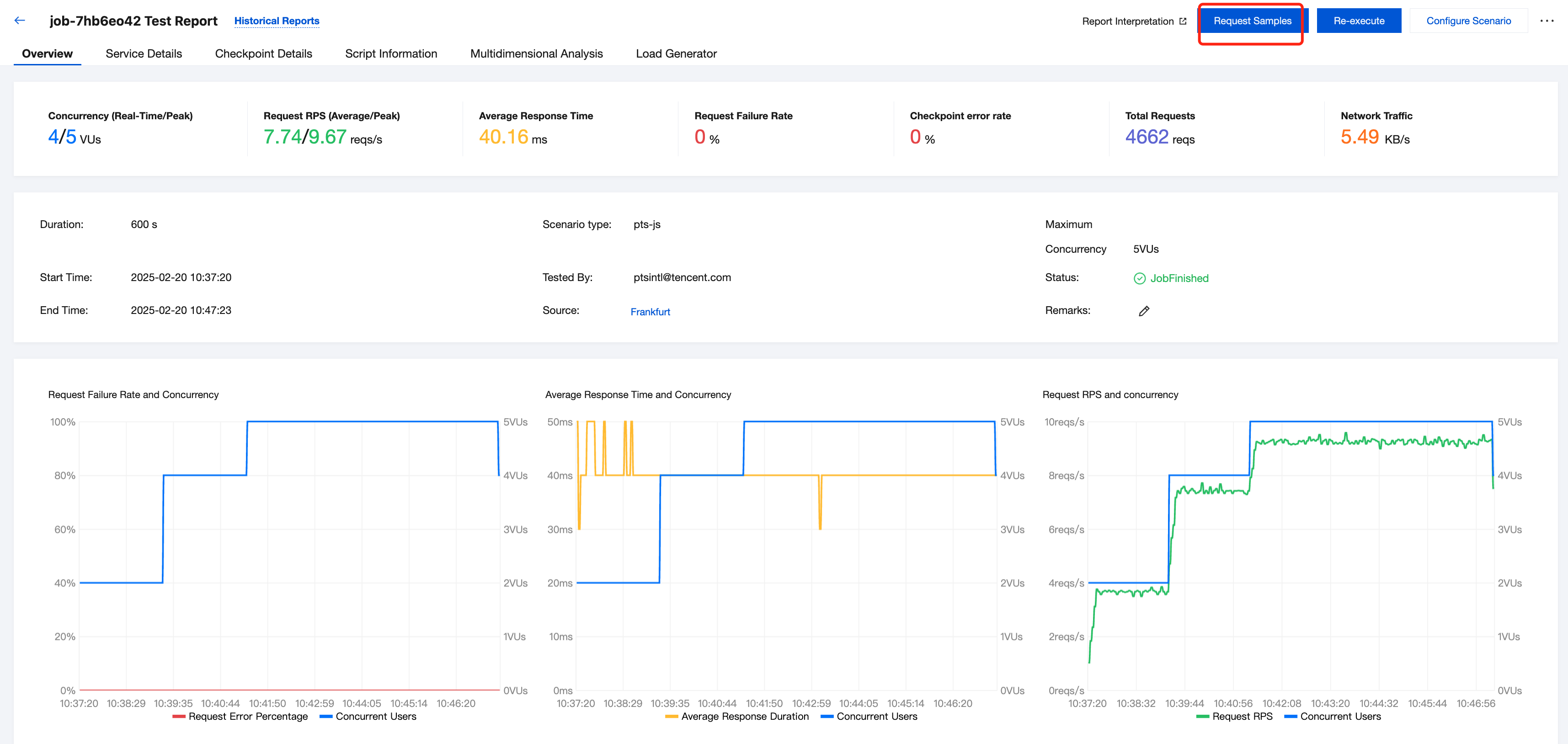
The Overview page displays some of the most critical overview data, such as metadata of the performance testing task itself and the most commonly used metrics from the performance testing results along with their charts (for example, VU, RPS, and average response time).
The top section of the overview page provides a summary of the performance testing task data, where:
Concurrency and total requests are instantaneous values at the moment the performance testing task is running.
RPS, average response time, failure rate, and network traffic are averages during the performance testing task.
The middle section of the overview page contains metadata about the performance testing task, such as the duration, the tester, and the status.
The bottom section of the overview page shows real-time curves for the performance testing task, displaying the instantaneous values of various metrics at different time points.
Note:
For an introduction to the concepts of concurrent users, RPS, and response time, as well as the relationships between them, see FAQs.
Service Details
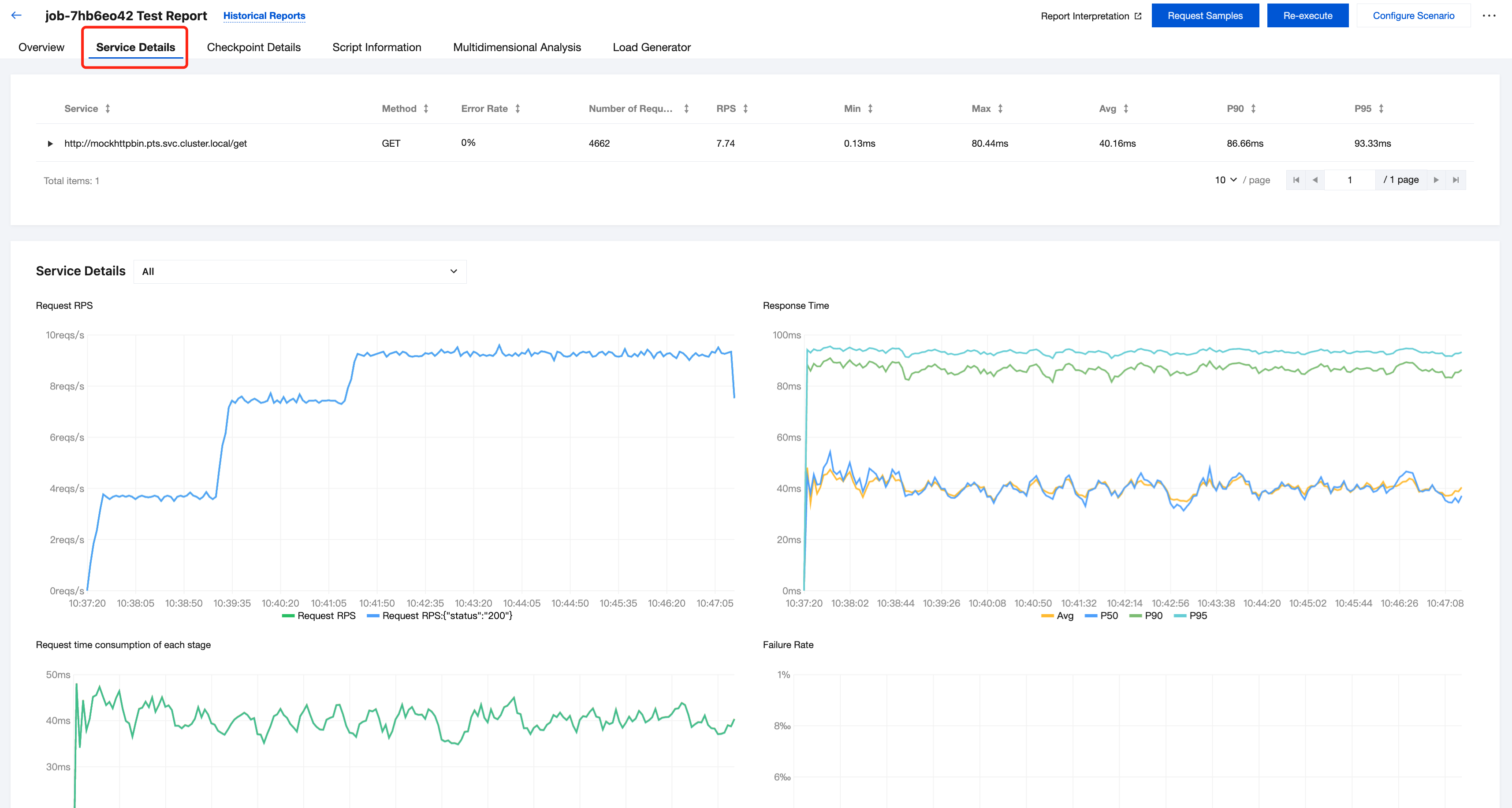
On the service details page, each URL is categorized as a separate "service," displaying detailed information about all requests sent during the performance testing.
You can click to expand the details of each service to view its data and charts. In the charts, you can click to switch between different Metrics or Aggregations to change what you are viewing.
Note:
In PTS, different services are by default categorized according to different URLs. If you need to customize the service categorization, you can specify the
service attribute within the http.Request in scenarios using script mode. See JavaScript API List for more details.Checkpoint Details
On the Checkpoint Details page, you can view the detailed results of the checkpoints that you have set up in your scenario.
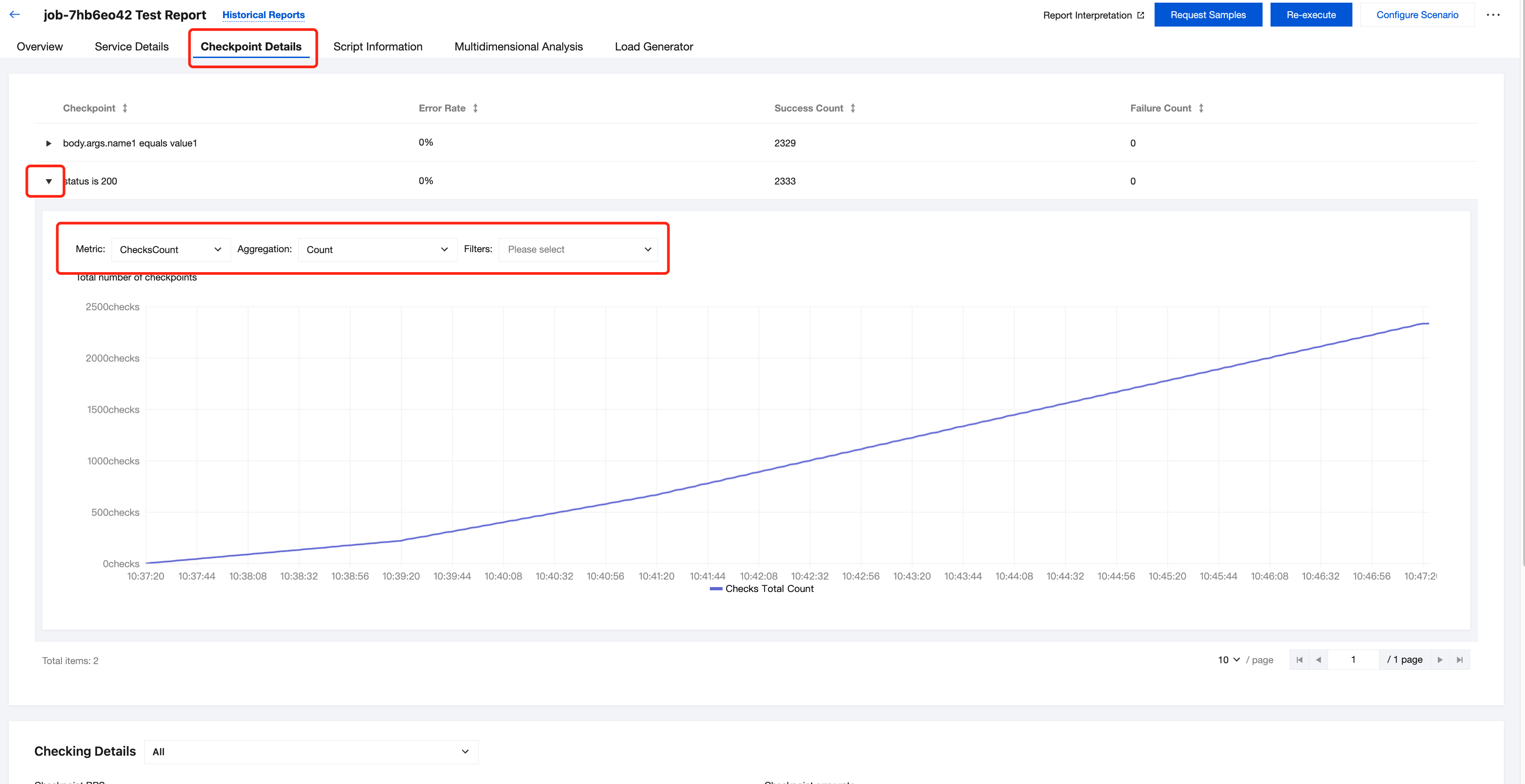
Note:
Script Information
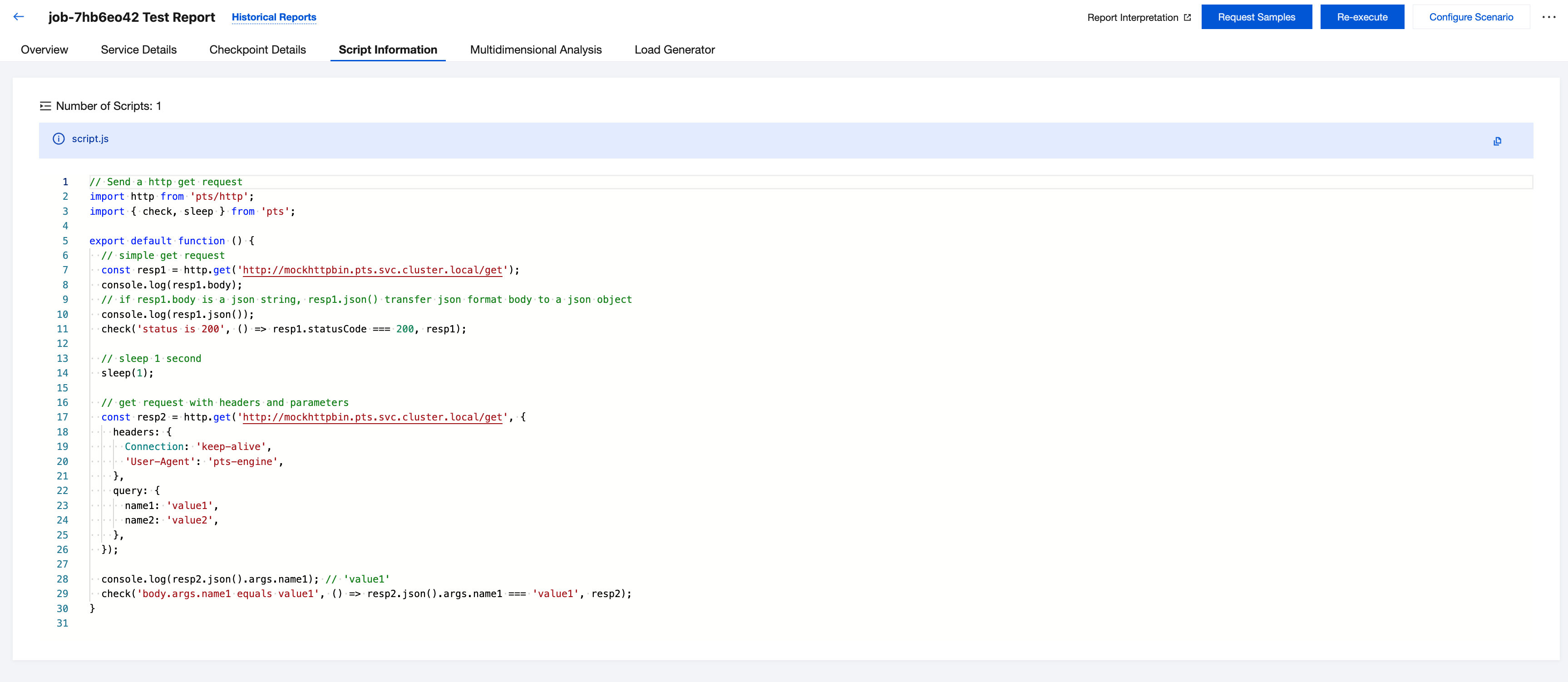
On the Script Information page, you can view a snapshot of the scenario script used when executing the performance testing task.
Multidimensional Analysis
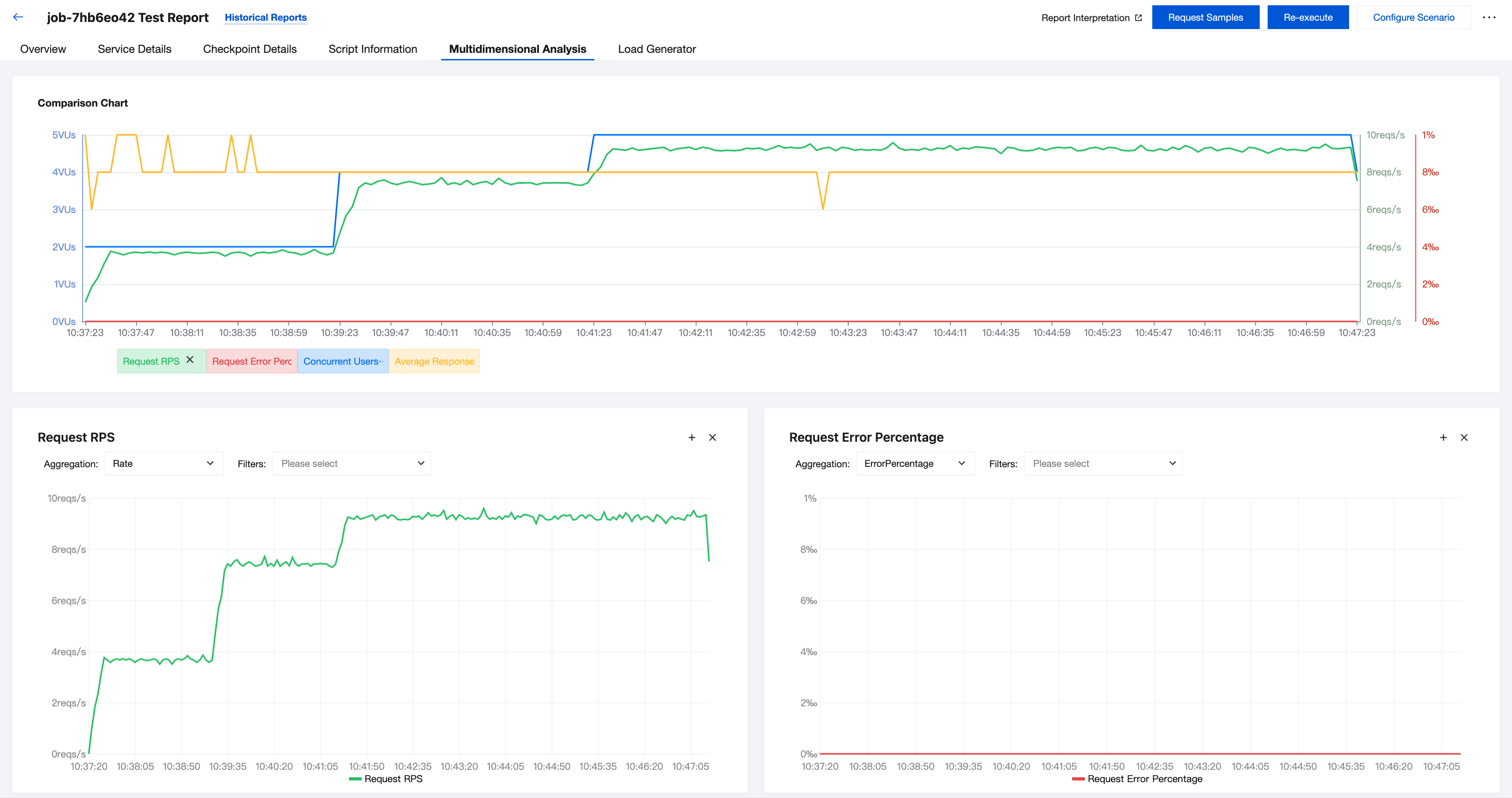
On the Multidimensional Analysis page, you can switch in an interactive style between various combinations of charts that display performance testing result data.
You can click to switch between different Metrics or Aggregations to view different charts.
You can also click Add Metrics at the bottom of the page to create data charts according to your needs.
Load Generator
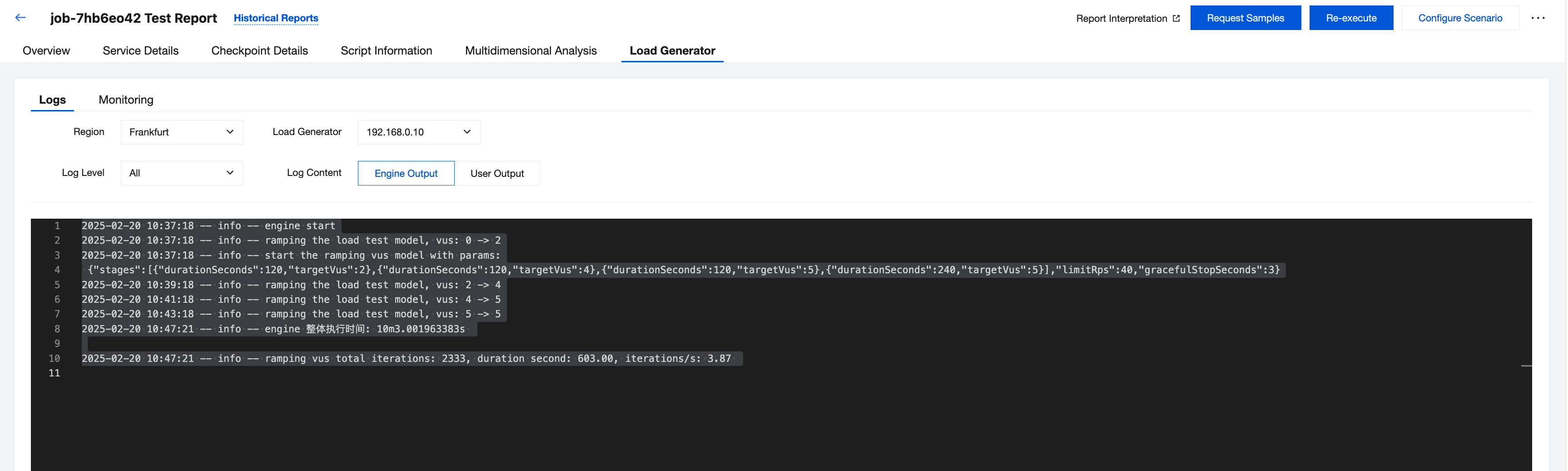
On the Load Generator page, you can view basic information about the load generator for the performance testing task, logs output during the performance testing, and the resource usage status of the load generator itself.
Among these, the performance testing logs can be categorized by log level (debug/info/error) and log content (user output/engine output), which you can switch when using the drop-down list.
The logs printed by yourself will be displayed on the User Output tab.
The general logs printed by PTS will be displayed on the Engine Output tab.
Request Sampling
By clicking Request Sampling, you can view the detailed information of some sampled requests selected by the load generator.
You can enter the corresponding conditions to filter the requests as needed. In the request list, you can click Details to expand the details page for an individual request.
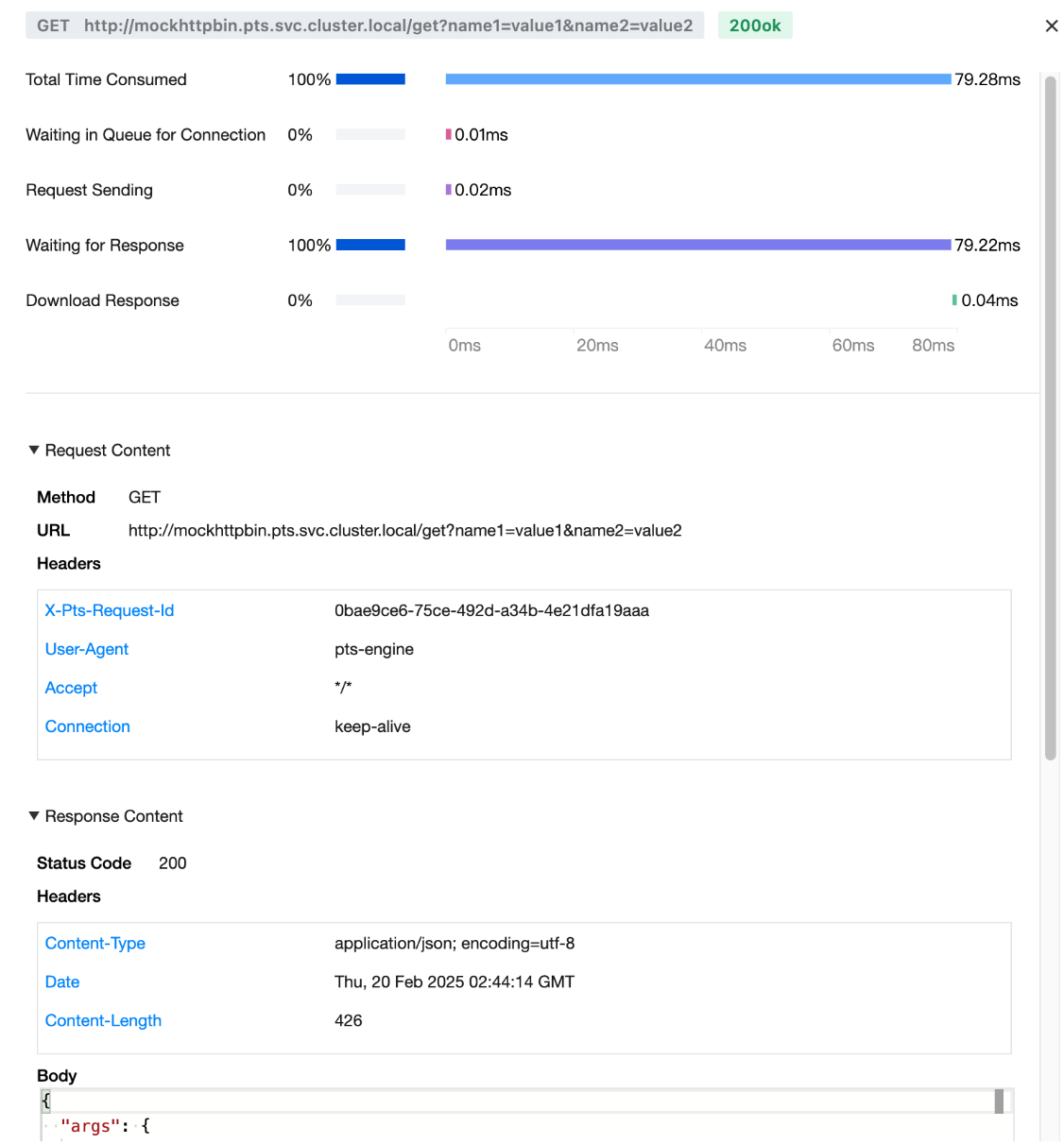
On the details page of an individual request, you can view the detailed information of the request and its response, as well as the waterfall curve that illustrates the distribution of time taken for the request.
Bantuan dan Dukungan
Apakah halaman ini membantu?
Anda juga dapat Menghubungi Penjualan atau Mengirimkan Tiket untuk meminta bantuan.
masukan