tencent cloud

Performance Testing Service

Overview
Purchase Guide
Billing Overview
Pay-as-You-Go (postpaid)
Purchasing Channels
Payment Overdue
Refund Instructions
Quick Start
Operation Guide
Performance Testing in Simple Mode
Performance Testing in Script Mode
Performance Testing in JMeter Mode
Project Management
Scenario Management
Traffic Recording
Environment Management
Scheduled Performance Testing
Performance Testing Report
Access Control
Alarm Management
Tag Management
Error Code Manual
Practice Tutorial
Using Prometheus To Monitor Performance Testing Metrics
Using PTS to Playback Requests Recorded by GoReplay
API Documentation
History
Introduction
API Category
Making API Requests
PTS-related APIs
Data Types
Error Codes
JavaScript API List
Overview of JavaScript API List
pts/global
pts/http
pts
pts/dataset
pts/grpc
pts/jsonpath
pts/protobuf
pts/redis
pts/sql
pts/url
pts/util
pts/ws
pts/socketio
pts/socket
FAQs
Related Agreements
Service Level Agreement
Use Limits
Privacy Policy
Data Processing And Security Agreement

Environment Management

PDF
Focus Mode
Font Size
Last updated: 2025-03-10 16:55:56

Overview

Environment management supports the users in creating different environment variable groups, where each variable group can contain different environment variables. During performance testing, environment variables can be used in performance testing scripts.

Environment Management

PTS supports creation, read, update, and deletion operations for environment configuration.

Environment Creation

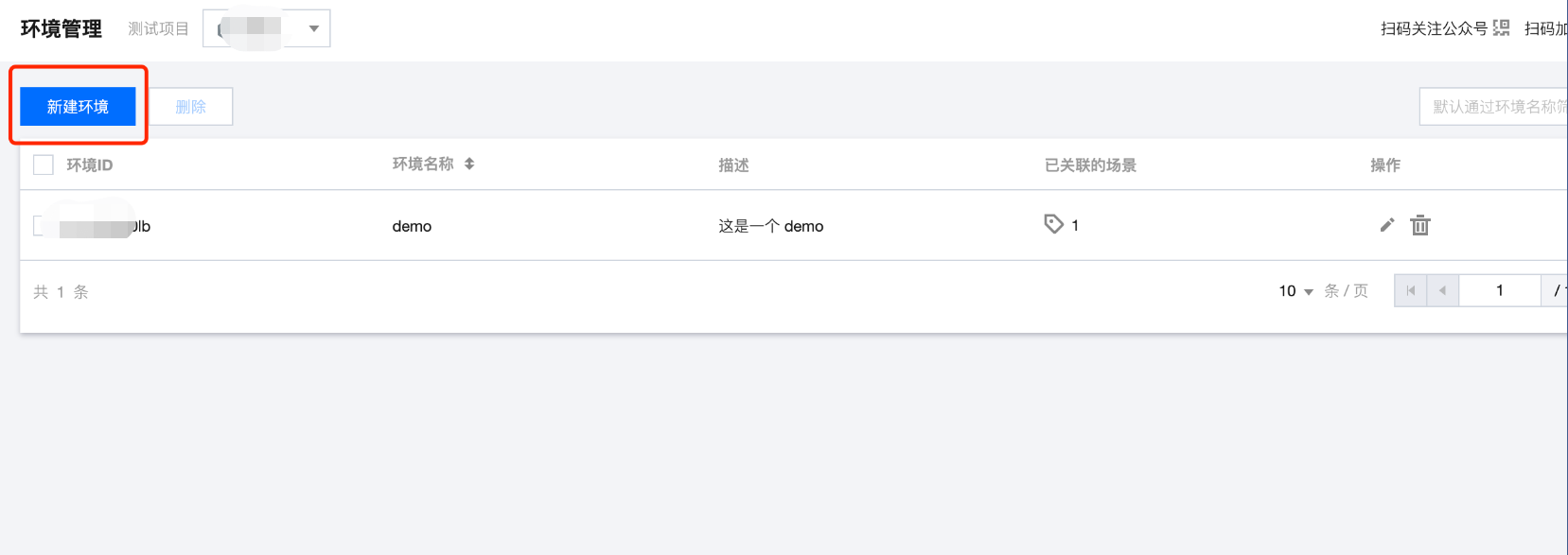
Log in to the TCOP console, select PTS > Environment Management in the left navigation bar, click Create Environment , create the environment and variables, and save the settings.


Environment Editing

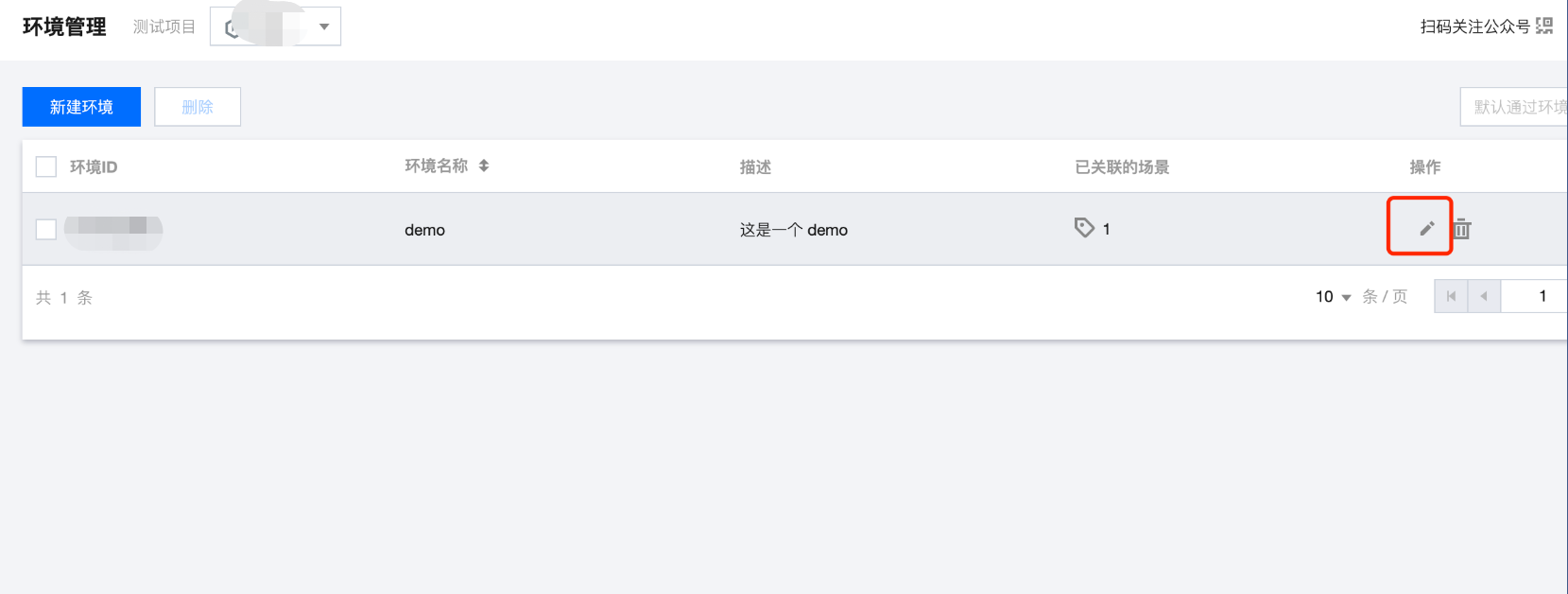
Log in to the TCOP console, select PTS > Environment Management in the left navigation bar, select the ID of the target environment, click

to edit the existing environment.


Environment Deletion

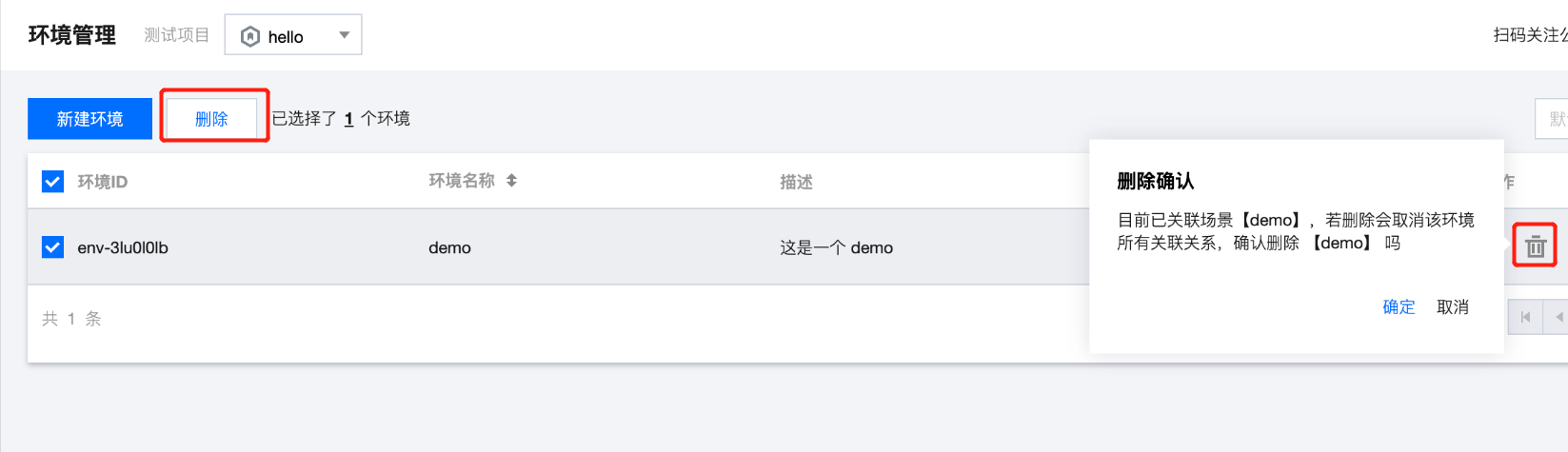
Log in to the TCOP console, select PTS > Environment Management in the left navigation bar, choose the target environment ID, and click Delete or

. You will be prompted with the associated testing scenarios. Then click OK in the pop-up window to delete.


How to Use

After creating the environments and variables, you can reference them in simple test scenarios and JavaScript scripts.

Script Mode

1. Log in to the TCOP console, select PTS > Test Scenarios in the left navigation bar, and click Create Scenario.
2. Select Script Mode.
3. Perform performance testing configuration in the testing scenarios. For configuration details, see Stress Configuration .
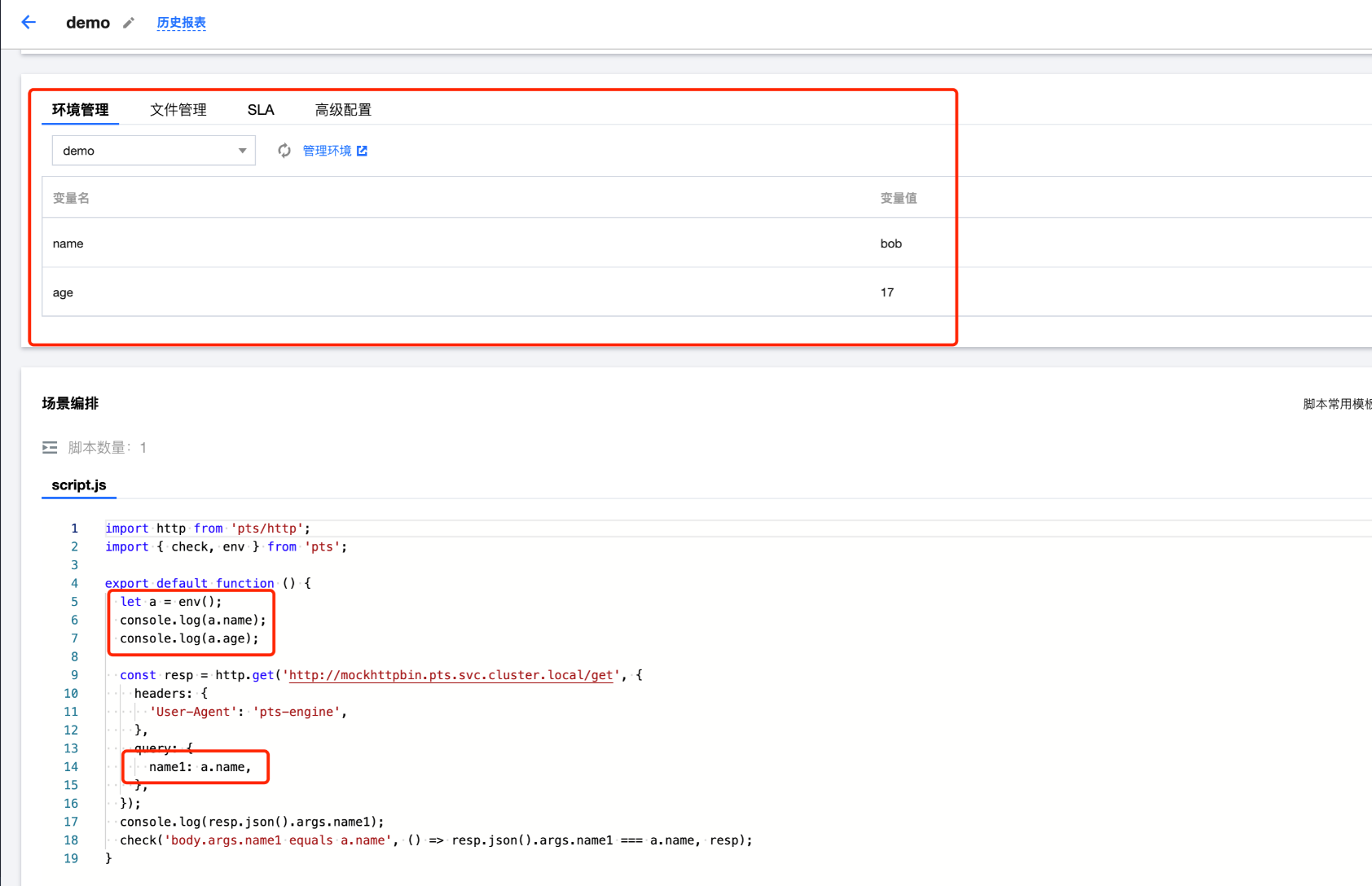
4. Click Environment Management to manage specific environments, then use the env function in the script.


import {env} from 'pts'

let a = env()
console.log(a.name)
console.log(a.age)

Simple Mode

1. Log in to the TCOP console, select PTS > Test Scenarios in the left navigation bar, and click Create Scenario.
2. Select Simple Mode.
3. Perform performance testing configuration in the testing scenarios. For configuration details, see Stress Configuration .
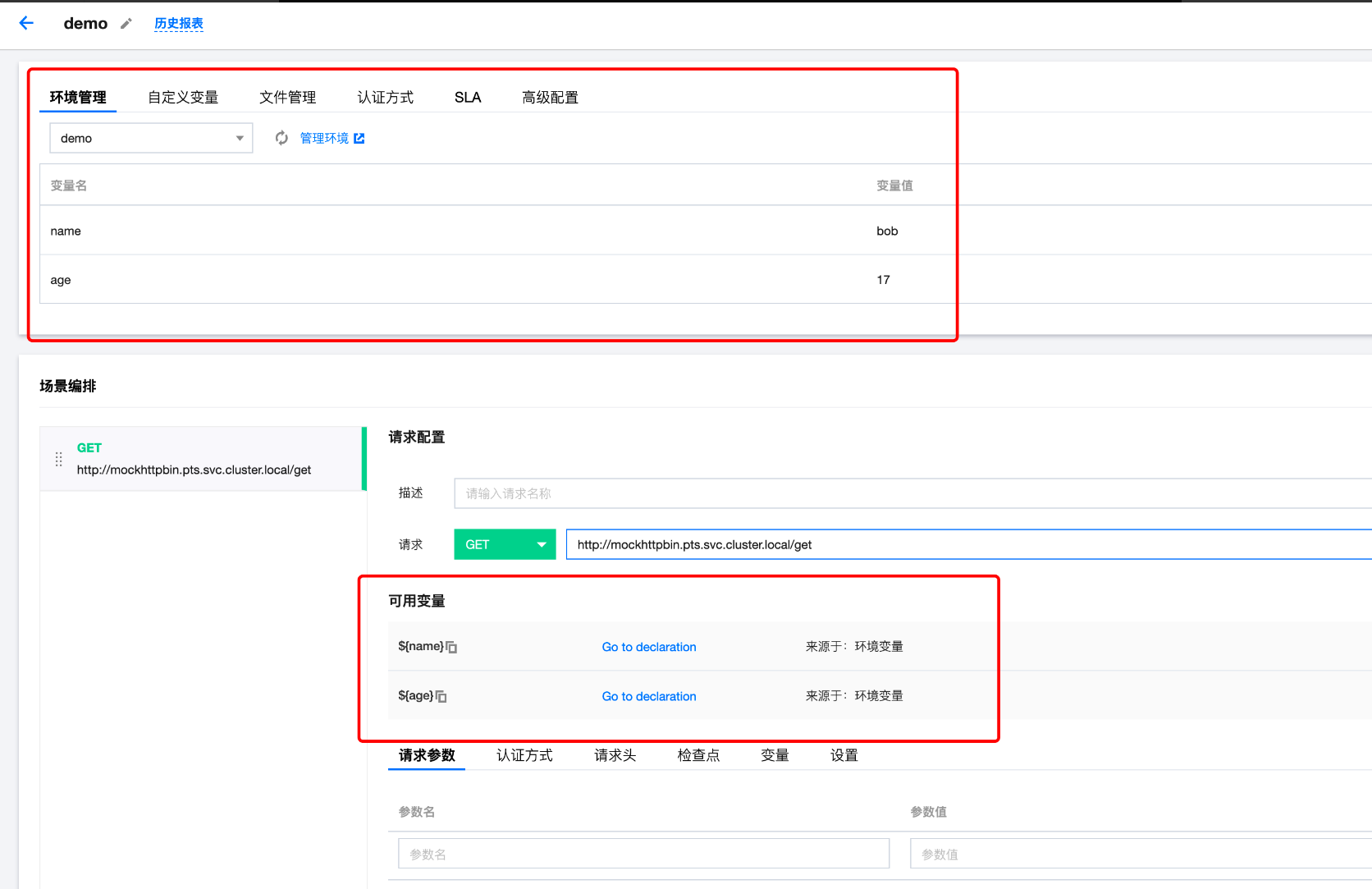
4. Click Environment Management to manage specific environments. In Simple Mode, variable references will be automatically generated and can be used directly.


Help and Support

Was this page helpful?

Help us improve! Rate your documentation experience in 5 mins.

Feedback