this document will introduce authorization settings in different stages during the process of using Marketplace.
Note:
Root account authorization is required only when a sub-account performs the following operations. The root account has all privileges by default.
Authorization for application installation.
Set app message notification recipients.
Authorized maintenance by proxy.
Application Installation Authorization
Scenario Description
When a sub-account installs an application, the root account must assign the "Marketplace Installation" permission.
Operation Steps
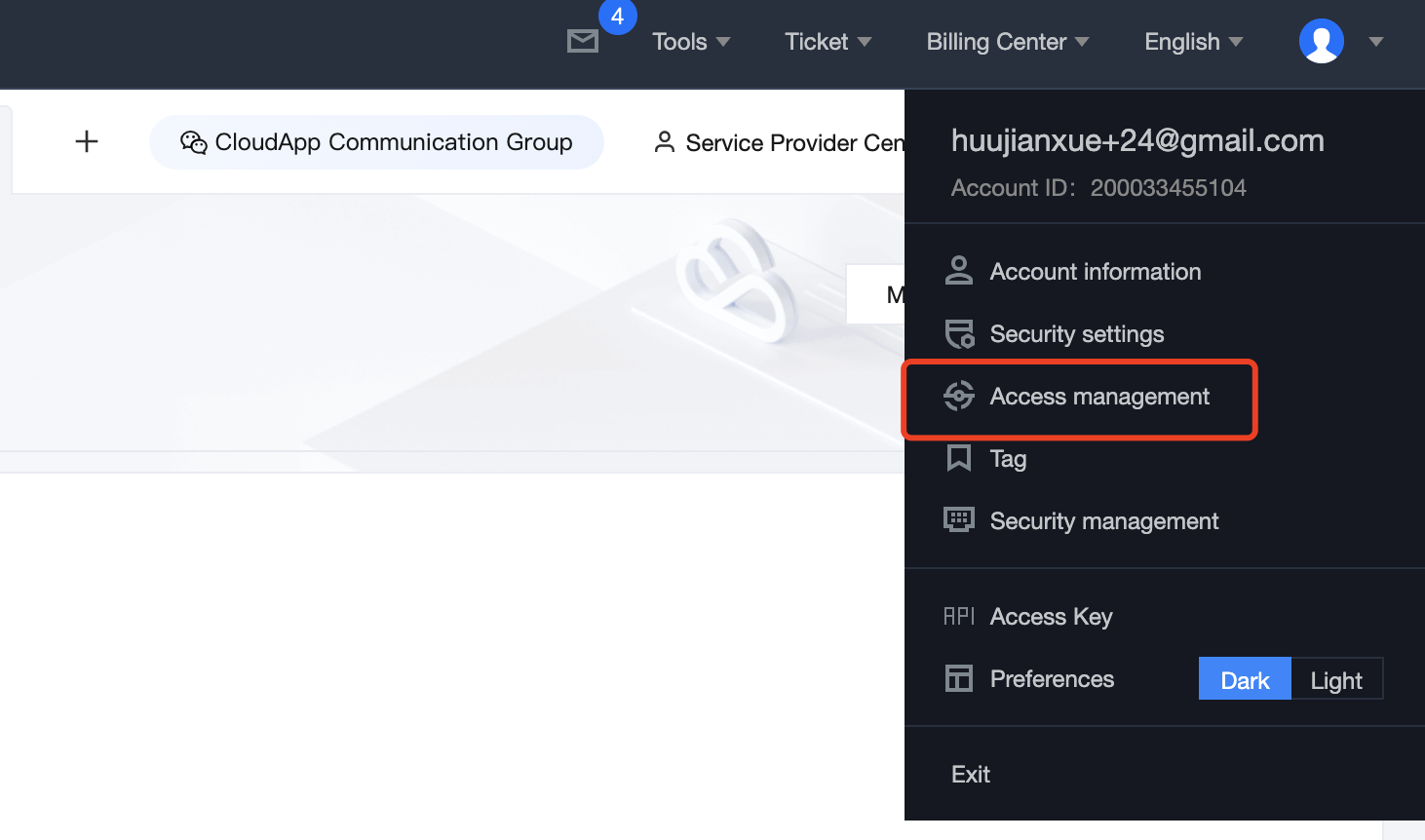
1. Log in to the Tencent Cloud console using the root account, click on the avatar in the upper right corner, and then select CAM.
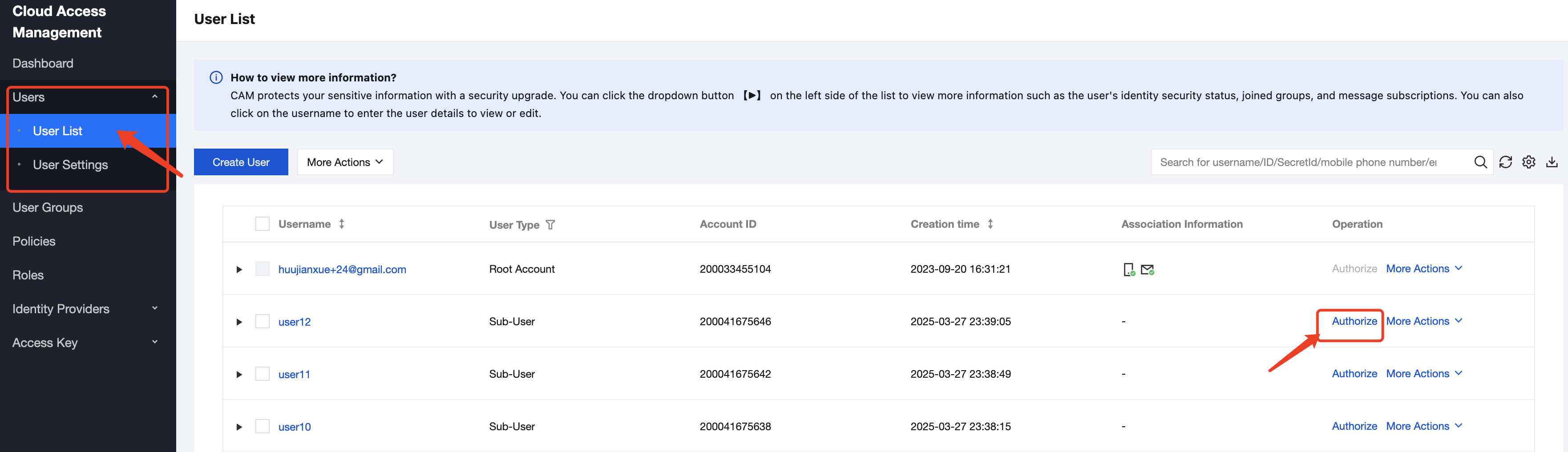
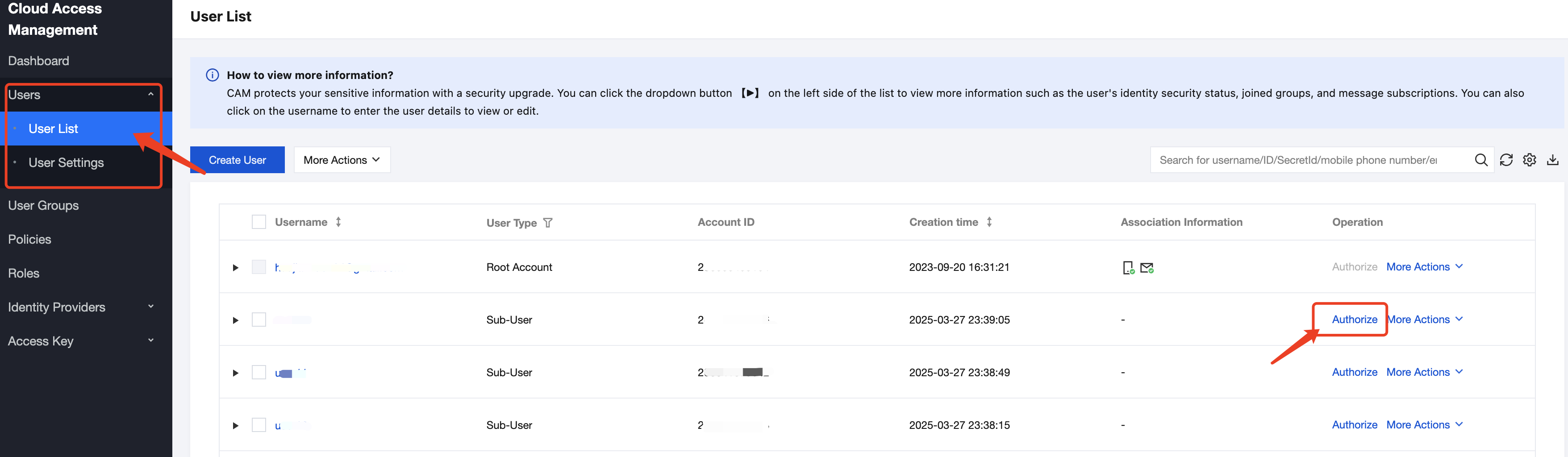
2. Select Users > User List, find in the list the Sub-user requiring installation permission, and click Authorize.
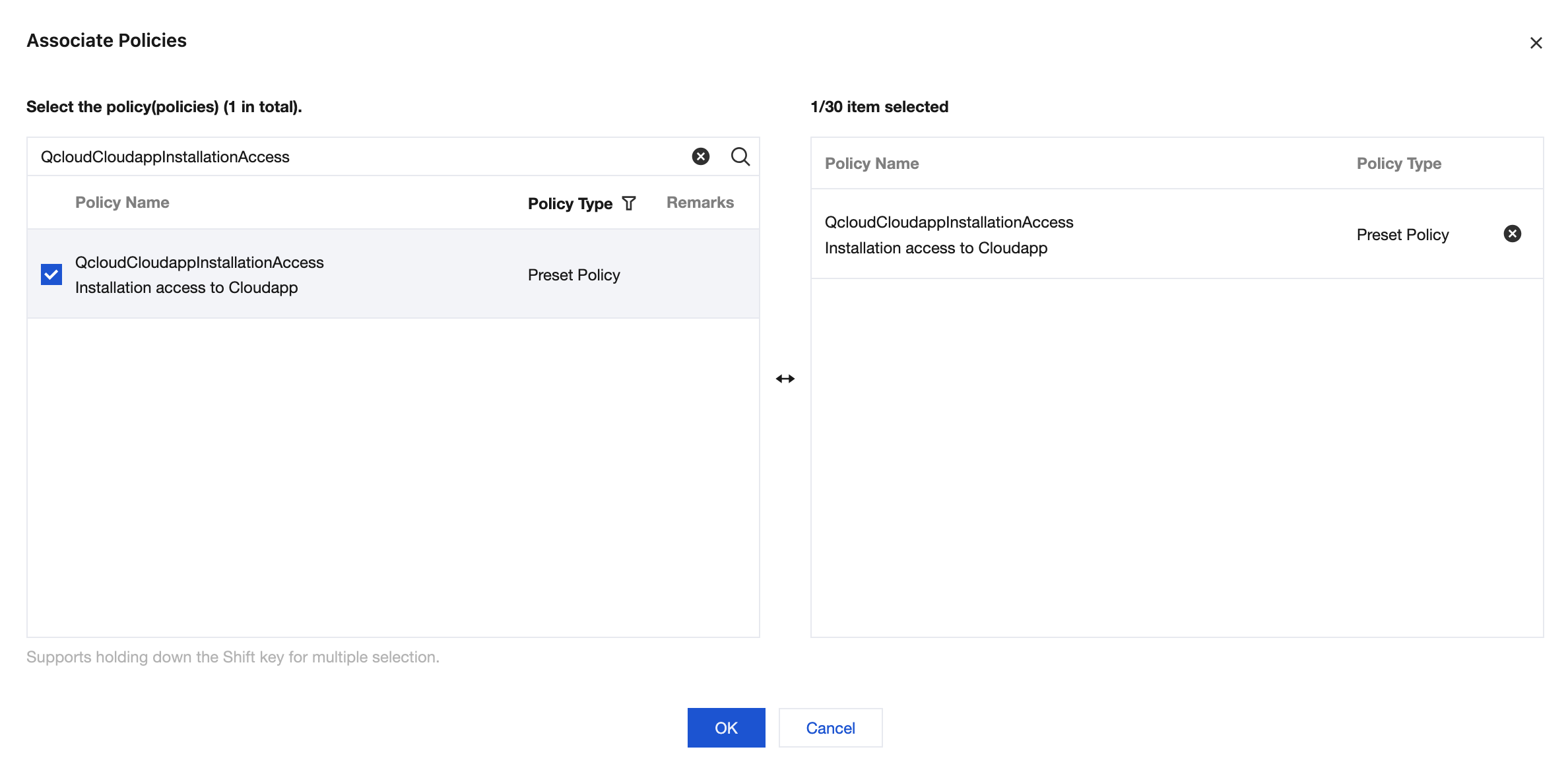
3. Search for "Marketplace" in the associated policy pop-up window or copy the policy name "QcloudCloudappInstallationAccess" to perform search. Select the policy and assign it to the Sub-user.
Set App Message Notification Recipients
Scenario Description
If a sub-account needs to receive message push from a Marketplace the root account needs to enable message receiving permission.
Operation Steps
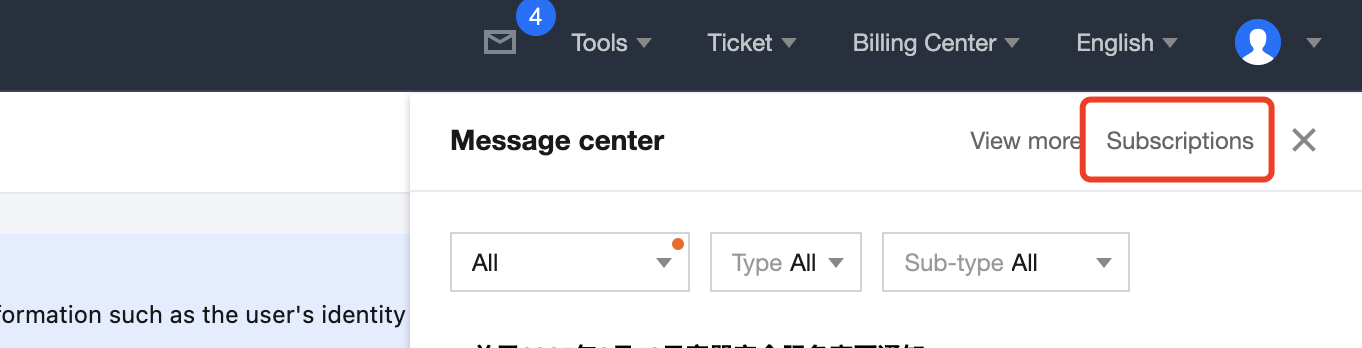
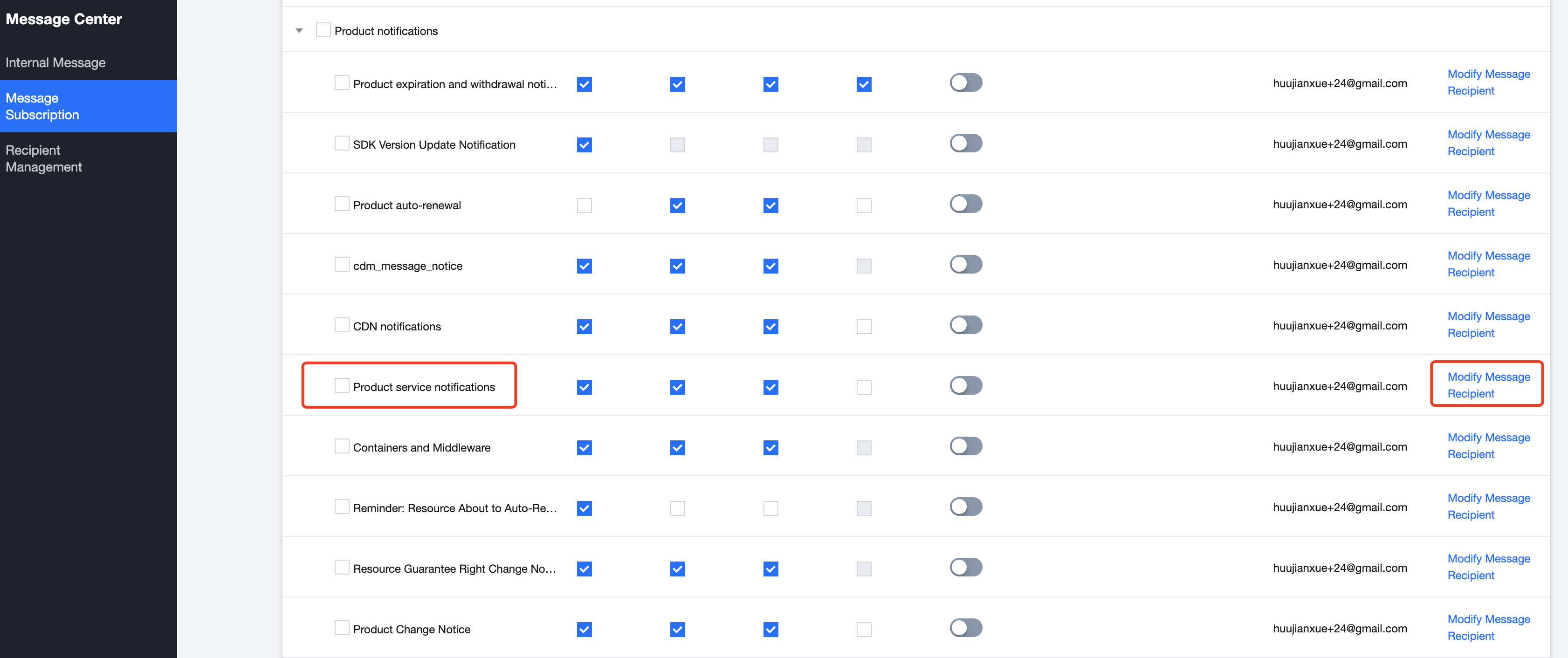
1. Log in to the Tencent Cloud console using the root account, click on the notifications in the upper right corner, and select Subscriptions.
2. Find Product service notifications in the subscribed product messages, and click Modify Message Recipient.
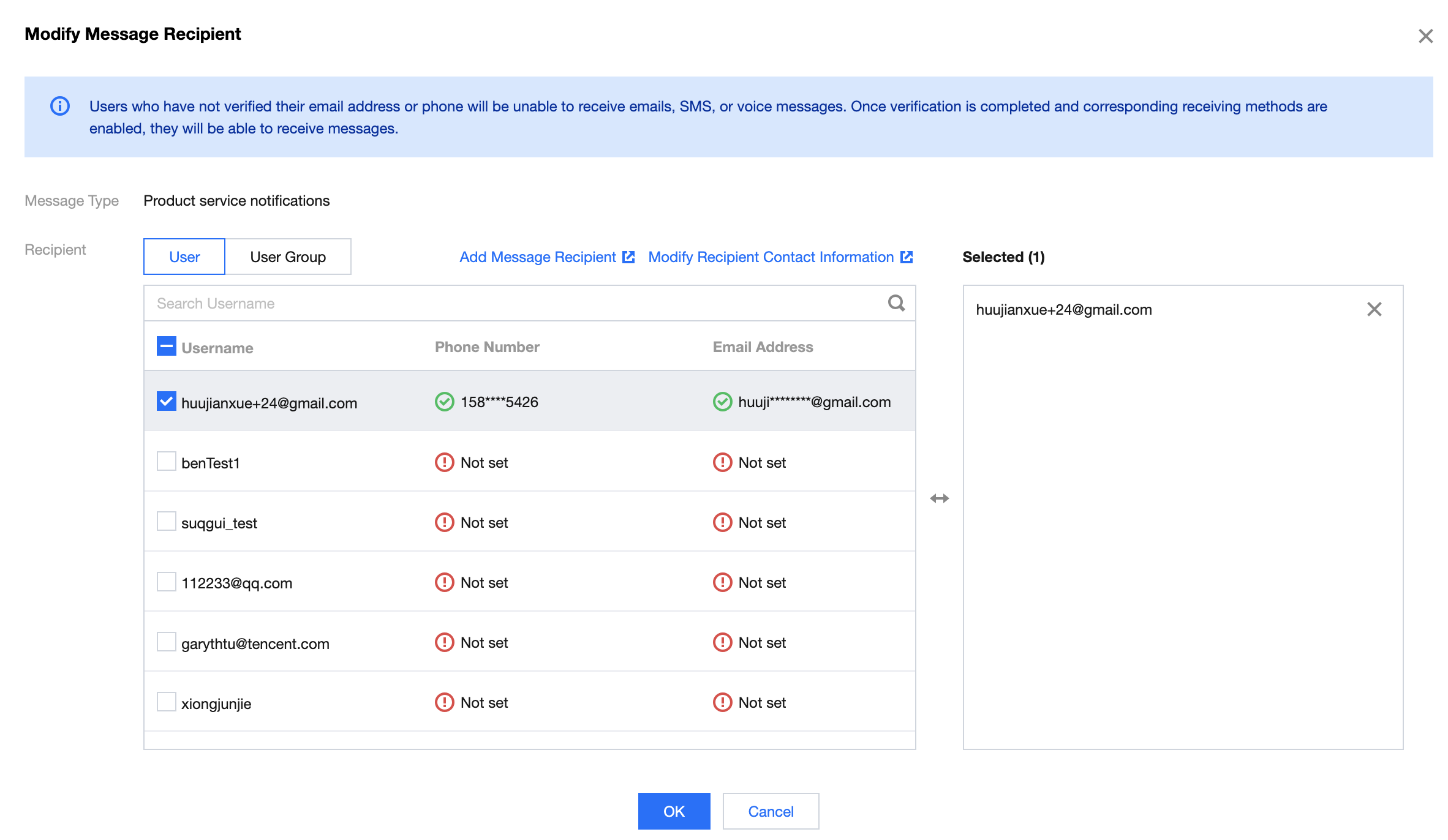
3. Select the sub-users to be notified in the pop-up for modifying message recipient. Once successfully configured, app messages can be received.
Note:
Users whose email and phone have not been verified cannot receive emails, SMS, or voice messages. They will be able to receive them after verification and enabling corresponding receiving methods.
III. Authorized Maintenance by Proxy
Scenario Description
When a sub-account initiates Ops services by proxy, the root account must assign "Security Credential Service" permission.
Operation Steps
1. Log in to CAM console, select Users > User List, find in the list the Sub-user requiring authorization, and click Authorize.
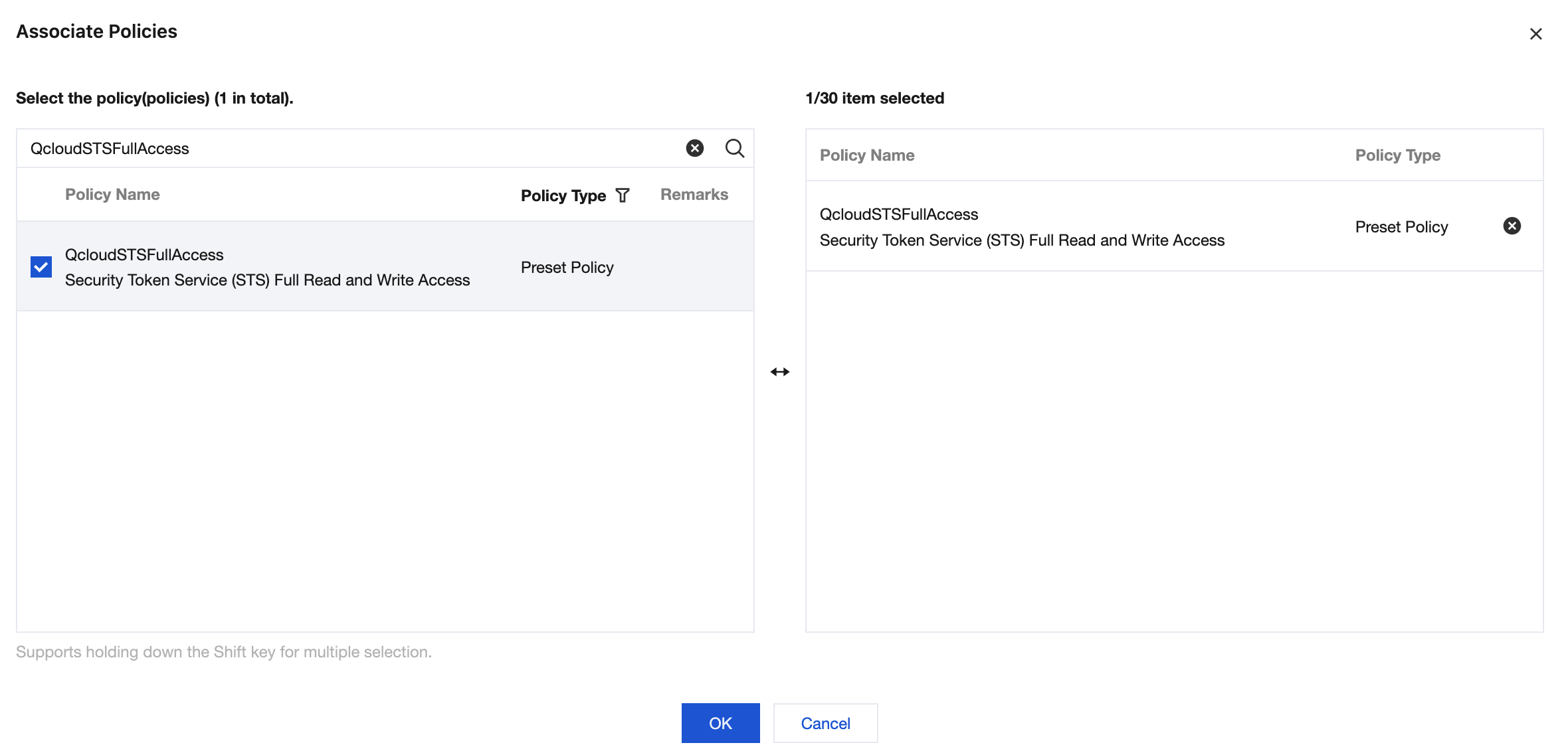
2. Copy the policy name "QcloudSTSFullAccess" in the associated policy pop-up window to perform search. Select the policy and assign it to the Sub-user.