Creating Outbound Tasks in Batches
Baixar
Modo Foco
Tamanho da Fonte
Description
There are two methods to initiate outbound calls using the AI Voice Agent. Select the appropriate method based on your operational model:
Method | Applicable Scenarios | Setup Cost |
Marketing campaigns, batch notifications, lead activation. Upload contact lists, configure retry and post-call actions, monitor real-time dashboards all without code. | Low cost. No development required. | |
Embed outbound dialing into your CRM / ticket / business system, trigger calls based on real-time events, and achieve fully programmatic control. | Medium cost. Backend integration is required. |
You can use both methods simultaneously. For example, you can run batch marketing campaigns during business hours while letting your CRM continue to trigger single callbacks via API for high-priority leads.
Prerequisite
You need to purchase the AI Agent Package.
To use the AI Outbound Calls feature, you need to integrate a self-owned phone number. You can try this feature using the test number provided after creating the application.
Batch Outbound Call Task (Console UI)
This is best suited for scenarios where you want to use the same AI Agent, the same script, and a unified retry rule to call a batch of numbers.
Creating a Batch Outbound Call Task
1. Log on to the Tencent Cloud Contact Center (TCCC) management panel. In the left sidebar, choose AI Agent Outbound Call > Initiate Task.
2. Enter the basic task information:
Task Name: Used for reports and dashboards.
AI Agent: Select the AI Agent that will handle the call. Its conversation flow / knowledge base / voice / language are all derived from the settings of this AI Agent.
Caller ID: The number that will be displayed on the called party's caller ID. You can select a single number or let the system automatically assign one from the number pool.
Called Party List: Upload a CSV file containing the target phone numbers and any custom variables (such as
customer_name and order_id) that the AI Agent will replace in the prompts at runtime. See the Variable Assignment documentation.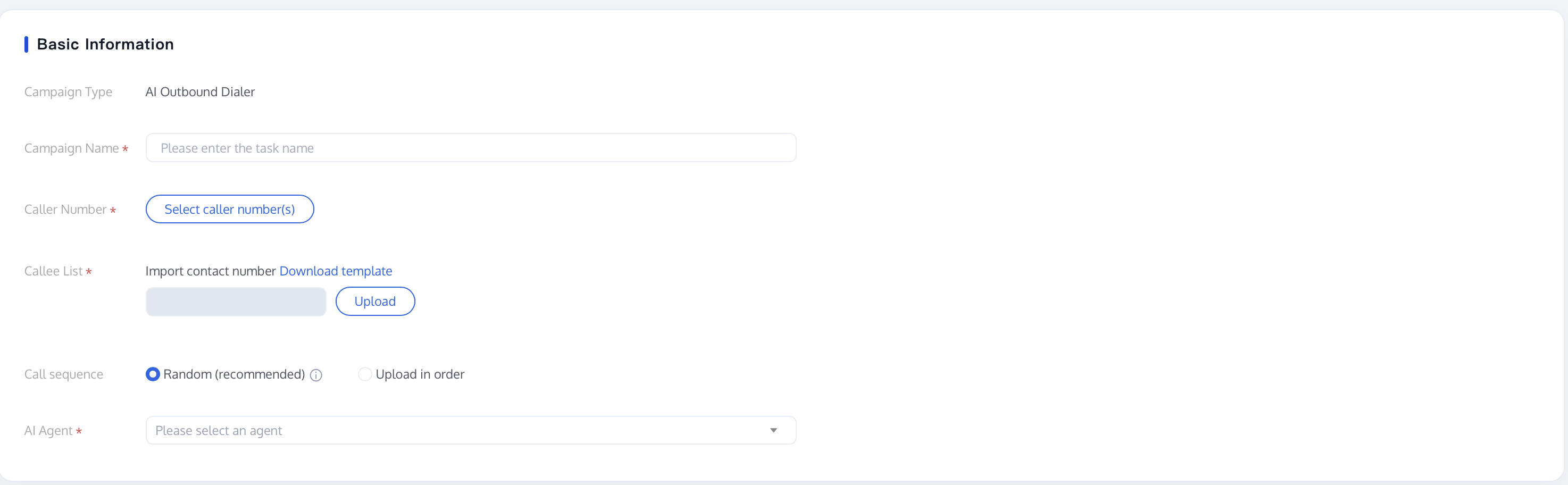
Variable Substitution (Personalizing the Script for Each Recipient)
You almost never want every called party to hear exactly the same message. The contact list allows you to include per-row variables, which the AI Agent replaces in the prompts during the call. As a result, the same conversation flow can address one customer as "Mr. Li" and another as "Ms. Wang".
How It Works
1. In your conversation flow, write any variable to be replaced as
${variable_name}for example, ${name}, ${gender}, ${order_id}. You can use them in any prompt: the Start Call opening message, the Dialogue Node script, the Transfer to Agent pre-transfer message, and so on.2. In the contact CSV you upload, create a column for each variable, plus a column for the target phone number. The header names must exactly match the variable names (case-sensitive).
3. During a call, the platform replaces each
${variable_name} reference with the value from that row before the AI Agent speaks. Example
If the conversation flow opening message is:
*"Hello, is this
${gender}${name}? This is a follow-up call regarding your recent order."* and the CSV contains:
Phone number | gender | name |
+8613800000001 | Li | Mr. |
+8613800000002 | Wang | Ms. |
Then the first called party hears "Hello, is this Mr. Li?", and the second hears "Hello, is this Ms. Wang?" both generated from the same flow, requiring no additional configuration.
Tip:
Variables can also be used within API call node parameters and knowledge base prompts. For null/missing values, the placeholder remains unchanged. Therefore, always populate this column for each row.
Time Settings
Specify the time periods during which the system is allowed to make calls:
Call Start and End Time: The start and end date of the campaign.
Outgoing call time slot: for example,
09:00–12:00 and 14:00–18:00. Numbers are only called within the active window. Numbers selected by the retry logic also adhere to this window.Configuring a Redial Policy
The retry policy determines what happens when a call does not yield the desired result. You can configure:
Retry count: Each phone number can have a total of 1 to 5 attempts (this is the per-number limit, not per condition).
Retry interval: The minimum interval between two attempts, measured in minutes.
Trigger condition: Select which outcomes should trigger a retry. Two types are supported:
Category | When to Retry | Source |
Connection status (Call not connected) | No answer, busy line, call rejected, powered off/out of service, invalid number, line restricted, system error | TCCC call status codes |
Post-call Tag (Call connected) | Any Tag written into the call record by your dialog flow at the end of a call, for example, "call back later", "wrong contact", "needs follow-up". | Tags configured in the AI Agent dialogue workflow |
A number is retried only when at least one selected condition is met and the maximum number of attempts for that number has not been reached. Numbers that are successfully connected and do not generate a retry-triggering Tag are not redialed.
Tip:
Not selecting the call status condition prevents the system from wasting attempts on invalid or disconnected numbers. Conversely, selecting post-call Tags such as "Call Back Later" enables automatic retries for high-value leads who are simply unavailable to talk at the moment.
Configuring Post-Call API Calls
If you want the platform to call one of your APIs after each call, enable Post-Call API Call. For example, this feature can send an SMS reminder to unanswered numbers or push call results to your CRM the moment the call ends.
Trigger condition: The same answer status and post-call Tag selector as the retry policy. Additionally, a termination reason category is added for answered calls: user no response, agent timeout transfer, AI hang-up, user hang-up, maximum duration reached.
Trigger frequency:
Only on first match: The API is triggered when a number meets the condition for the first time. Subsequent attempts for the same number are not triggered again. This is suitable for scenarios such as "sending only one SMS" or "creating only one CRM lead".
On every match: The API is triggered after each matching attempt. This is suitable for scenarios where every call result needs to be synchronized in real time.
API Configuration: You can either directly enter the URL and parameters or select a saved API template from the API call nodes in your dialogue flow. The following variables can be substituted into the URL / request body:
{phone} (target number), {taskId} (task ID), {callStatus} (final status), {callDuration} (call duration in seconds). The platform calls the API asynchronously and abandons the call after 8 seconds.Starting and Monitoring
After saving, the task enters the Pending state. Click Start to begin dialing.
In the task list, you can:
You can pause / resume a running task at any time.
Edit a paused task to change retry rules, contact lists, or post-call APIs in real time.
View the Task Results Dashboard: total dials, answered calls, answer rate, average call duration, number of retries, statistics categorized by post-call Tags, and progress over time.
After the task is completed, you can download the per-number result file from the dashboard for offline analysis.
Managing Tasks Programmatically
All features in the console UI are also exposed via APIs:
Operation | API |
Creating a Batch Task | |
Listing or Viewing Tasks | |
Pausing a Task | |
Recovery Task |
Related Guides
Select the corresponding path based on your deployment method:
First time using? You can deploy a usable AI Agent in just five minutes create a conversation flow or integrate an external model.
Want to learn about our conversation flow nodes? Go to Conversation Nodes.
Build a knowledge base for your conversation flow? Go to Build Your Knowledge Base.
How to test your model? Refer to Test Conversation Workflow.
Configure a voice AI Agent with your own model? Go to Integrate External Model, Edit Conversation Content, Configure Voice Interaction, and Add Call Control.
Want to view application scenarios? Try Voice Notification, Lead Mining, Feedback Collection, or Customer Support.
How to make outbound and inbound calls with an AI Agent? Refer to AI Agent Outbound Calls or AI Agent Inbound Calls.
View data logs? Refer to Call Records, Call Recordings, Latency.
How to create and view post-call tags? Refer to Post-Call Tags (Created via Conversation Flow) or Post-Call Tags (Created via External Large Model).
Ajuda e Suporte
Esta página foi útil?
Você também pode entrar em contato com a Equipe de vendas ou Enviar um tíquete em caso de ajuda.
comentários