tencent cloud

Anti-DDoS

Release Notes and Announcements
Release Notes
Announcements
Product Introduction
Overview
Strengths
Use Cases
Concepts
Blocking Policies
Relevant Products
Comparison of Anti-DDoS Solutions
Purchase Guide
Billing Overview
Purchase Directions
Getting Started
Anti-DDoS Pro
Anti-DDoS Advanced
Operation Guide
Operation Overview
Protection Overview
Usage Limits
Asset Center
Business Connection
Smart Scheduling
Protection Configuration
Security Operations
Service Management
Practical Tutorial
Remote Protection Scheme with Anti-DDoS Pro
Using Anti-DDoS Pro Together with WFA
Suggestions on Stress Tests
Solutions to Real Server IP Exposure
Creating an Anti-DDoS EIP
Configuration Directions and Notes on CC Protection Policies
Syncing Forwarding Rules to New Anti-DDoS Advanced Instances
‌Smart Scheduling of CTCC/CUCC/CMCC Traffic
Troubleshooting
Business IPs Blocked Due to High-traffic Attacks
‌Business IPs Blocked When DDoS Attack Traffic Doesn't Reach the Threshold
How to Fix a 502 Bad Gateway Error
"No ICP filing" Prompted During Domain Name Connection
A public IP suffered DDoS attacks
API Documentation
History
Introduction
API Category
Making API Requests
Anti-DDoS Advanced Instance APIs
Resource List APIs
Protection Configuration APIs
Other APIs
Alarm Notification APIs
Connection Configuration APIs
Intelligent Scheduling APIs
Black hole unblocking APIs
Statistical Report APIs
Data Types
Error Codes
FAQs
Blocking
Attacks
Features
Billing
Service Level Agreement
Product Policy
Privacy Policy
Data Processing And Security Agreement
Glossary

Website Business Connection

PDF
Focus Mode
Font Size
Last updated: 2024-07-01 11:20:28
This document describes how to connect a website business to an Anti-DDoS Advanced instance and verify the forwarding configuration.

Prerequisite

To add a forwarding rule, you need to purchase an Anti-DDoS Advanced (Chinese Mainland) or Anti-DDoS Advanced (Global) instance.
To modify the DNS information of your business domain name, you need to purchase a DNS service, such as Tencent Cloud DNSPod.

‍Process


Directions

Configuring forwarding rules

1. Log in to the new Anti-DDoS console, and click Business Access > Access via domain name on the left sidebar.
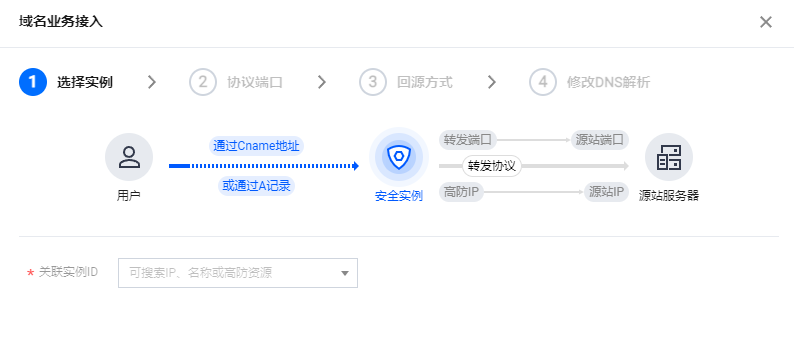
2. On the Access via domain name tab, click Start access.

3. On the Access via Domain Name page, select an associated instance ID and click Next: Set Protocol Port.
Note:
You can select multiple instances.

4. Select a forwarding protocol and certificate, specify a domain name, and then click Next: Set Forwarding Method.

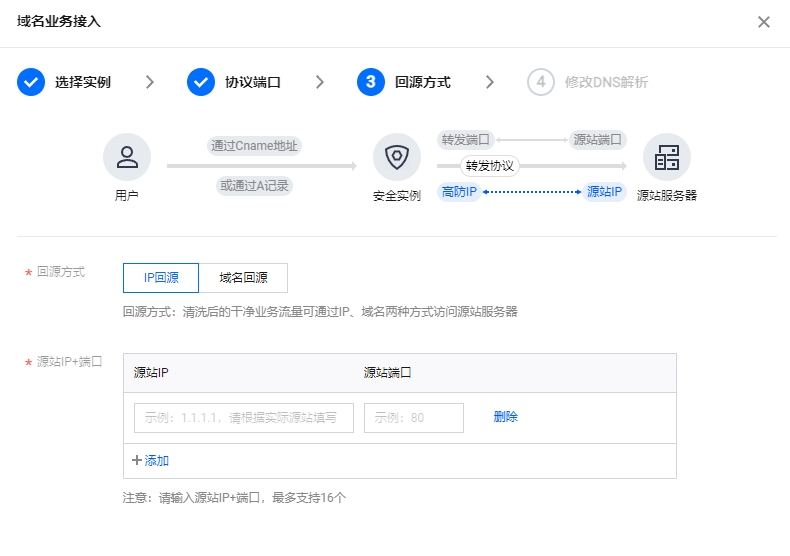
5. Select a forwarding method, specify a real server IP and port or a real server domain name, and then click Next: Modify DNS Resolution.

Note:
An alternate real server is used when the forwarding to the real server fails.
Only the standard protocol p‌orts 80 (HTTP) and 443 (HTTPS).
Wildcard domain names are supported.
6. Click Complete.
Note:
After you have connected to the service, you can customize your protection settings on the Configurations page. For more information, see Protection Configuration.

Allowing forwarding IP ranges

Allow the Anti-DDoS's forwarding IP in the firewall rules of the origin server or disable the firewall to , so that the forwarding IP will not be affected by the security policies of the real server.

1. Log in to the new Anti-DDoS console and click Anti-DDoS instances on the left sidebar.
2. On the Anti-DDoS instances page, select a target instance and click the instance ID.

3. On the Basic information page, you will see the forwarding IP ranges.


Verifying configuration locally

After the forwarding configuration is completed, the Anti-DDoS Advanced IP will forward packets from the relevant port to the corresponding real server port according to the forwarding rules. To ensure the stability of your business, a local test is recommended. The verification methods are as follows:
1. Edit the local hosts file to direct local requests to the protected site to your Anti-DDoS Advanced instance. The following uses Windows OS as an example to describe how to configure the local hosts file: Open the hosts file in C:\\Windows\\System32\\drivers\\etc and add the following content at the end of the file:
<Anti-DDoS Advanced IP> <Domain name of the protected website>
2. For example, if the Anti-DDoS Advanced IP is 10.1.1.1 and the domain name is www.qqq.com, add:
10.1.1.1 www.qqq.com
Save the hosts file and ping the protected domain name on the local computer. If the resolved IP address is the Anti-DDoS Advanced IPs bound in the hosts file, the local hosts configuration has taken effect.
Note:
If the resolved IP is still the real server IP, try running ipconfig/flushdns in the Windows Command Prompt to refresh the local DNS cache.
3. After confirming the protective IP bound in the hosts file has taken effect, check whether the domain name can be accessed. If it can be accessed properly, the configuration has taken effect.
Note:
If the verification still fails with the correct method, log in to the Anti-DDoS Advanced console and check the configuration. If the problem persists, please submit a ticket.

Modifying DNS resolution

To modify DNS resolution, see Configuring Smart Scheduling.
Note:
The DNS resolution address should be changed to the CNAME address provided, which will be updated from time to time. (Non-BGP resources are not supported).


Help and Support

Was this page helpful?

Help us improve! Rate your documentation experience in 5 mins.

Feedback