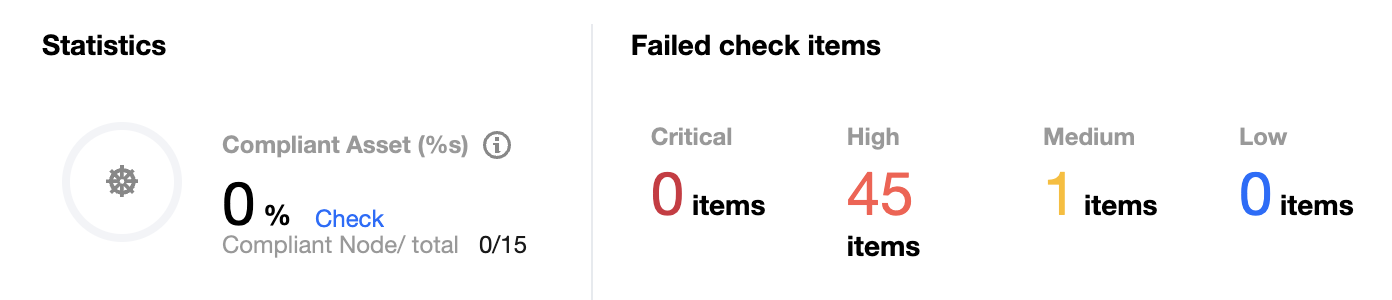
The Kubernetes page displays the baseline compliance details of Kubernetes assets against CIS Benchmarks, including statistics, check information, and the list of check results.
Viewing the Kubernetes Overview
1. Log in to the TCSS console and click Baseline Management > Kubernetes on the left sidebar.
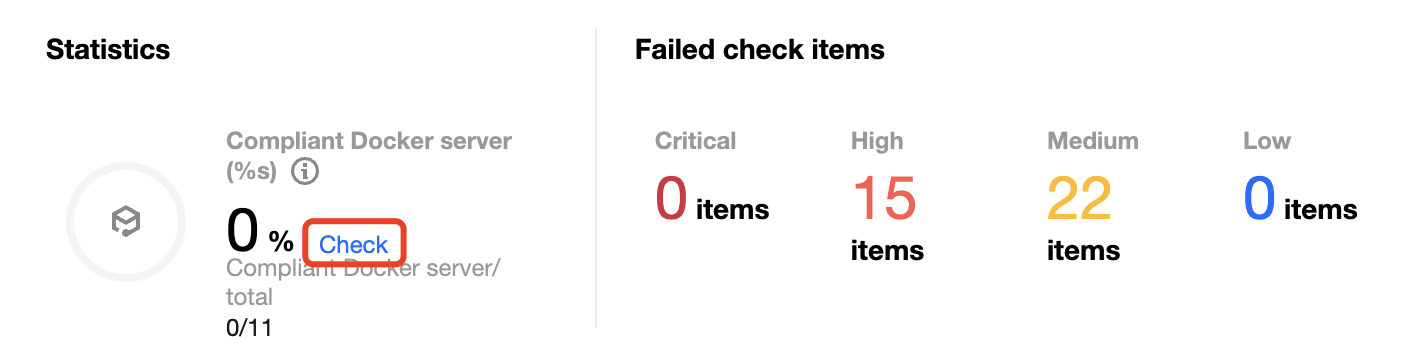
2. On the Kubernetes page, the Statistics window displays the check pass rate and the numbers of check items at the critical, high, medium, and low severity levels.
Note:
The check pass rate is calculated as the number of passed check items/the total number of check items.
3. On the Kubernetes page, click View next to the proportion to pop up the drawer, which displays the list of check results.
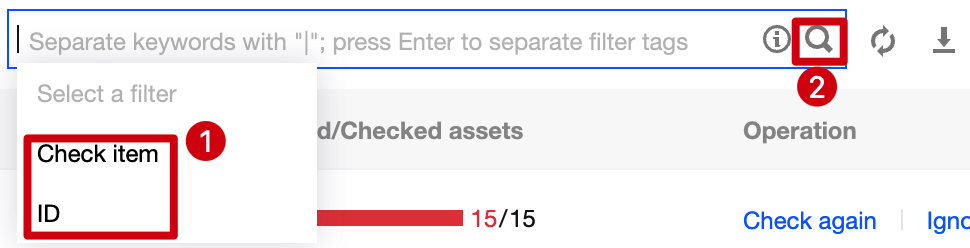
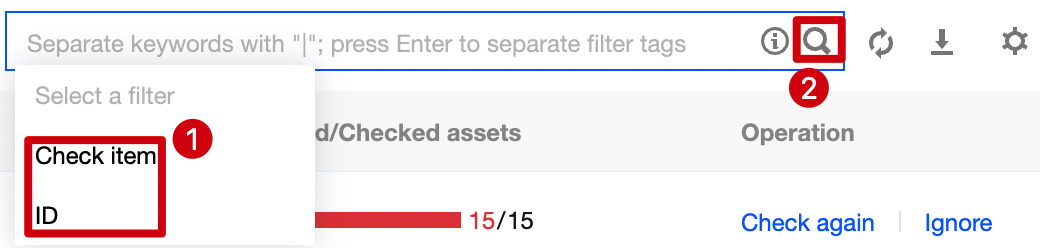
4. On the Kubernetes page, click the search box and search for check results by check item or ID.
5. On the Kubernetes page, click
to select the target check item and click Check again > OK to check it again.
Note:
You can batch check Kubernetes check items again by selecting them and clicking Check again next to ②.
Viewing the Check Information
1. Log in to the TCSS console and click Baseline Management > Kubernetes on the left sidebar.
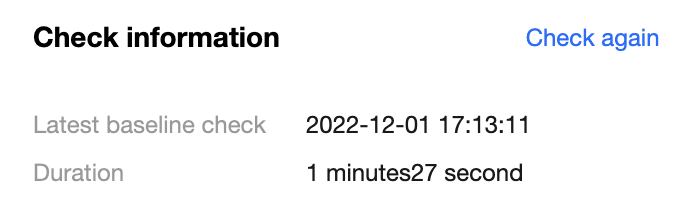
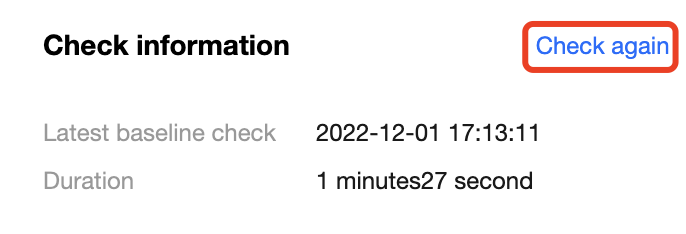
2. On the Kubernetes page, the Check information window displays the last baseline check time, check duration, and configured automatic check schedule.
3. On the Kubernetes page, click Check again to perform a baseline check on the Kubernetes asset.
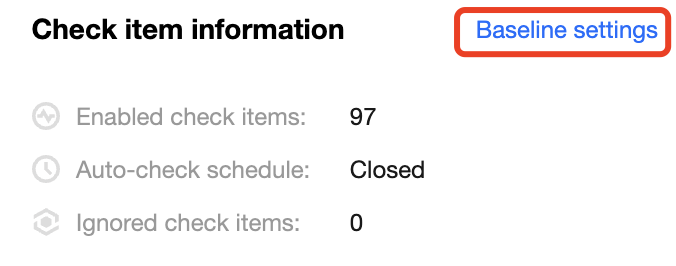
4. On the Kubernetes page, click Baseline settings to set the baseline policy and baseline ignored list.
Setting the baseline policy
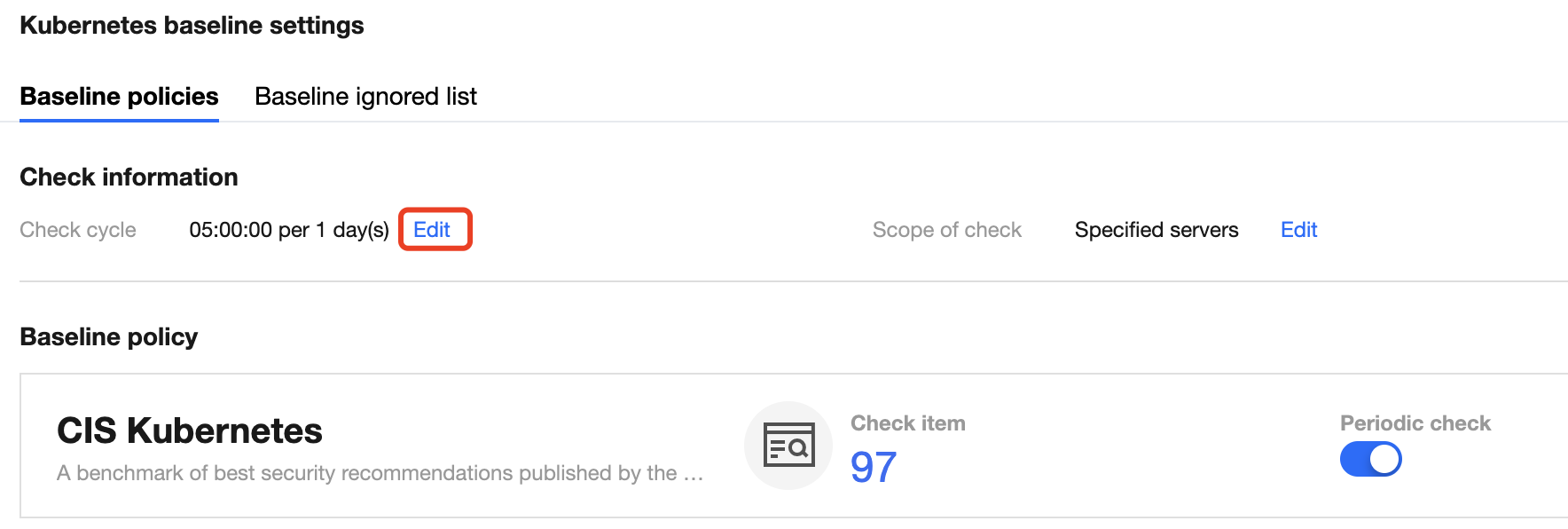
The Baseline policies tab displays the baseline for the current asset check and the number of check items.
1. On the Baseline policies tab, toggle on or off
to enable or disable the periodic check against the current baseline.
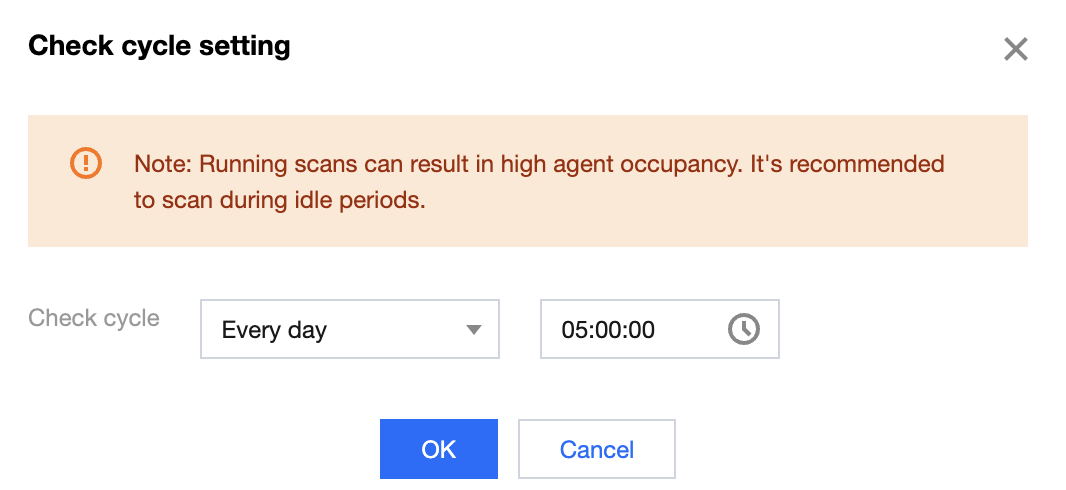
2. On the Baseline policies tab, click Edit next to the check cycle to pop up the Check cycle setting window.
3. In the pop-up window, set the check cycle to every day, every 3 days, every 7 days, or a specified time range.
4. Click OK.
Baseline ignored list
The Baseline ignored list tab displays the ignored check items of the container.
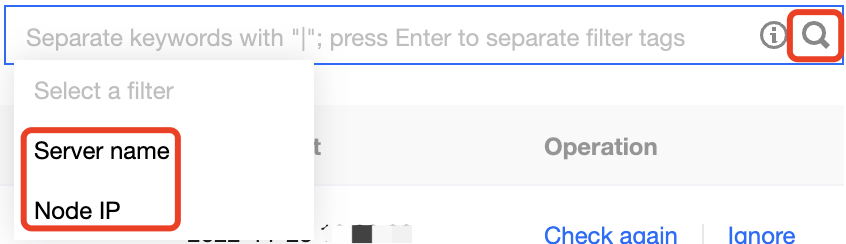
1. On the Baseline ignored list tab, click the search box and search for Kubernetes check items by check item, server name, or server IP.
2. On the Baseline ignored list tab, click
to select the target Kubernetes check item and click Unignore to unignore it.
Note:
After a check item is unignored, it will be considered as normal.
Viewing the List of Check Results
Filtering and refreshing check items
1. Log in to the TCSS console and click Baseline Management > Kubernetes on the left sidebar.
2. On the Kubernetes page, click the search box and search for Kubernetes check items by check item.
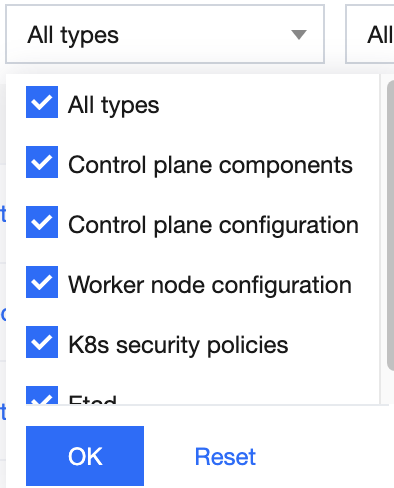
3. On the Kubernetes page, click the type drop-down list in the top-left corner and filter Kubernetes check items by type.
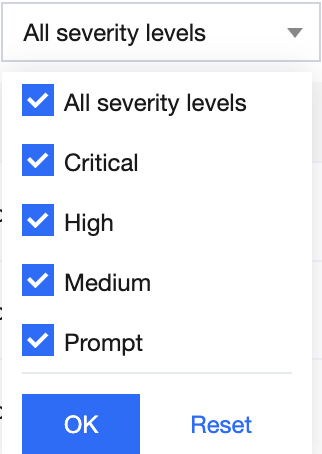
4. On the Kubernetes page, click the severity drop-down list in the top-left corner and filter Kubernetes check items by severity.
5. On the Kubernetes page, click
on the right of the Operation column to refresh the Kubernetes check items.
Checking a check item again
1. Log in to the TCSS console and click Baseline Management > Kubernetes on the left sidebar.
2. On the Kubernetes page, click
to select the target check item and click Check again > OK to check it again.
Note:
You can batch check Kubernetes check items again by selecting them and clicking Check again next to ②.
Ignoring a check item
1. Log in to the TCSS console and click Baseline Management > Kubernetes on the left sidebar.
2. On the Kubernetes page, click
to select the target Kubernetes check item and click Ignore > OK to ignore it.
Note:
You can batch ignore Kubernetes check items by selecting them and clicking Ignore next to ②.
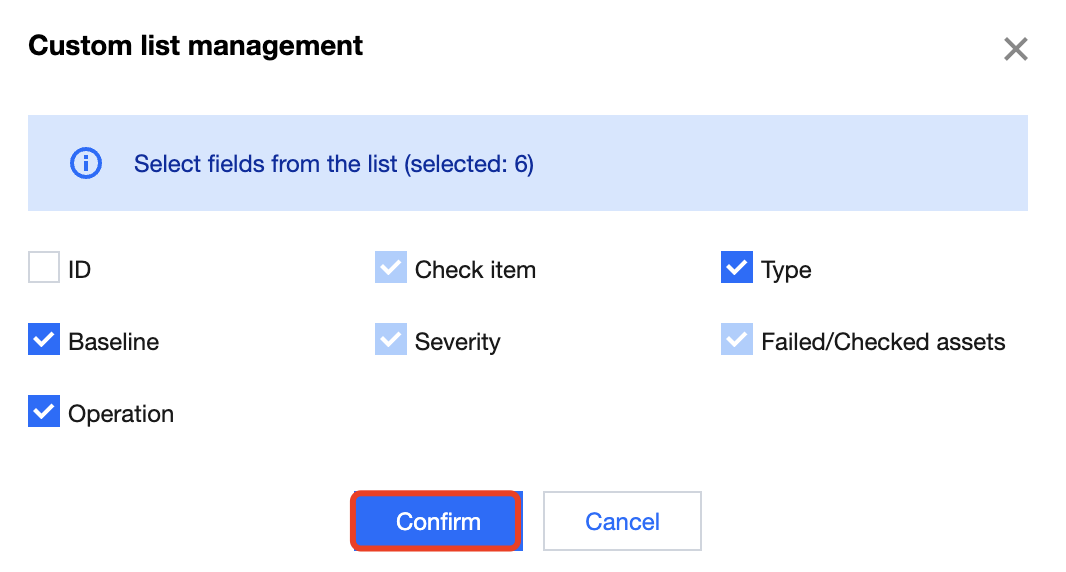
Custom list management
1. Log in to the TCSS console and click Baseline Management > Kubernetes on the left sidebar.
2. On the Kubernetes page, click
to pop up the Custom List Management window.
3. In the pop-up window, select the target type and click OK.
Key fields in the list
1. ID: ID of the check item, which is globally unique.
2. Check item: Check content. You can click a check item to view the details.
3. Type: Type of the check item.
4. Baseline standard: Baseline standard of the check item.
5. Severity: Severity of the check item, which can be Critical, High, Medium, Low, or Prompt.
6. Result: Numbers of passed and failed assets for the current check item.