NAT Boundary Firewall and VPC Boundary (Primary/Secondary) Firewall are privately deployed, with their engines dedicated to the tenant. Therefore, users need to manually update the engines. The following are the upgrade operation instructions.
Note:
Taking the NAT Boundary Firewall as an example, the VPC boundary (primary/secondary) firewall follows the same procedure.
Query Upgradable Firewall Instances
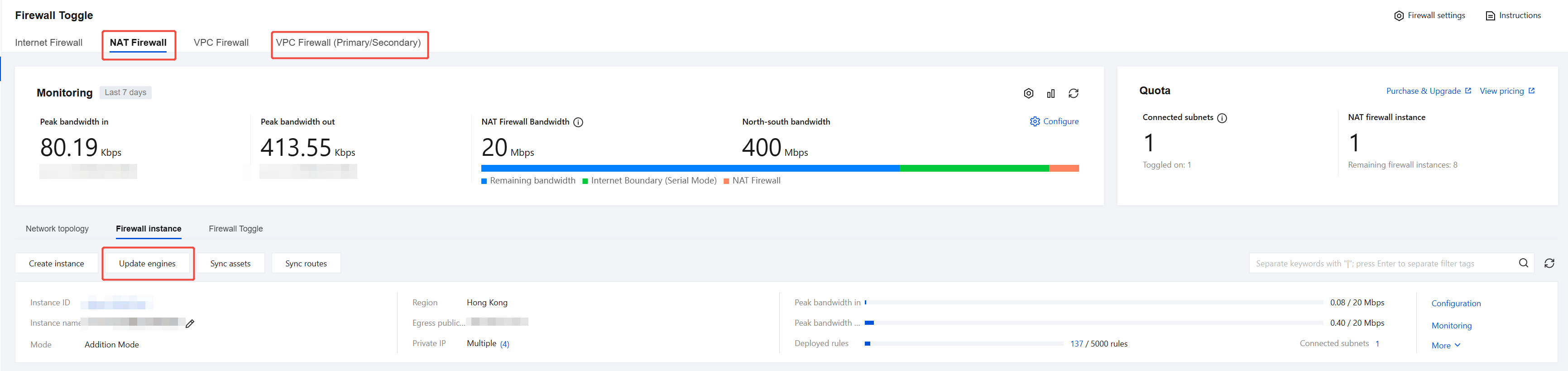
1. Log in to CFW console, in the left sidebar, choose Firewall Toggle > NAT Firewall.
2. On the Firewall Instances page, click Update engines to view the latest engine version and upgradable instances.
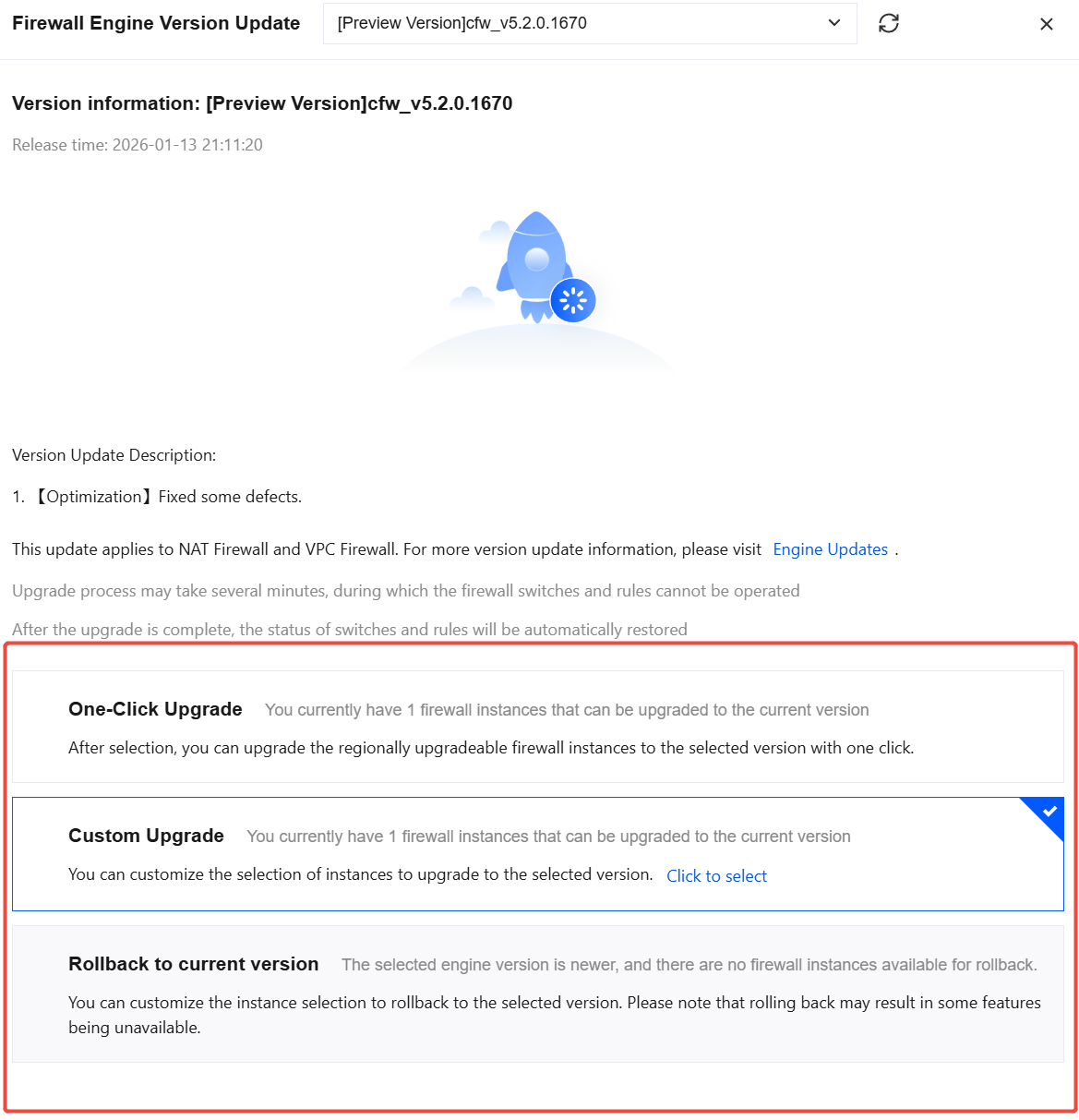
3. We will select the latest stable version by default. If there are upgradable firewall instances, the upgrade option below will become selectable.
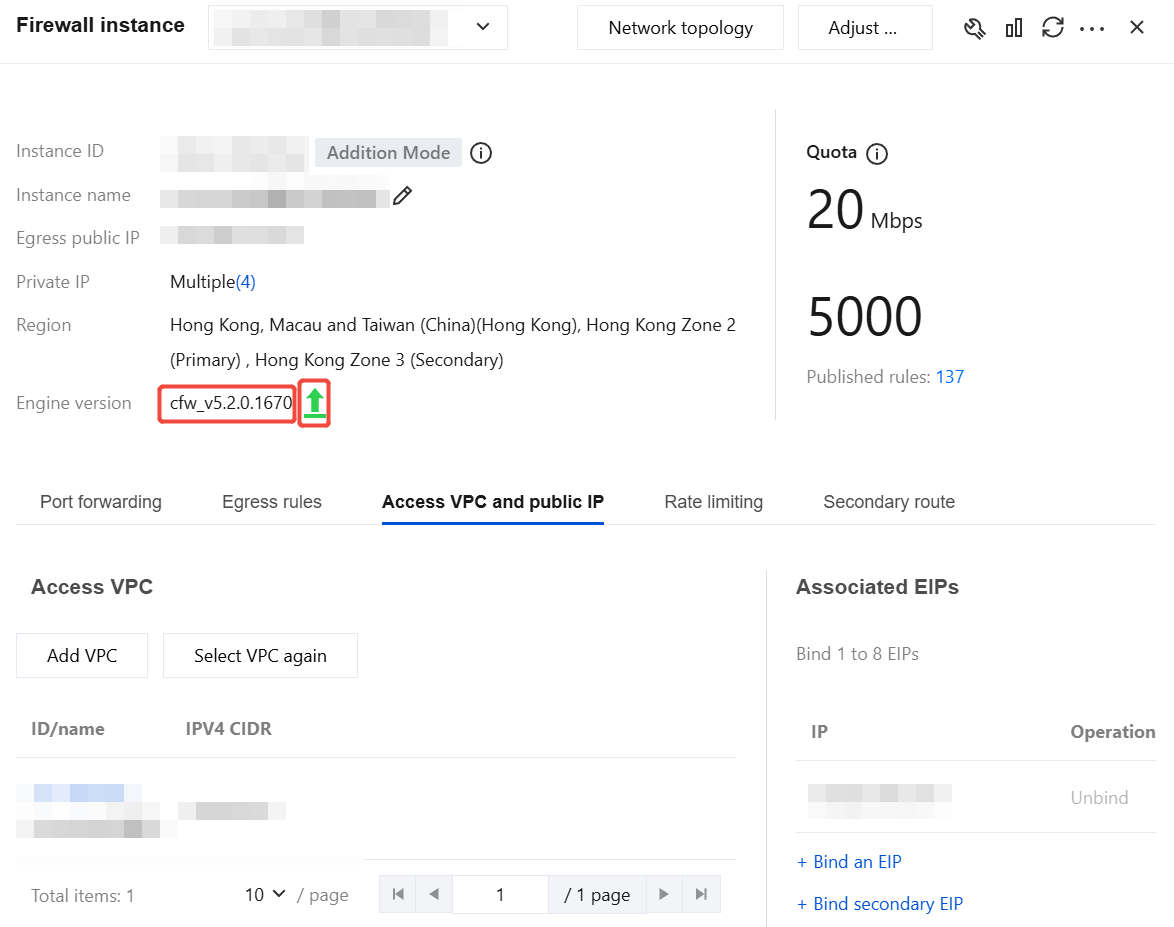
4. You can also view the engine version of specific instances and whether they can be upgraded.
Click the corresponding Instance ID or Configuration to go to the Firewall Instances page.
5. Compare the current engine version with the version list provided in Engine Release Notes to see whether it can be upgraded. If it can be upgraded, an
icon will appear on the right side of the engine version.
Upgrade Firewall Engine Version
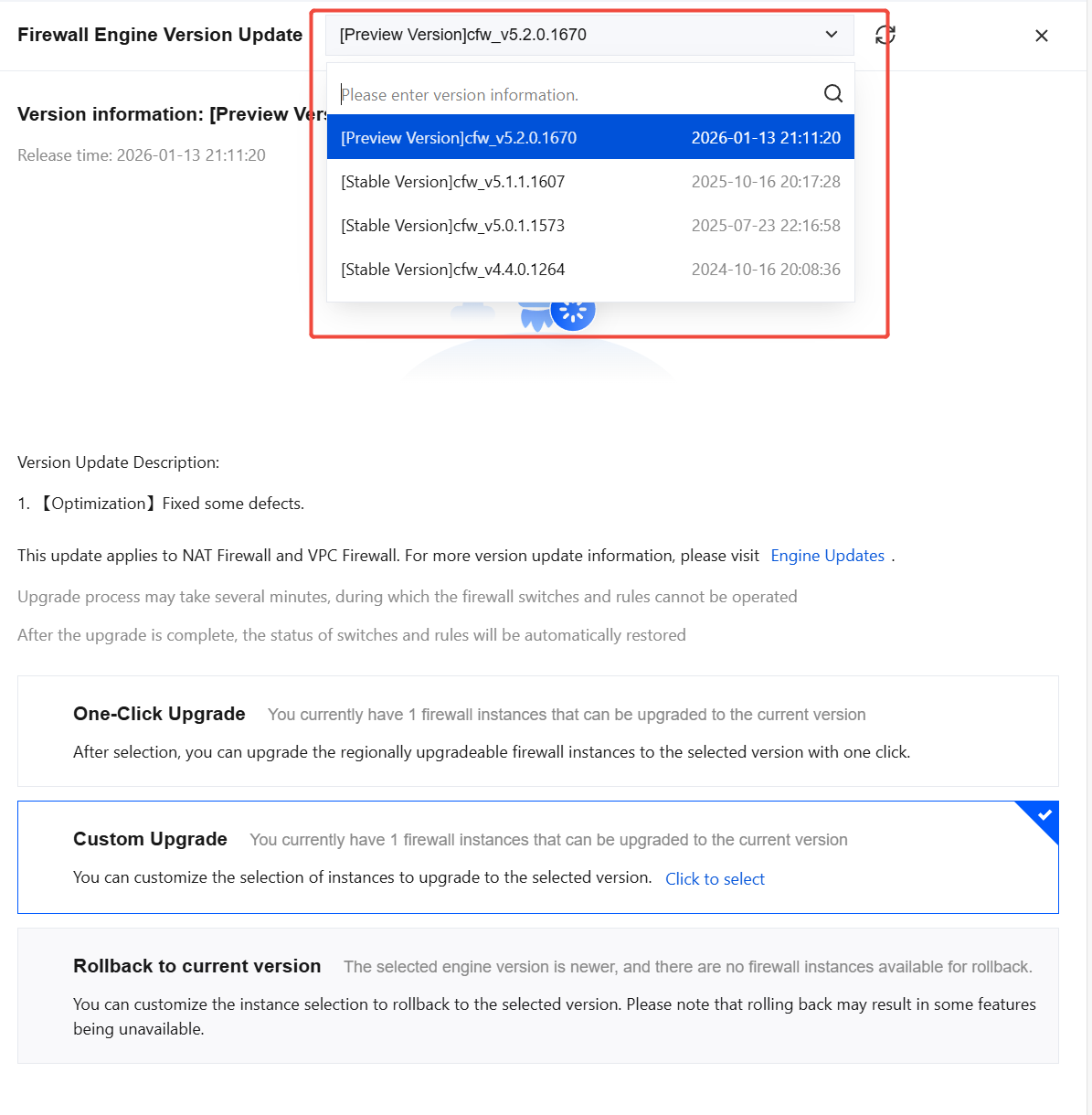
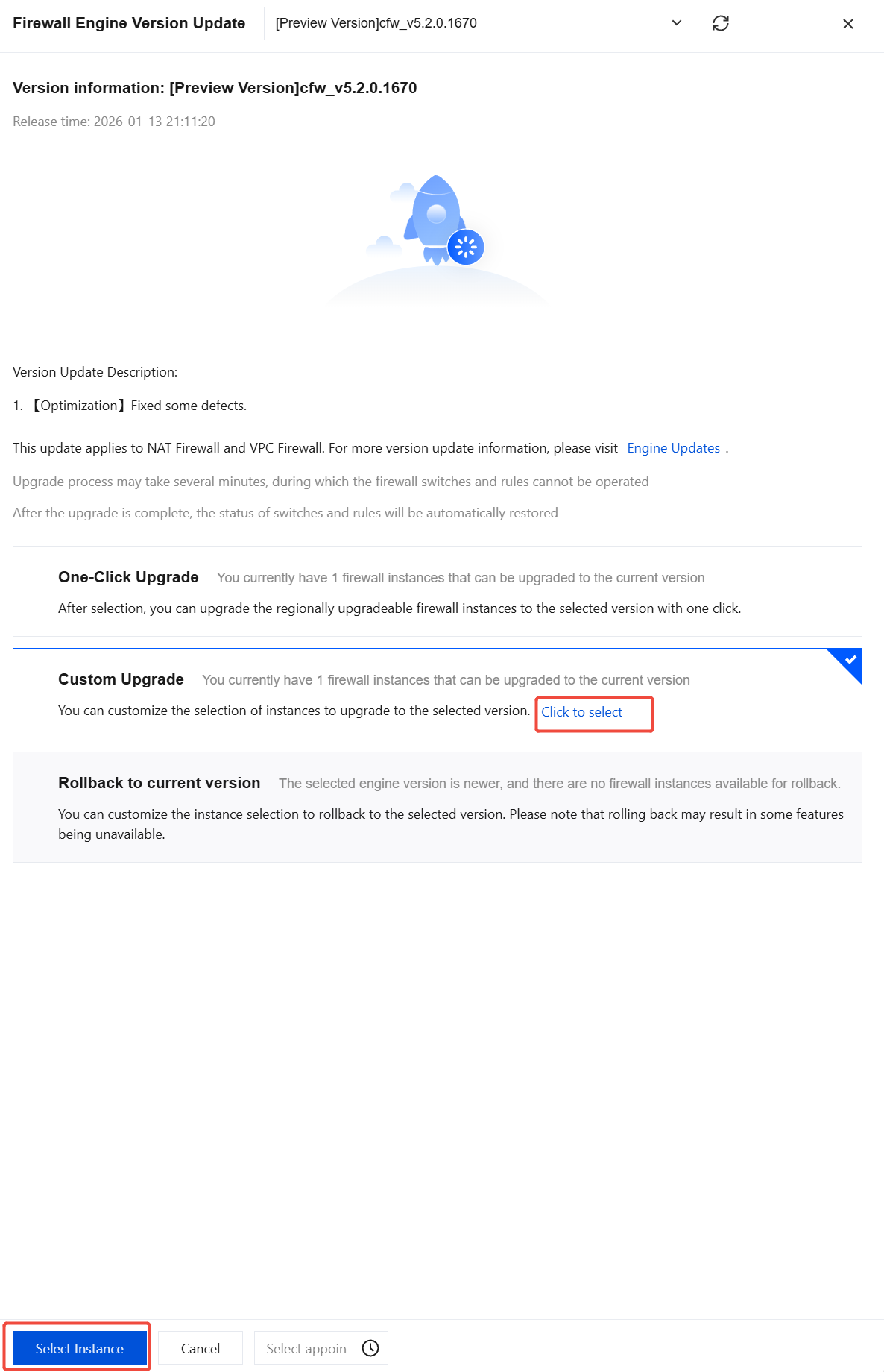
1. Refer to the above section to go to the engine upgrade page and select the engine version to upgrade to at the indicated location.
Note:
Preview version is the latest engine version, containing the latest features and bug fixes; Stable version is a version that has been verified through long-term stability testing in production environments, generally lagging behind the preview version by one major version.
We recommend that you update the engine to the latest stable version in a timely manner. For version details, see Engine Release Notes.
2. Select the engine instances that need to be upgraded.
One-click upgrade: When this option is selected, it will automatically identify all firewall engine instances of the current version in all regions and upgrade them to the selected version.
Custom upgrade: You can manually select instances for upgrade. Click Click to Select/Select Instances to go to the instance selection page.
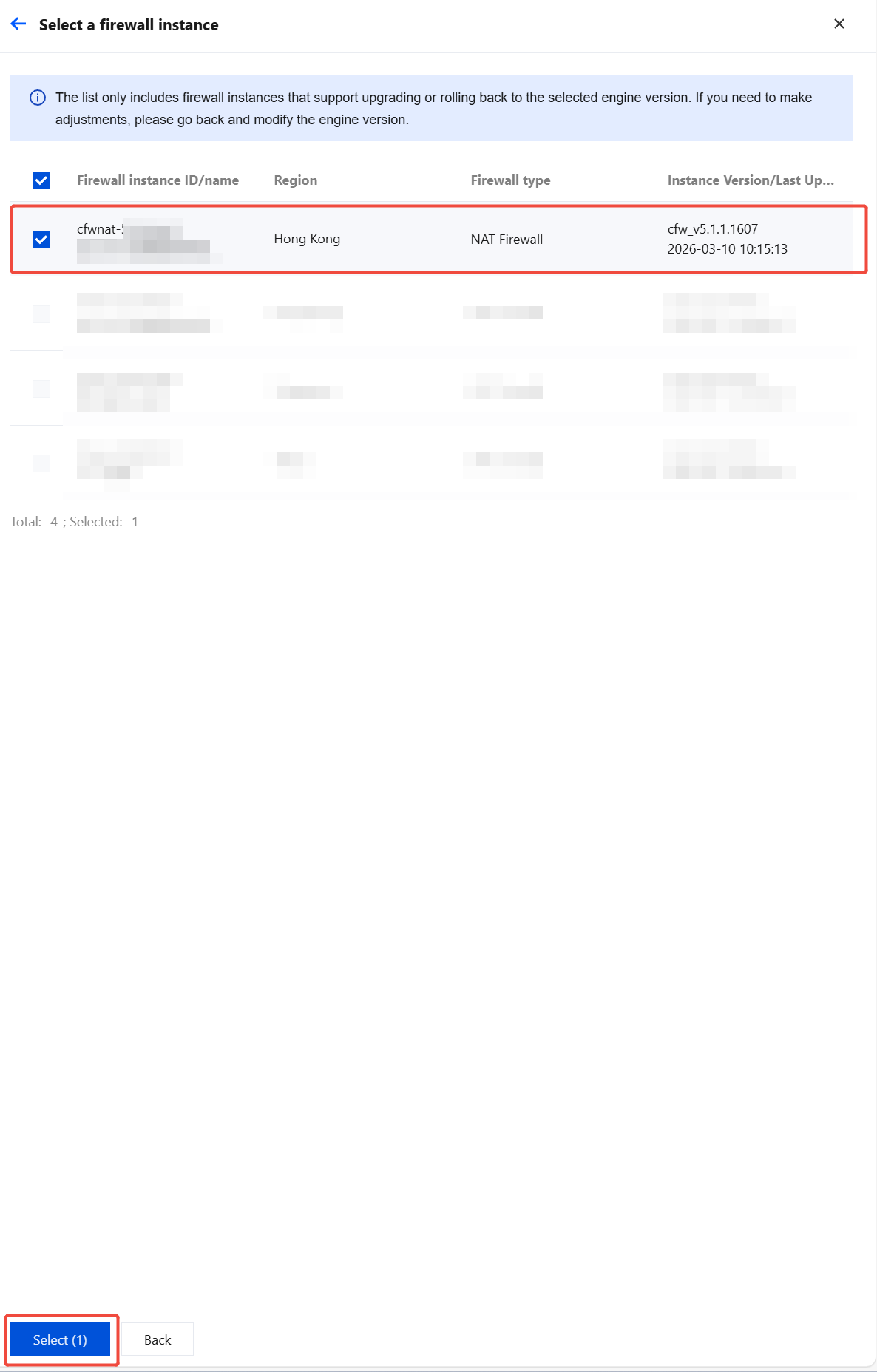
3. On the instance selection page, select the instances to be upgraded and click Select.
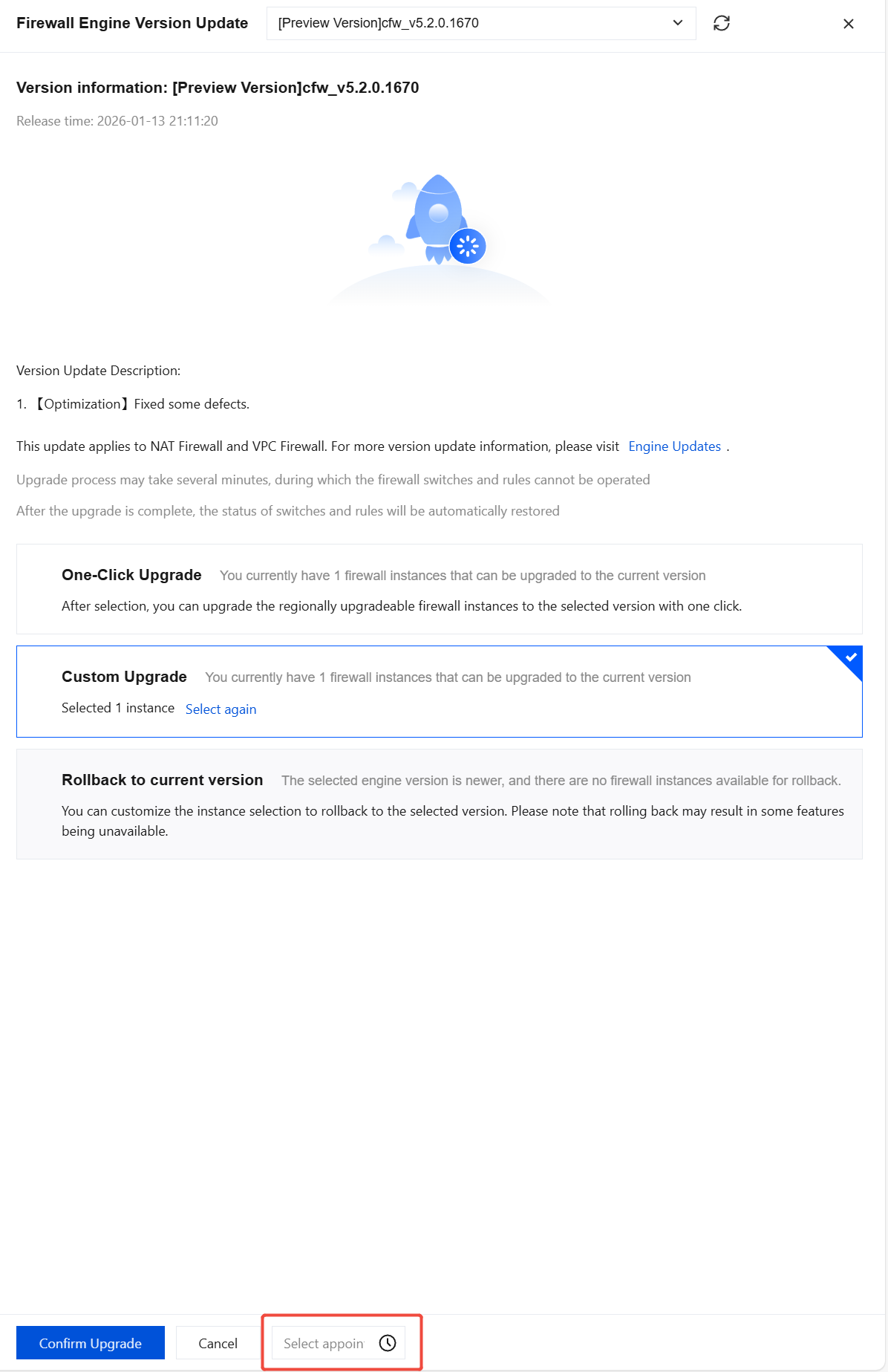
4. Click Confirm Upgrade to initiate the upgrade task.
Note:
During the upgrade, which may take a few minutes, the Firewall Toggle and rules will be unavailable. After completion, the status of the Firewall Toggle and rules will be automatically restored.
The upgrade process will first upgrade the secondary node and then the primary node. During the upgrade, a primary/secondary failover will be triggered, which may cause slight network jitter. However, the service will not be interrupted. It is recommended to perform upgrades during off-peak business hours.
Scheduled Time Upgrade
1. After completing steps 1 and 2 of the above section, click Select appoin at the indicated location.
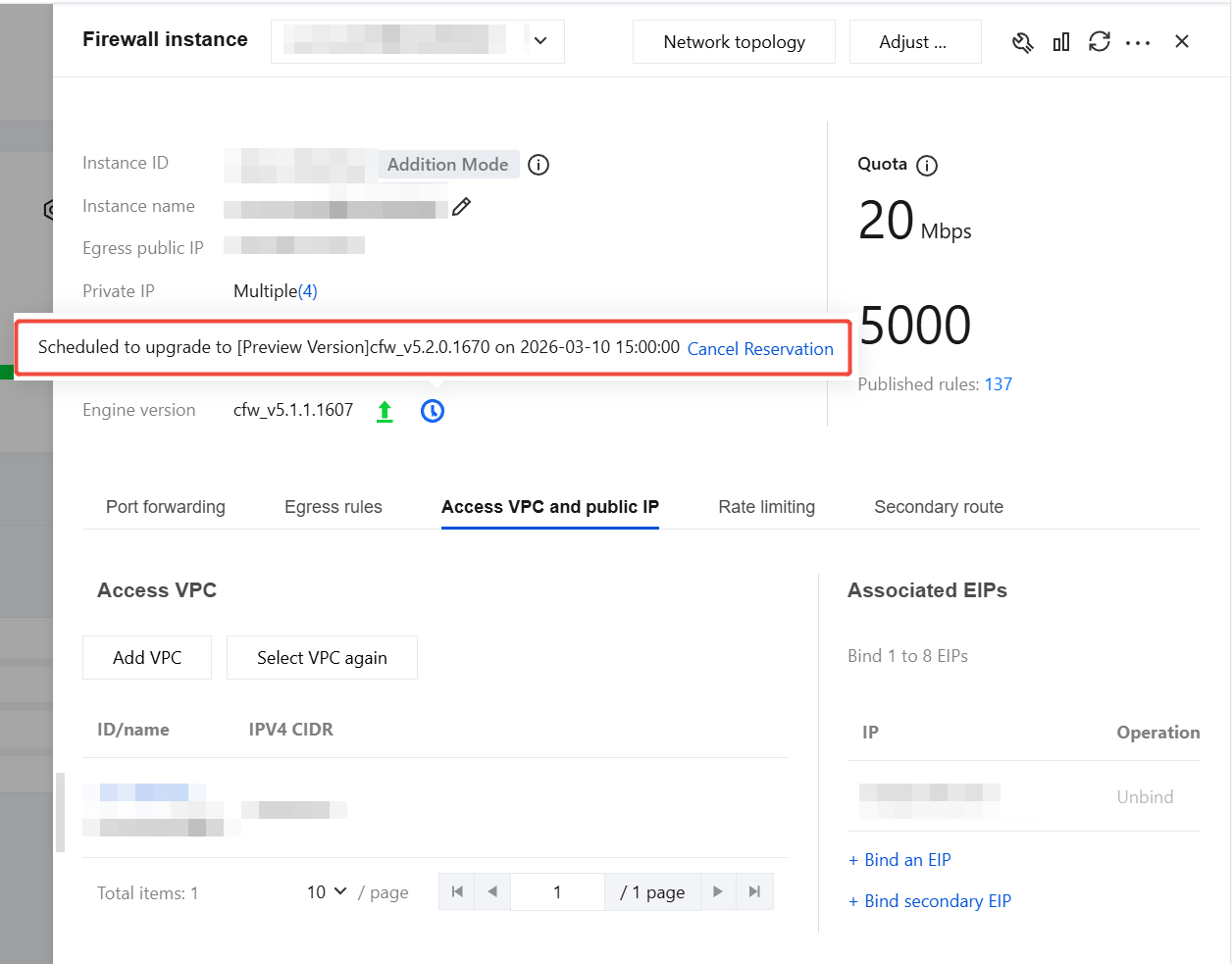
2. Confirm the upgrade task status.
Go to the corresponding firewall instance page. You can see the scheduled upgrade task at the indicated engine version location. You can cancel this reservation by clicking Cancel Reservation or re-executing the engine upgrade operation.