Rule Backup
Download
Mode fokus
Ukuran font
When access control rules are modified, the system supports backing up existing rules and rolling back the backed-up rules to the corresponding rule list.
Rule Backup
1. Log in to CFW console, in the left sidebar, click Access Control.
2. On the Access Control page, click Rule Backup in the upper-right corner.

3. In the Back up and roll back rules dialog, you can create backup manually or set up auto-backup.
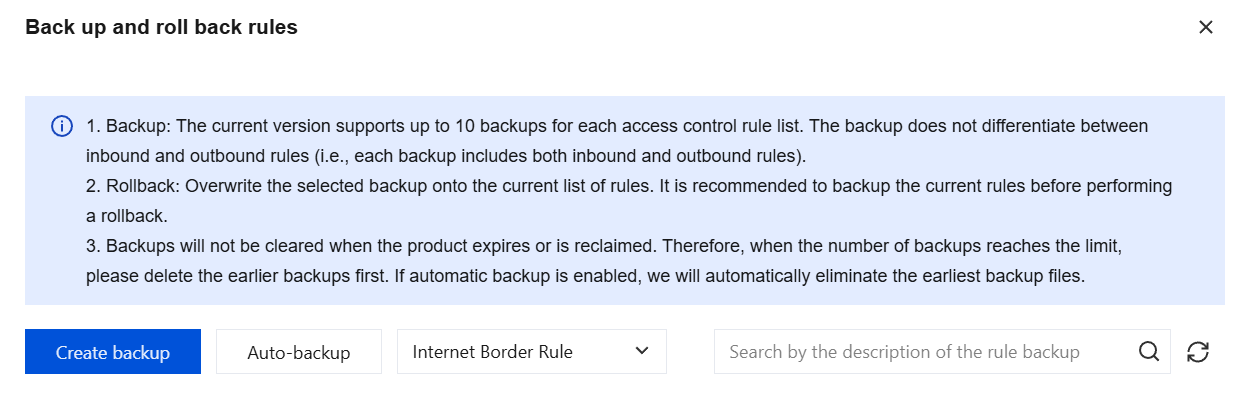
Create backup
1. In the Back up and roll back rules dialog, click Create backup
2. Select the rule list to be backed up and fill in the description.
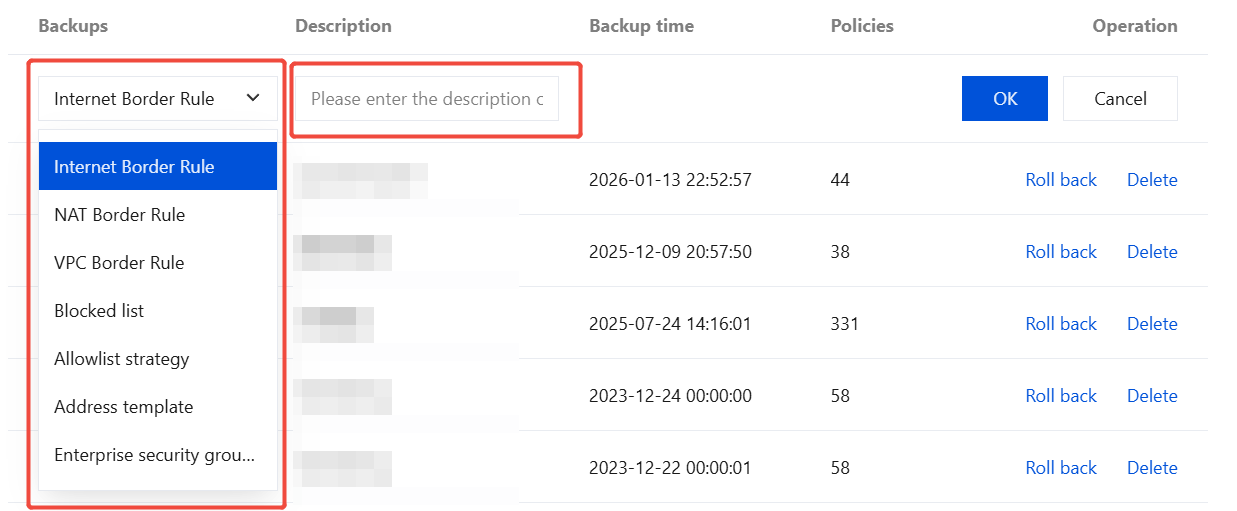
3. Click OK to complete adding the new rule backup.
Auto-backup
1. In the Back up and roll back rules dialog, click Auto-backup.
2. In the Auto-backup settings dialog, configure the following parameters:
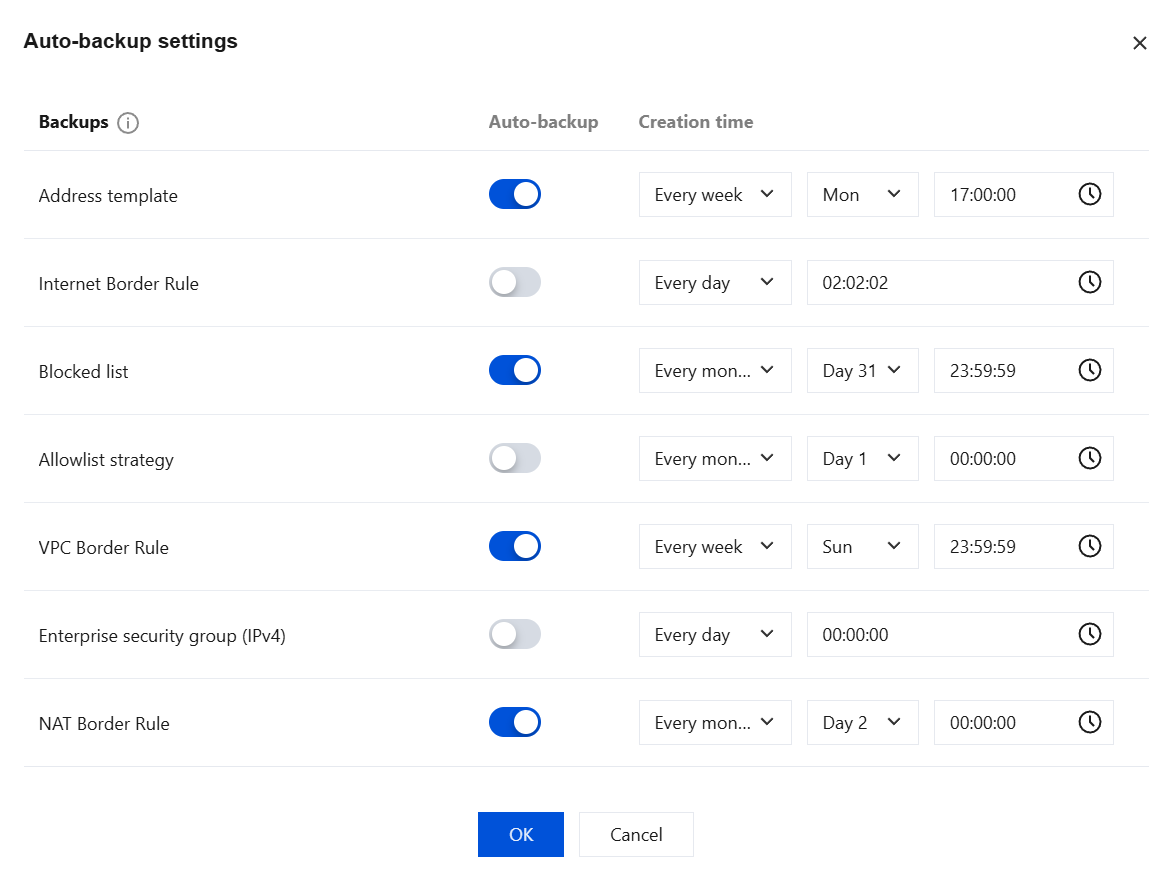
Parameter | Description |
Backups | It displays all rule lists that can be set for automatic backups. |
Auto-backup | When it is enabled, automatic backups will be performed at the scheduled time. When it is disabled, automatic backups will no longer be performed. |
Creation time | Set the execution cycle and specific time for automatic backups. The following three cycle types are supported: Every day: Select the specific time to perform daily backups. Every week: Select a specific day from Monday to Sunday and set the backup execution time. Every month: Select a specific day from the 1st to the 31st and set the backup execution time. Note: When monthly backup is selected, if the chosen date exceeds the actual number of days in that month (for example, selecting the 31st when there are only 30 days), the backup will be performed on the last day of that month. |
3. Click OK to complete the automatic backup setup. The configuration takes effect immediately.
Backup Management
1. Log in to CFW console, in the left sidebar, click Access Control.
2. On the Access Control page, click Rule Backup in the upper-right corner.

3. In the policy backup and rollback dialog, select the rule list to be managed, or enter a description in the search box on the right to search.
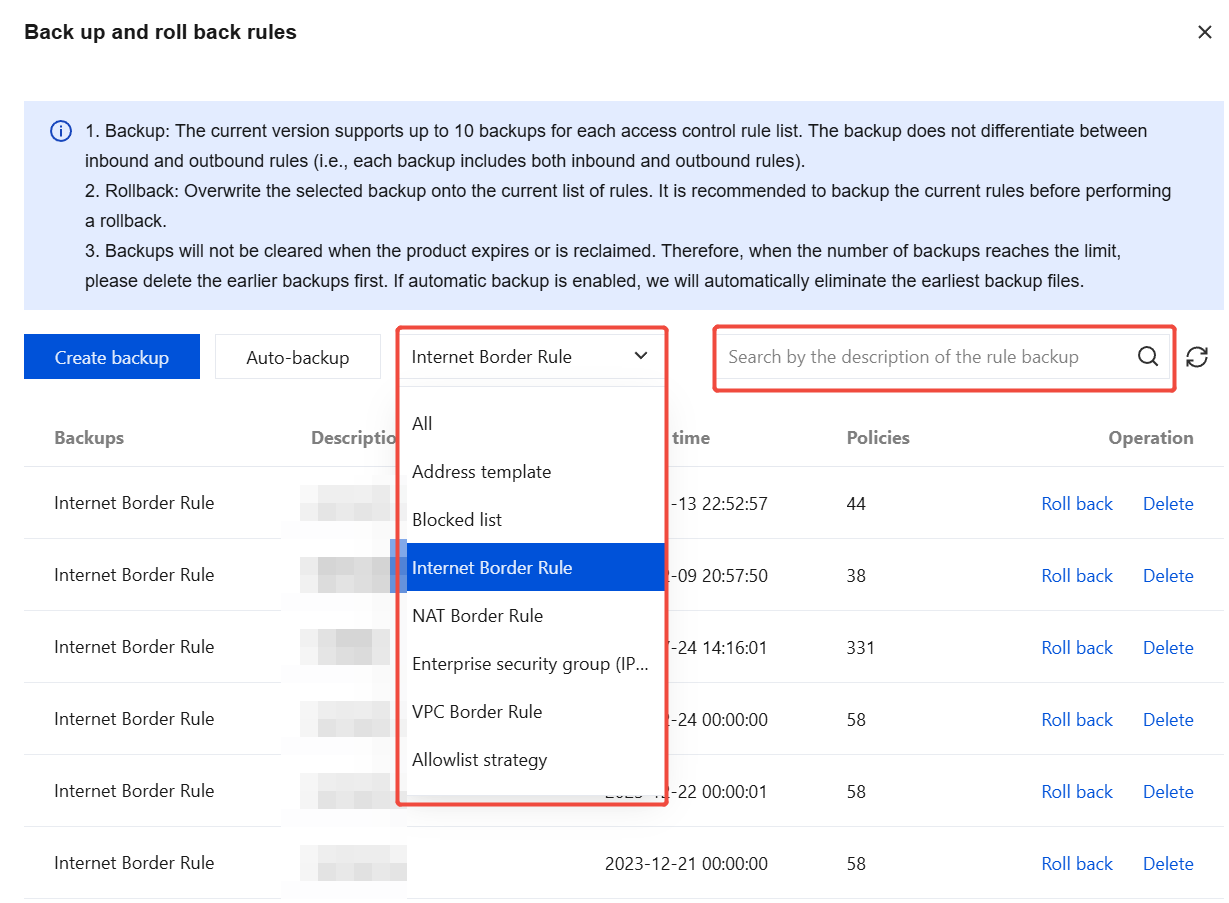
4. Select the backed-up rules and perform the following operations as needed:
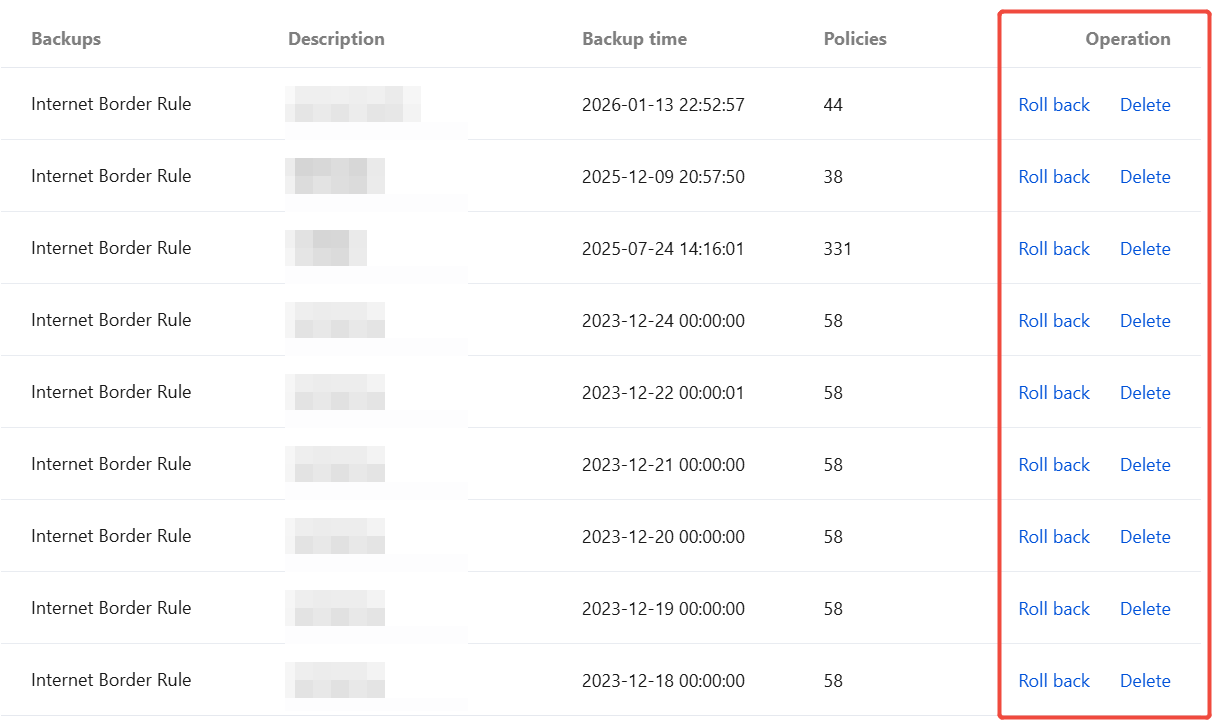
Roll back: Click Roll back in the Operation column of the target backup rule. In the "Confirm to roll back with the backup" pop-up window, click OK to roll back the backed-up rules and overwrite the current rule list.
Note:
Rule rollback will overwrite the corresponding rule list, and existing policies will be deleted. To ensure data security, it is recommended to back up the current rule list first.
Delete: Click Delete in the operation column of the target backup rule, in the "Are you sure you want to delete this rule backup" pop-up window, click OK, to delete the backed-up rules.
Note:
Once rule backups are deleted, they cannot be retrieved or restored. Please proceed with caution.
Related Information
Bantuan dan Dukungan
Apakah halaman ini membantu?
Anda juga dapat Menghubungi Penjualan atau Mengirimkan Tiket untuk meminta bantuan.
masukan