Notifications and Settings
Baixar
Modo Foco
Tamanho da Fonte
Subscribing to Message Center
CFW uses non-subscription push by default, and the notification accounts follow the account configuration in the Notification Setting. CFW automatically identifies accounts that have logged into the CFW console and adds them to the optional list.
1. Log in to the CFW console. In the left-side navigation, click Notification Setting.
2. On the Notification Settings page, configure the firewall push notifications. If you need to adjust to subscription-based push or enable the Message Center, click Switch in the Enable message subscription.

Attention:
After you enable the Message Center, the alarm objects for all alarm types in the Notification Setting become invalid. For details, refer to the Message Center settings.
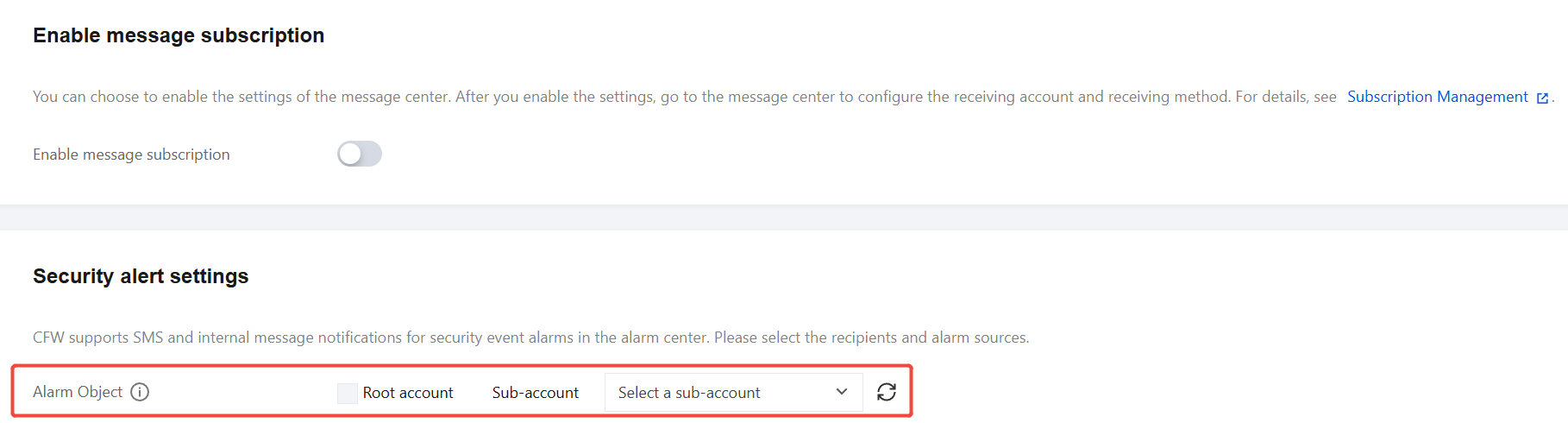
Configuring Notification Settings
Notification Type | Notification Content | Supported Configuration Item |
Security alarm notification | CFW supports sending SMS, in-site messages, and WeChat notifications for security event alarms from the Alarm Center. You can configure the recipients and alarm sources in the console. | The system supports configuring alarms for the "Tencent Cloud Security" WeChat service account. Notifications can be triggered based on alarm type. |
Bandwidth alarm notification | A three-tier bandwidth alarm is provided. When the firewall bandwidth reaches the threshold percentage you set, an alarm notification is triggered and sent via SMS, in-site message, and WeChat to the selected account. | It supports tiered alarms by firewall type. |
NDR notification | An alarm notification is sent via in-site message and SMS when the bandwidth specification is exceeded or the single-instance bandwidth is overloaded. | The system supports configuring bandwidth specification overrun settings, which include overrun alarm notifications, overrun handling notifications, and overrun recovery notifications. The system supports configuring single-server bandwidth overrun settings, which include overrun handling notifications and overrun recovery notifications. |
Storage alarm notification | A two-tier storage alarm is provided. When the firewall storage reaches the threshold percentage you set, an alarm notification is triggered and sent via SMS, in-site message, and WeChat to the selected account. | It supports tiered alarm configuration. |
Disaster recovery alarm notification | When your NAT Firewall or VPC firewall triggers BYPASS, an alarm notification is triggered and sent via SMS, in-site message, and email to the selected account. | - |
Enterprise Security Group change notification | When a change is detected in your account's Enterprise Security Group, a notification is sent regardless of whether you have enabled automatic deployment. | - |
Automatic task except notification | A notification is sent if anomalies are detected in automatic tasks. | - |
System log push notification | When new system logs are generated, notifications are sent according to your configured settings. | It supports triggering notifications by system log event type. |
General Settings
Setting Name | Setting Description | Must-Knows |
Log Storage Settings | Enterprise Edition and above users can modify the log storage type and retention period, with only one modification allowed every 24 hours. We will automatically delete expired logs for you. You can also manually clear logs, but note that each user has only 4 chances per calendar month. | After a log setting change, existing logs are not affected, and the new setting applies only to logs generated from the time of the edit. For example, if you change the log retention period from 180 days to 90 days, existing logs are still retained for 180 days, while new logs are retained for 90 days. |
Configuring Access Control Rules | In the access control rule list, set the rule status when adding, inserting, or importing control rules. | - |
CC Protection Settings | Protection settings for Internet, NAT, and VPC firewall. TCP blocking action: When the firewall blocks a TCP session, define the blocking method. Drop packets only: data packets will be discarded without any response (the client detects a connection timeout). Drop packets and reset connection: discard data and send an RST packet to the source (the client receives an immediate connection rejection signal). | - |
Honeypot Auto-rebuild Settings | In Network Honeypot, if a honeypot is compromised, you can choose whether to automatically rebuild the honeypot and set the interval. | - |
Tag Settings | CFW does not have resource attributes. It only supports adding Tags to billable resources under your account. You can modify Tag values here. | - |
Ajuda e Suporte
Esta página foi útil?
Você também pode entrar em contato com a Equipe de vendas ou Enviar um tíquete em caso de ajuda.
comentários