Address Template
Download
Focus Mode
Font Size
Address templates are used to batch manage commonly used IP addresses, domain names, or protocol-port combinations. Created templates can be directly referenced in Access Control rules, reducing repetitive configuration and improving Ops efficiency. This document describes how to create, edit, delete, and use address templates.
Feature Entry
1. Log in to the CFW console. In the left-side navigation, click Common Tool.
2. On the Common Tool page, click Configure now for Address Template.
3. The Address Template contains two tabs: Custom Address Template and Preset Address Template.
Custom address templates are created and maintained by users.
Preset address templates are read-only templates preconfigured by Tencent Cloud. They can be directly referenced in Access Control rules.
Creating Template
Note:
The primary plan includes 10 custom address template quotas by default. You can click Purchase & Upgrade to purchase additional quotas. IP address templates, domain name templates, and protocol-port templates share the same quota pool.
1. On the Address Template > Custom Address Template page, click Create template.
2. In the New Address Template pop-up window, select Template Type.
IP address template: contains IP addresses or CIDR blocks and supports IP address ranges.
Domain name template: contains domain name addresses and supports wildcard domains.
Protocol:port template: a combination of protocols and ports, categorized by Layer 4 or Layer 7 protocols. Ports support single ports, discrete ports, continuous port ranges, and all ports.
Note:
When you select Protocol:port template, you must further select a protocol type: Layer 4 Protocol or L7 protocol.
3. Enter the Name. The name cannot be empty or duplicate, and supports a maximum of 100 characters.
4. Enter the corresponding content based on the selected template type.
IP address template supports the following formats. When entering line by line, enter one per line and press Enter to start a new line. When pasting in batches, separate multiple addresses with an English comma
,. If duplicate IPs or CIDR blocks are entered, the backend automatically merges them.Format | Example |
Single IP | 10.0.0.1 |
CIDR block | 10.0.1.0/24 |
IP address range | 10.0.0.1-10.0.0.100 |
Domain name template supports the following formats. When entering line by line, enter one per line and press
Enter to start a new line. When pasting in batches, separate multiple domain names with an English comma ,. The backend automatically merges duplicate content.Format | Example |
Specific Domain Name | www.domain.com |
Wildcard Domain Name | *.domain.com |
All Domain Names | * |
The protocol and port formats supported by the Protocol:port template vary depending on the protocol type. When entering line by line, enter one per line and press Enter to start a new line. When pasting in batches, separate multiple protocol ports with an English comma ,.
Protocol | Supported protocols | Format Example |
Layer 4 Protocol | TCP,UDP | Single Port: TCP:80Discrete Ports: TCP:80,443Continuous Port Range: TCP:3306/20000All Ports: TCP:-1/-1 |
Layer 7 Protocol | HTTP,HTTPS,SMTP,SMTPS | Single Port: HTTP:80Discrete Ports: HTTP:80,443Continuous Port Range: HTTP:3306/20000All Ports: HTTP:-1/-1 |
5. Enter the Description. The description can be empty and supports a maximum of 100 characters.
6. Click OK to complete the creation.
Editing Template
After an address template is created, you can view and manage it in the address template list.
1. On the Address Template > Custom Address Template page, click Edit in the operation column on the right of the target address template.
2. In the Edit Address Template dialog box, adjust the template content, or enter a keyword in the search box to find and modify the target address. After completing the changes, click OK to save.
Note:
The Template Type cannot be edited. If you need to modify it, delete it and create a new one.
Deleting Template
1. On the Address Template > Custom Address Template page, click Delete in the operation column on the right of the target address template.
Note:
If associated rules exist, you must first go to the Access Control page to delete them. Deleted rules cannot be recovered. It is recommended that you back up the current template in advance.
The deletion operation cannot be undone. It is recommended that you back up the current template before deletion.
2. In the Confirm Deletion dialog box, click OK to complete the deletion.
Using Address Templates
On the Access Control page, click Add Rule or Edit on the right of the target rule to use an address template.
Note:
Access rules configured through an address template apply to all addresses within the template.
IP Address Templates or Domain Name Templates
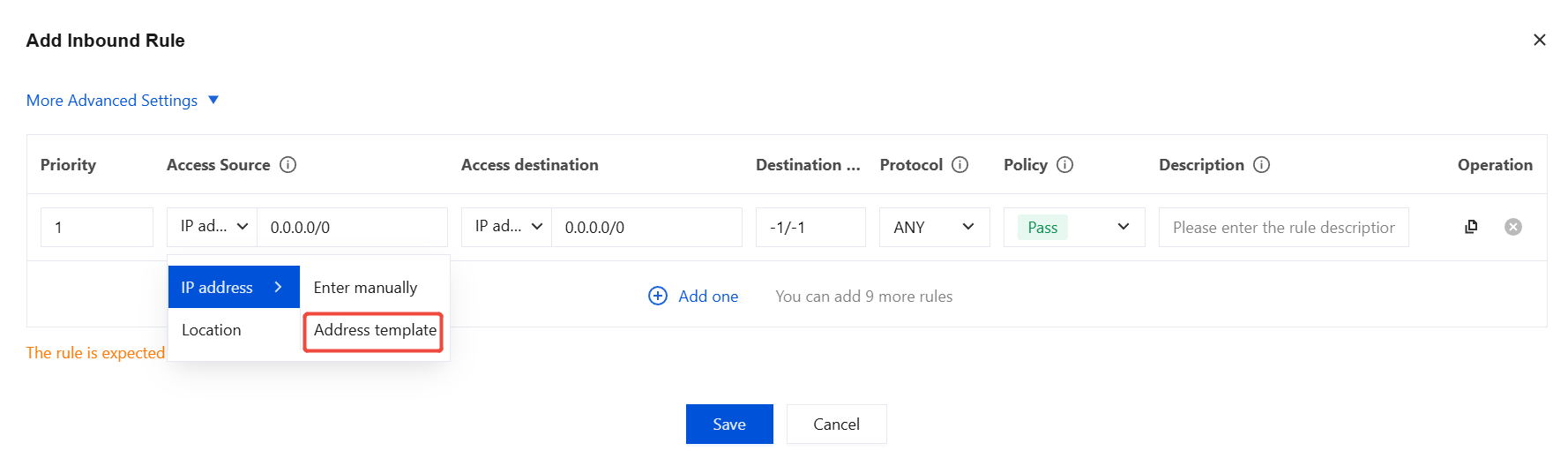
In an Access Control rule, you can select Address Template in the Access Source or Access Destination field. A dropdown list displays the available IP address templates or domain name templates.
Note:
Select the template type based on the protocol, and fill in the fields according to the prompts of the corresponding Access Control rule.
Protocol Port Templates
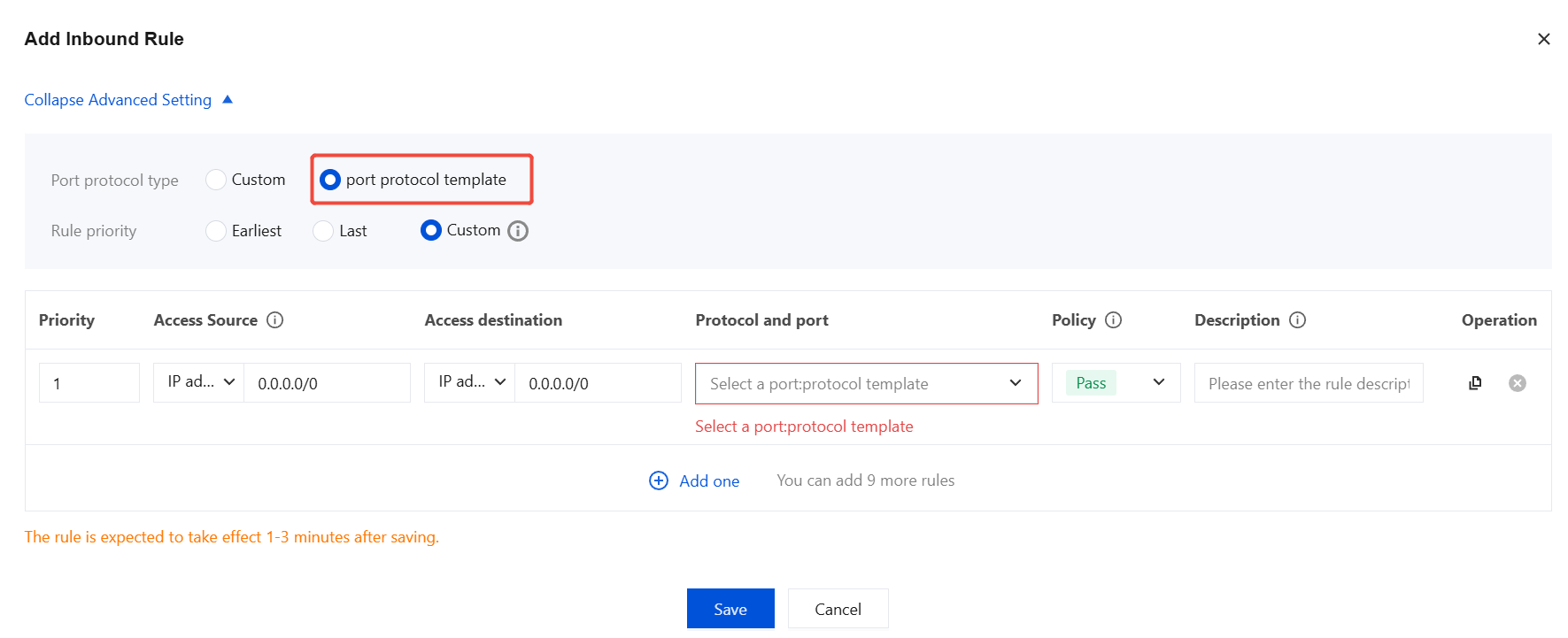
In an Access Control rule, you can select Protocol port template in the port protocol template field. The available protocol port templates are displayed in a dropdown list.
Note:
The selection of a template type depends on whether you are configuring a source or a destination. Fill in the fields according to the prompts of the corresponding Access Control rule.
Help and Support
Was this page helpful?
You can also Contact sales or Submit a Ticket for help.
Help us improve! Rate your documentation experience in 5 mins.
Feedback