tencent cloud

Customer Identity and Access Management

CIAM 정책
개인 정보 보호 정책
계약 데이터 처리 및 보안 계약
문서Customer Identity and Access Management

User group management

포커스 모드
폰트 크기
마지막 업데이트 시간: 2023-12-22 11:42:07
This topic describes how to create or edit a user group and add or remove users from a user group in the Customer Identity and Access Management (CIAM) console.

Creating a user group

1. Log in to the CIAM console and select User group management in the left navigation pane.
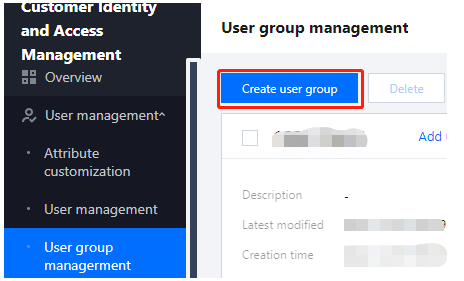
2. On the User group management page, click Create user group.
img

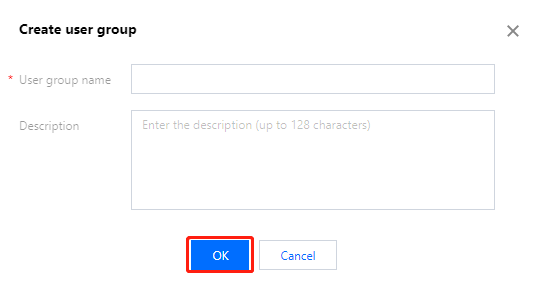
3. In the Create user group window displayed, enter a user group name and description, and then click OK to create the user group.
img

Parameter description:
User group name: A unique custom name.
Description: A custom description of up to 128 characters.

Editing a user group

After adding a user group, you can modify the user group name and description.
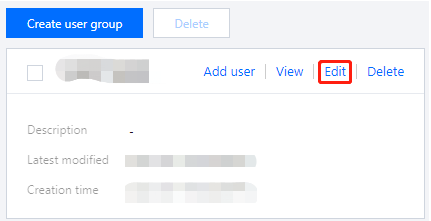
1. On the User group management page, select the user group to edit and click Edit.
img

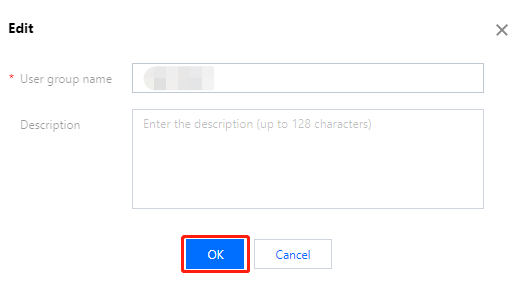
2. In the Edit window displayed, modify the user group name and description, and then click OK.
img


Deleting a user group

After adding user groups, you can delete one or more user groups as needed on the User group management page.
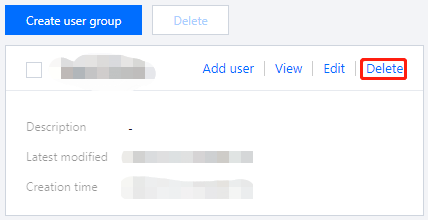
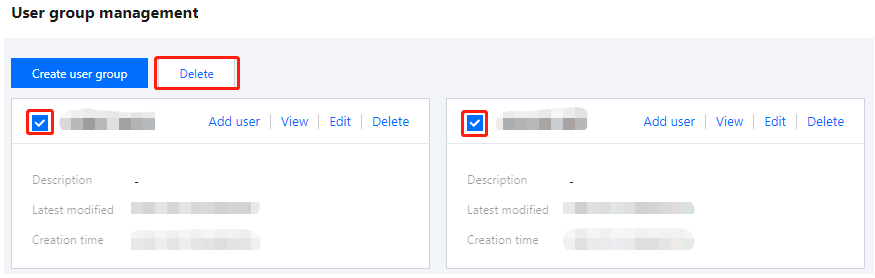
Method 1: Select the user group to delete, click Delete, and then confirm the deletion.
img

Method 2: Select one or more user groups to delete, click Delete at the top of the list, and then confirm the deletion.
img


Adding users to a user group

After creating a user group, you can add users to the user group.

Method 1

1. On the User group management page, select the user group you want and click Add user.
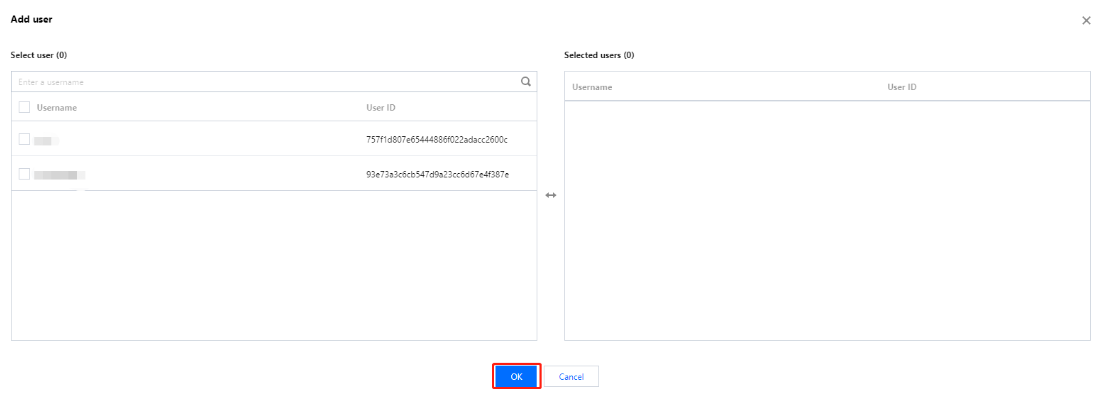
2. In the Add user window displayed, select one or more users to add and click OK. Then, the selected users will be added to the user group.
img


Method 2

1. On the User group management page, select the user group you want and click the blank space on the user group.
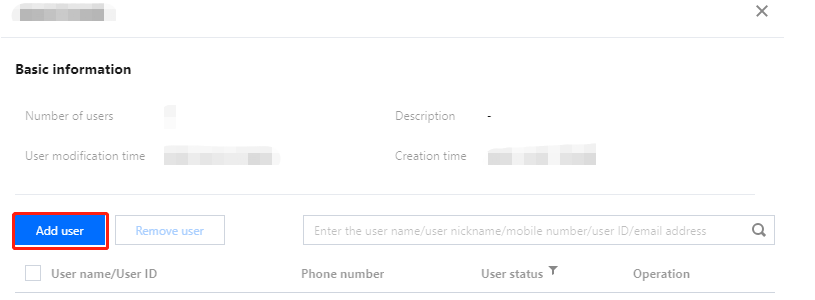
2. On the User group details page, click Add user.
img

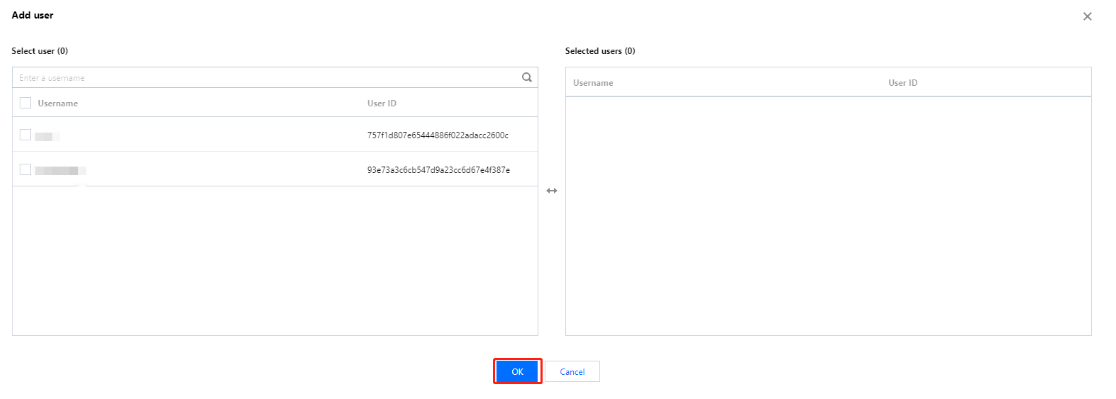
3. In the Add user window displayed, select one or more users to add and click OK. Then, the selected users will be added to the user group.
img


Removing users from a user group

You can remove users who have been added to a user group.

Method 1

1. On the User group management page, select the user group you want and click the blank space on the user group.
2. On the User group details page, click Remove user in the operation column.
img

3. In the confirmation window displayed, click OK to remove the user from the user group.

Method 2

1. On the User group management page, select the user group you want and click the blank space on the user group.
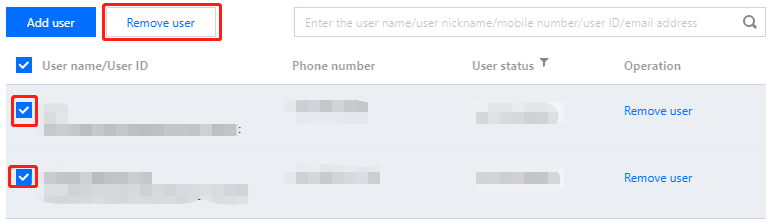
2. On the User group details page, select one or more users to remove and click Remove user at the top of the list.
img


도움말 및 지원

문제 해결에 도움이 되었나요?

피드백