This document introduces how to manage Tencent Cloud Distributed Cache using DMC Personal Edition.
Logging in to the DMC Personal Edition Console
2. At the top of the instance list page, select the region.
3. In the instance list, locate the target instance and click Log In in its Operation column.
4. Go to the DMC Personal Edition login page, enter the password for the default account of the target instance, and click Log In. Viewing Instance Information
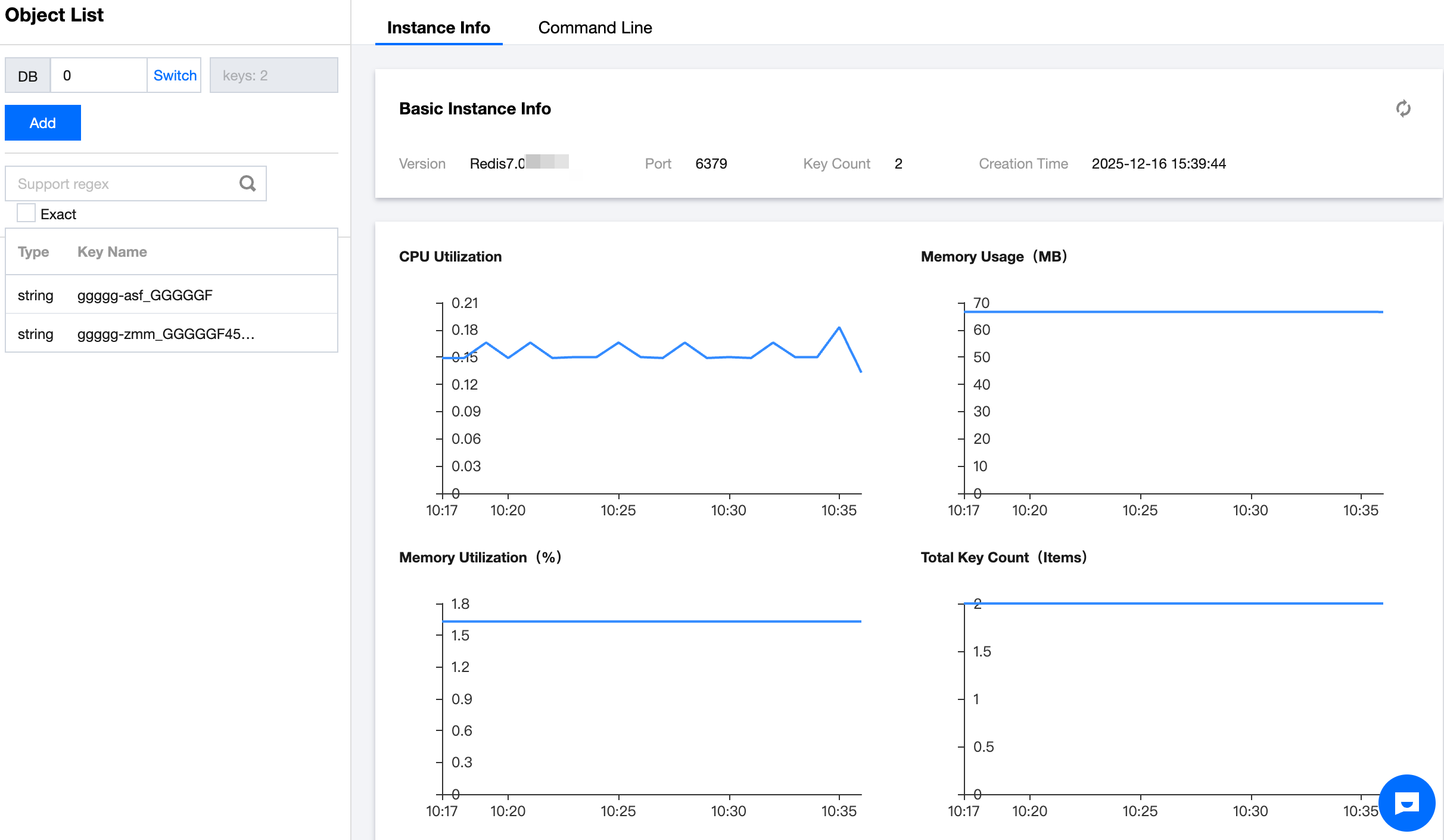
Enter the database management page to view the instance’s basic information and performance monitoring information.
1. After entering the Database Management page, select the Instance Info tab on the right side of the page.
2. View the basic information and performance monitoring details of the instance.
|
Basic Instance Info | Includes the instance version, instance port number, current total number of sharded keys, and creation time. |
Instance performance monitoring information | Includes CPU Utilization (%), Memory Usage (MB), Memory Utilization (%), Total Key Count (Items), Connection count (Items), TrafficIn (Mb/s), TrafficOut (Mb/s), Total requests (counts/sec), Read request (counts/sec), and Write request (counts/sec). |
Executing Command Line
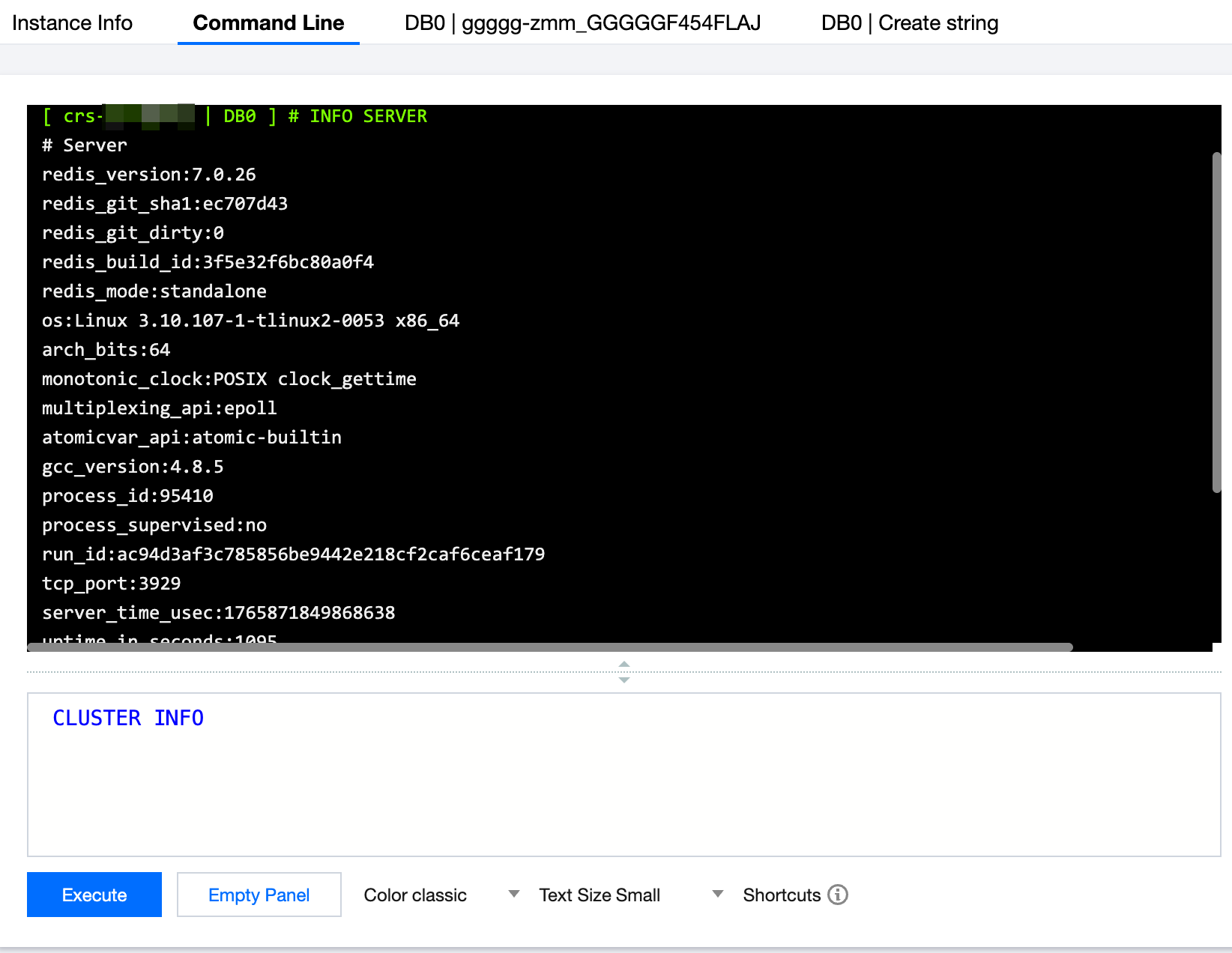
1. After entering the Database Management page, select the Command Line tab on the right side of the page.
2. Enter Redis commands in the input box below and click Execute.
Adding Key Type and Key Value
If you are not familiar with Redis command parameters, DMC supports adding keys and key values, and the system will execute commands based on the configured key and key value information.
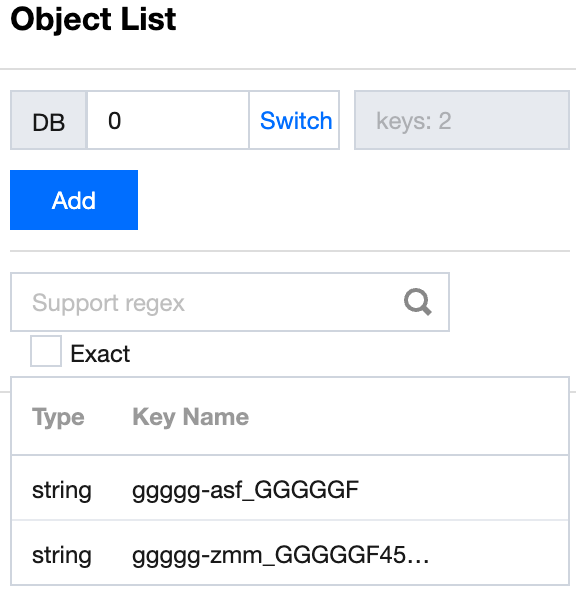
1. On the left side of the page, select the Slot range and DB where the key value will be stored in the Object List section.
Note:
DMC supports selecting all Redis shards.
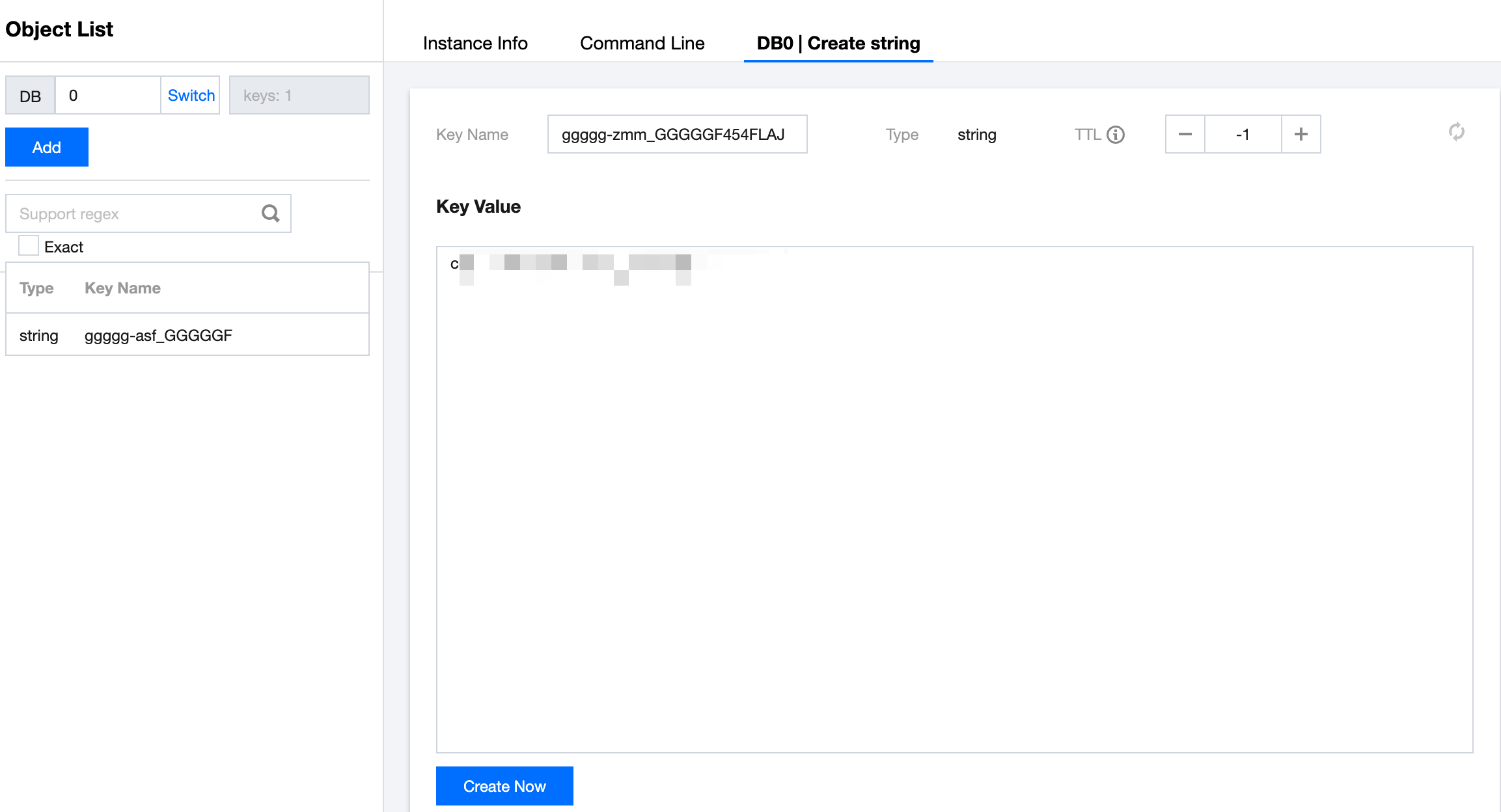
2. On the left, click Add, select the data type for the key, and click OK.
3. On the right, enter the Key Name, set the TTL, and input the Key Value. At the bottom of the page, click Create Now and then click Save.