The retry topic is designed to ensure that messages are consumed normally. If no normal response is received after a message is consumed by the consumer for the first time, the message will enter the retry topic. When a certain number of retries are reached, the retries are stopped, and the messages will be delivered to the dead letter topic.
When messages enter the dead letter queue, it indicates that TDMQ for Apache Pulsar no longer automatically processes the messages. At this point, manual intervention is generally required to handle these messages. You can write a dedicated client to subscribe to the dead letter topic to process such messages.
This document uses the demo provided on the official website as an example to introduce the features and usage of message retries and dead letter queues.
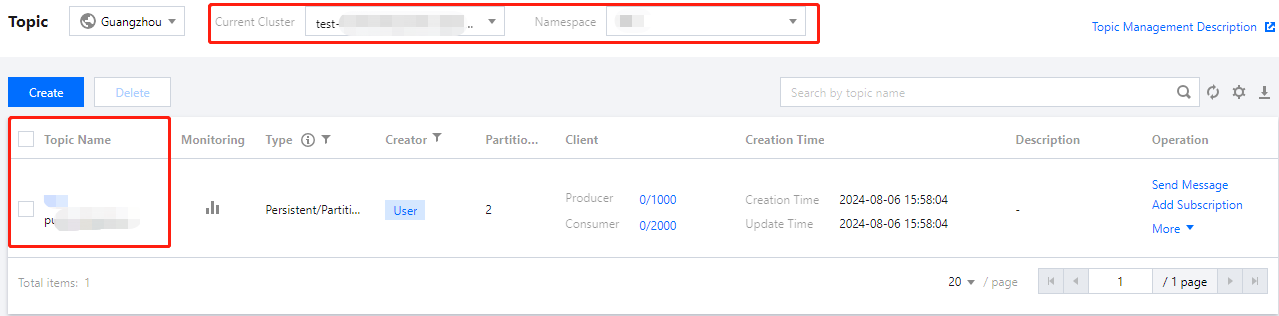
2. In the left sidebar, choose the Topic tab, and select the created cluster and namespace for the current cluster and namespace respectively.
3. Click Create, enter the topic name and description, keep the other options as default, and click Save to create a topic.
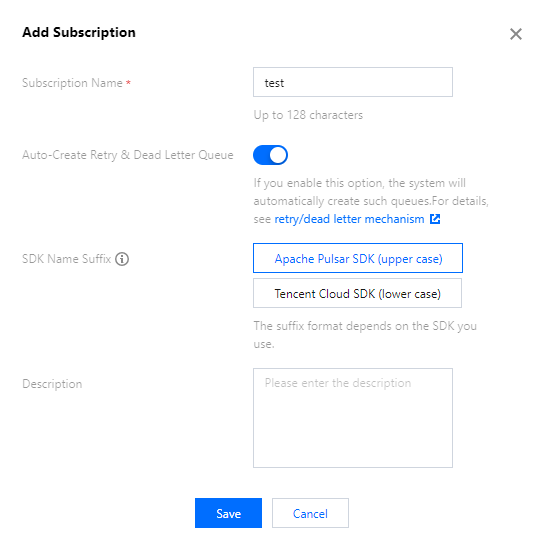
4. Click New Subscription in the operation column of the created topic, enter the subscription name, enable Auto-Create Retry & Dead Letter Queue, and select Apache Pulsar SDK (upper case) as the default suffix for the retry and dead letter. This creates a subscription relationship for the created topic with the retry and dead letter queues enabled.
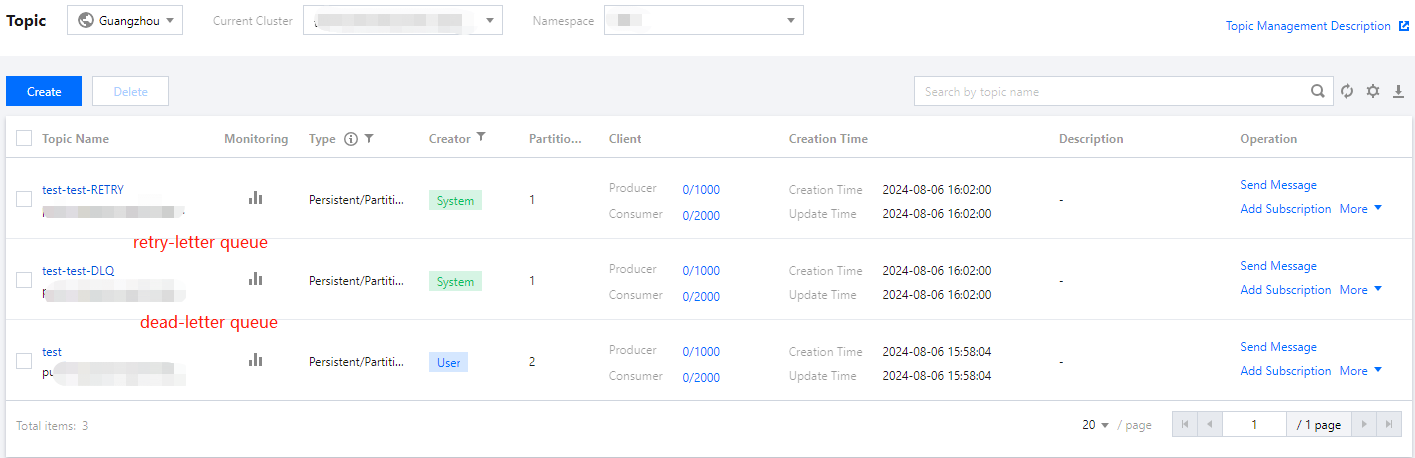
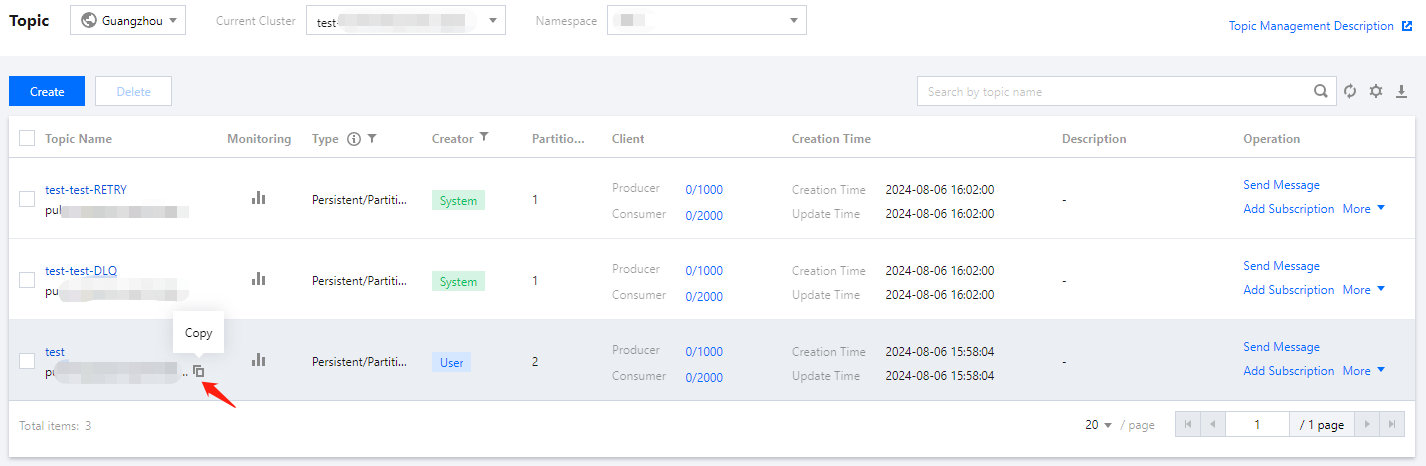
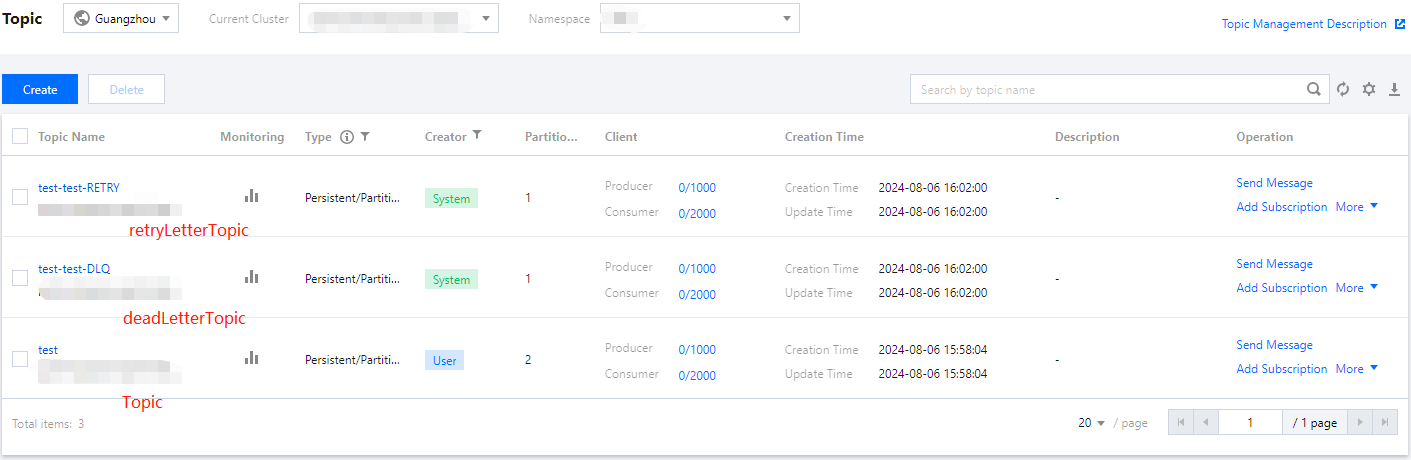
5. After submission, you can see the retry queue and dead letter queue automatically created by the system.
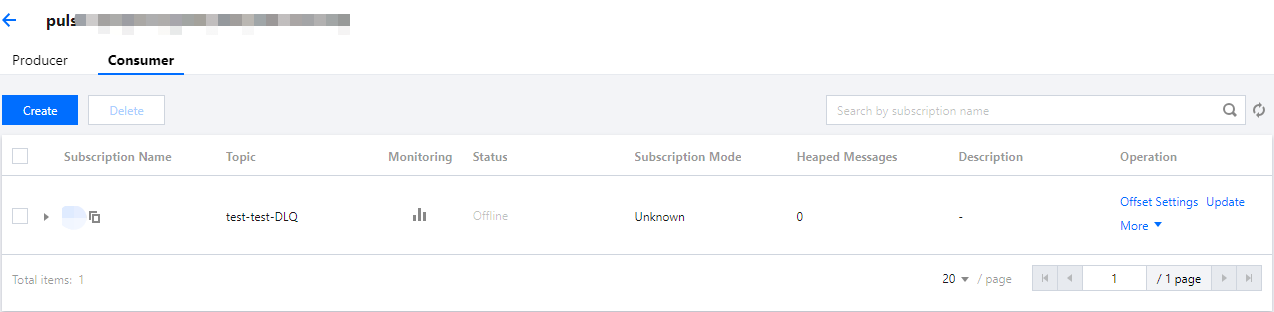
6. Choose More > View Subscriptions/Consumer in the operation column to view the created subscriptions.
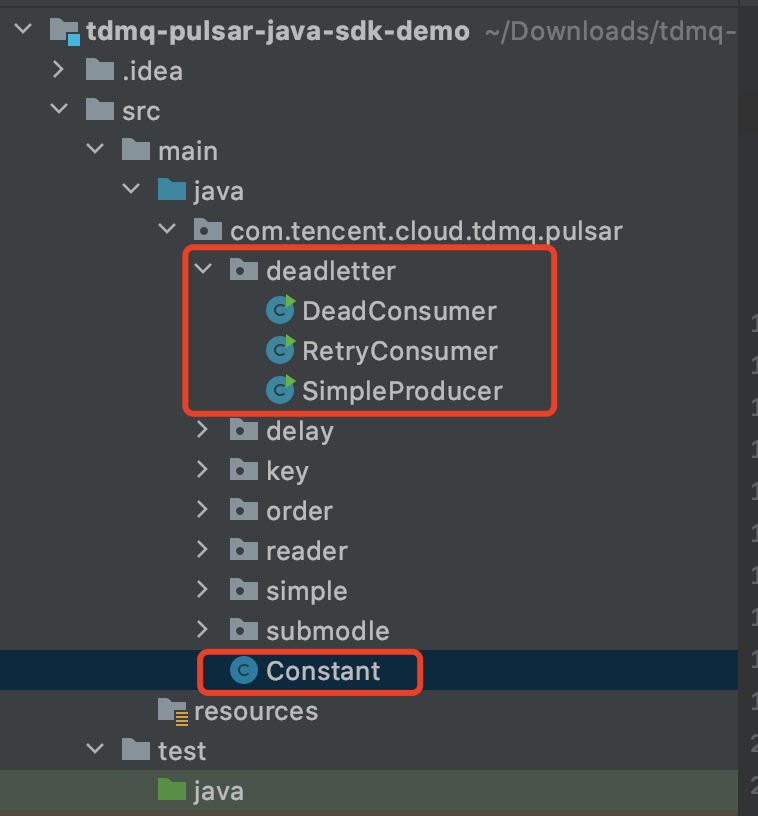
Step 2. Downloading the Demo and Configuring the Related Parameters
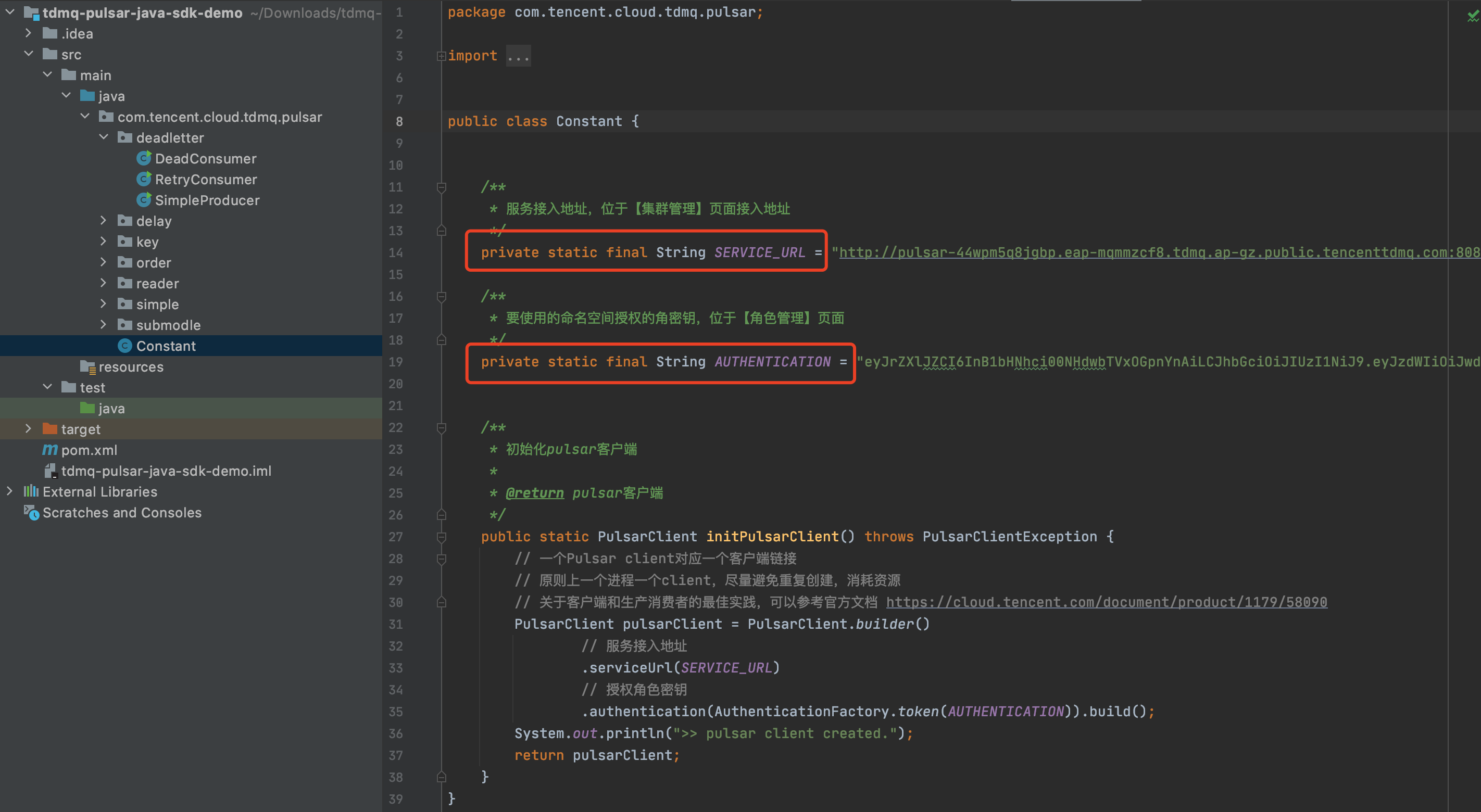
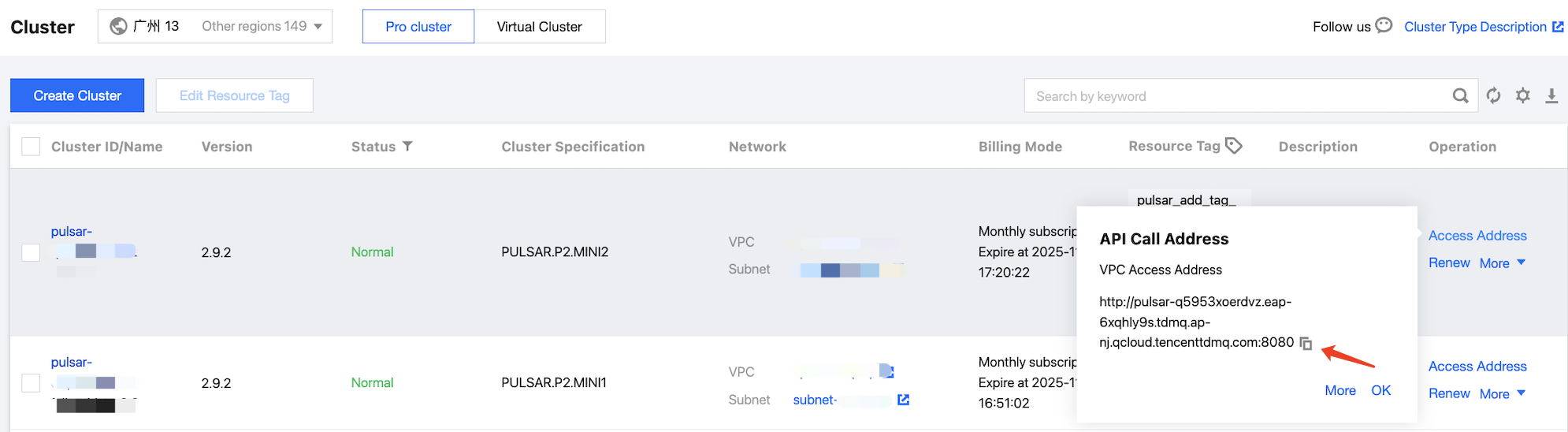
Address used to access a cluster. You can view and copy the address from the Cluster page in the console.
AUTHENTICATION
Role token. You can copy the role token from the Role Management page.
Step 3. Producing Messages
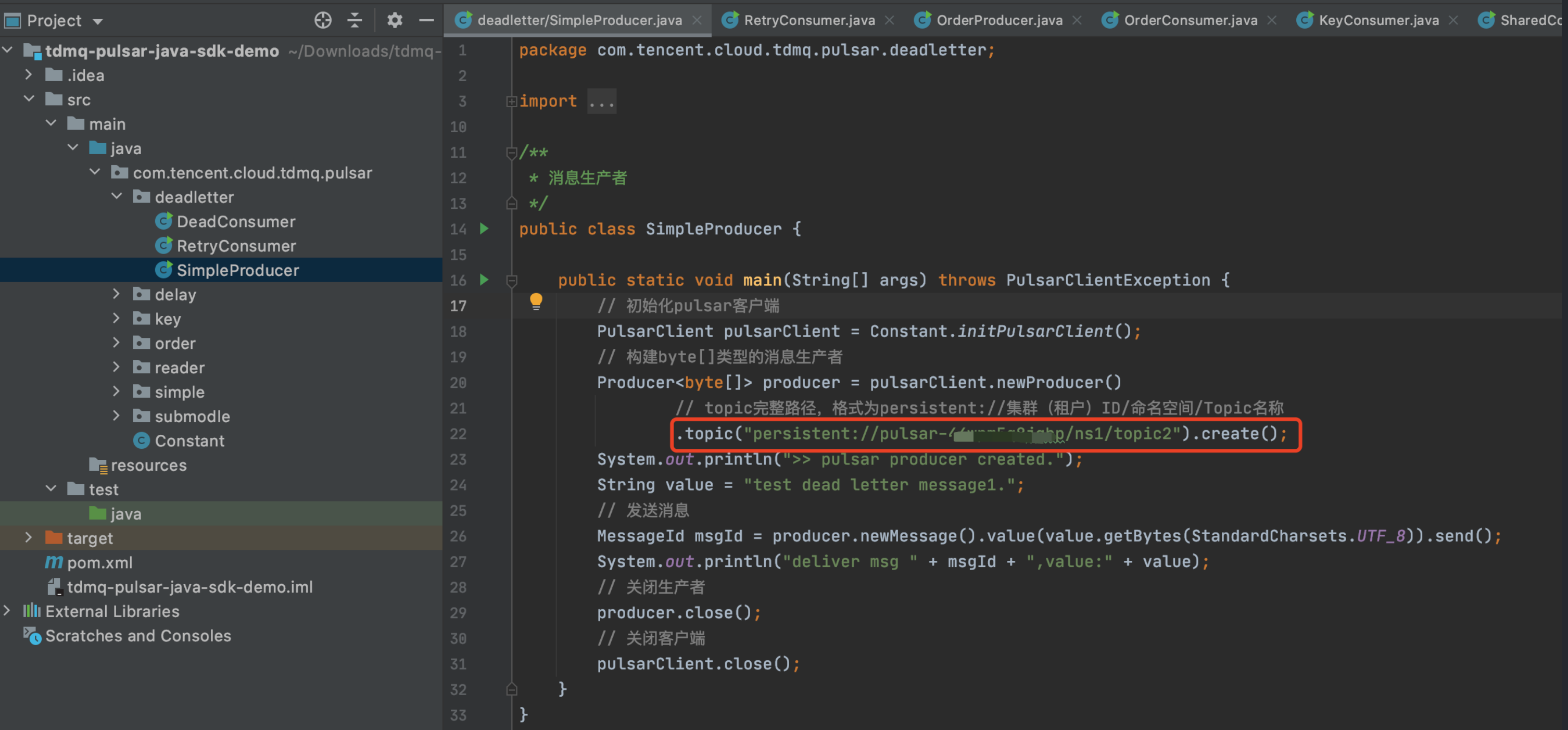
1. Go to the /deadletter directory and modify the parameters in SimpleProducer.java.
.topic: Enter the name of the created topic. You need to provide the full path in the format of persistent://clusterid/namespace/topic. You can copy the clusterid/namespace/topic part from the Topic page in the console.
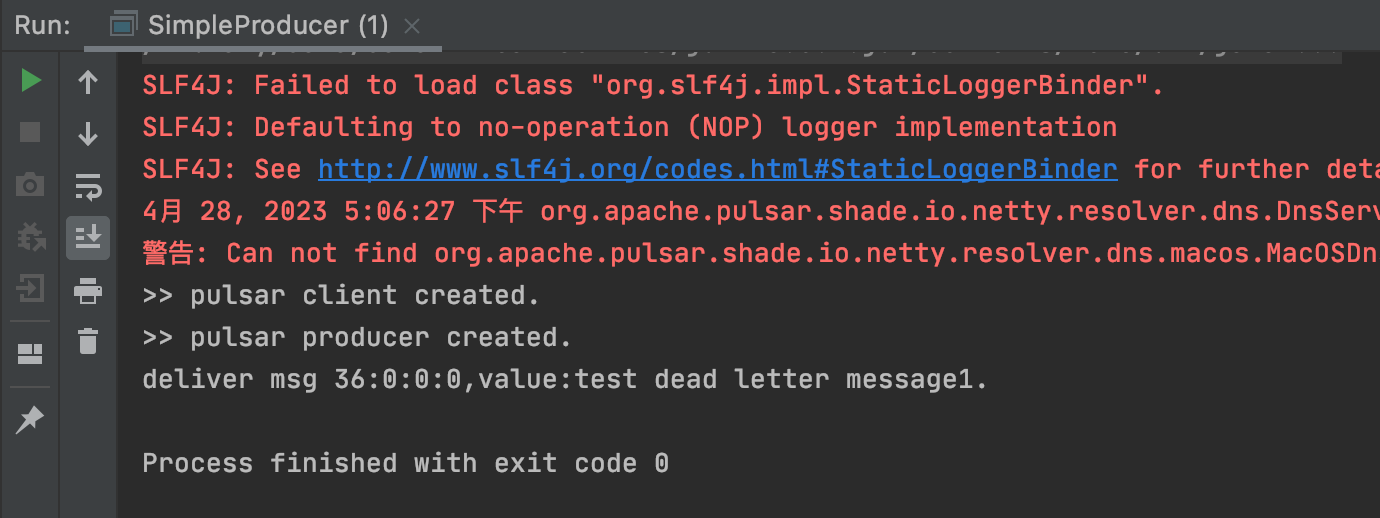
2. Compile and run the SimpleProducer.java program to send messages. The result is as follows:
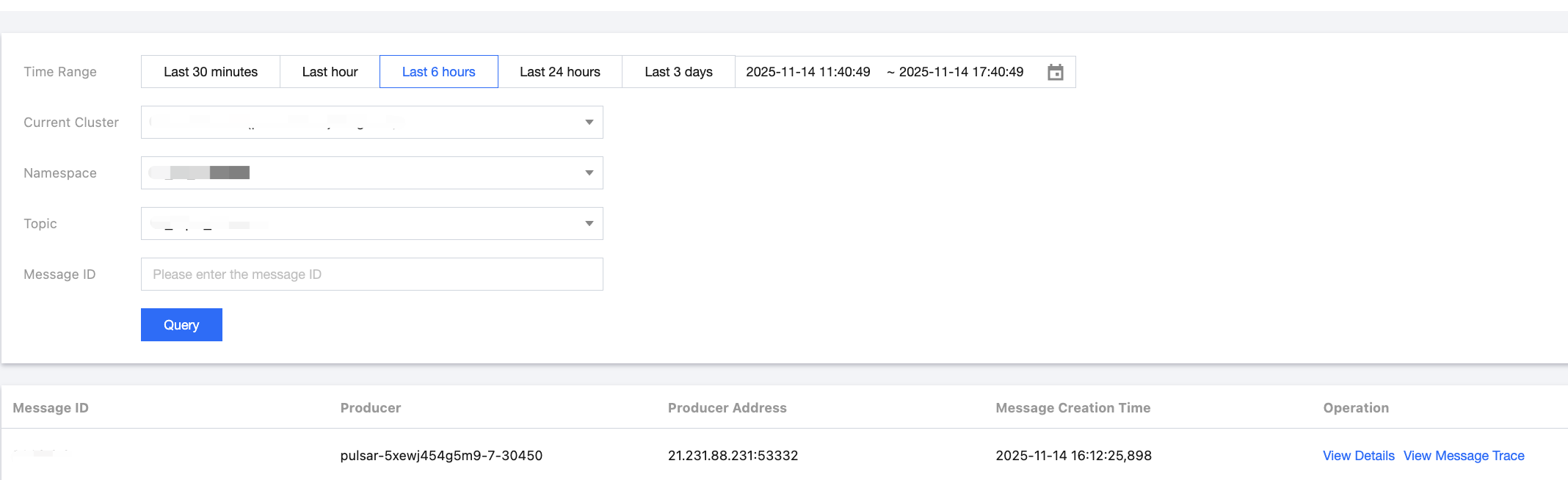
3. Log in to the TDMQ for Apache Pulsar console. On the Message Query page, you can see the messages produced in the topic.
Step 4. Consuming Messages
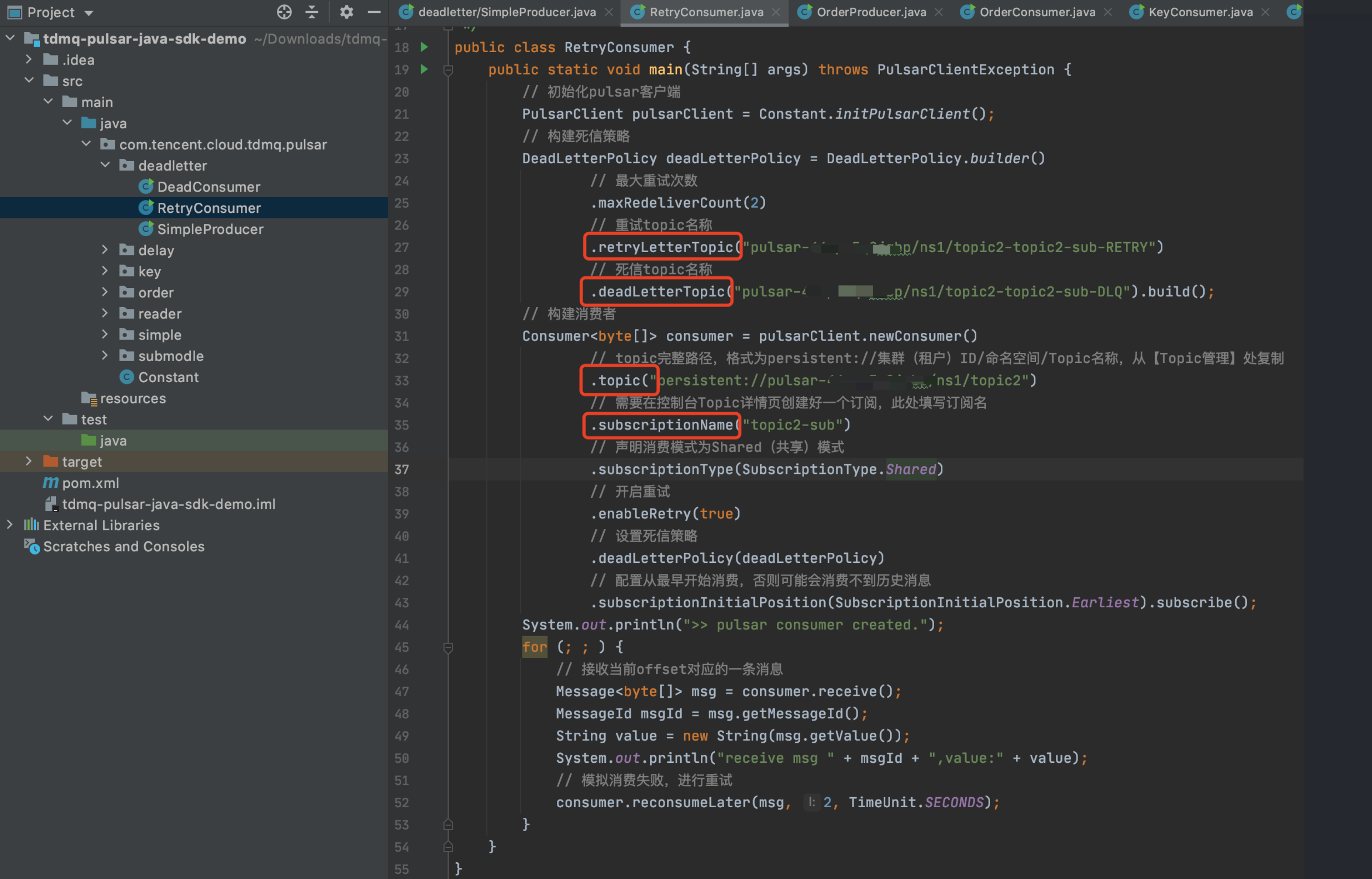
1. Modify the parameters in the RetryConsumer.java program.
.retryLetterTopic: the name of the retry topic.
.deadLetterTopic: the name of the dead letter topic.
.topic: the topic name.
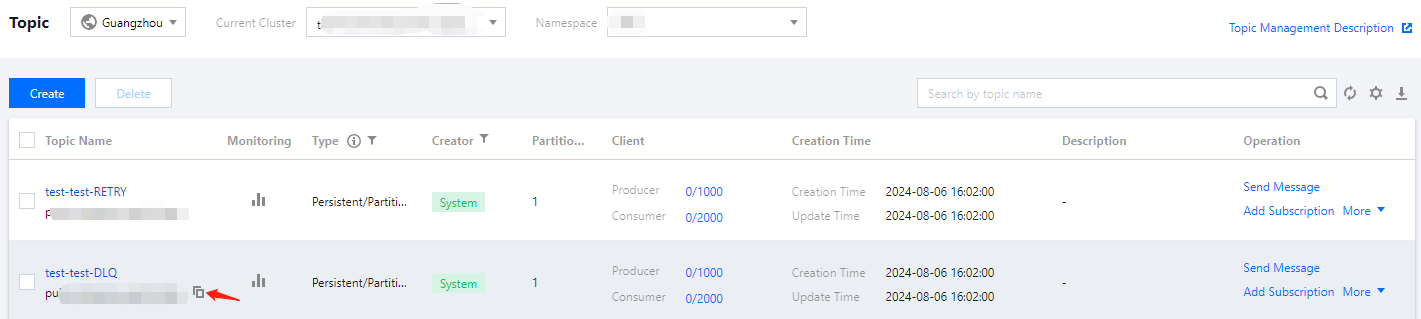
You need to provide the full path of the above 3 topics in the format of persistent://clusterid/namespace/topic. You can copy the clusterid/namespace/topic part from the Topic page in the console.
.subscriptionName: Enter the subscription name. You can view the subscription name on the Consumer tab of the topic.
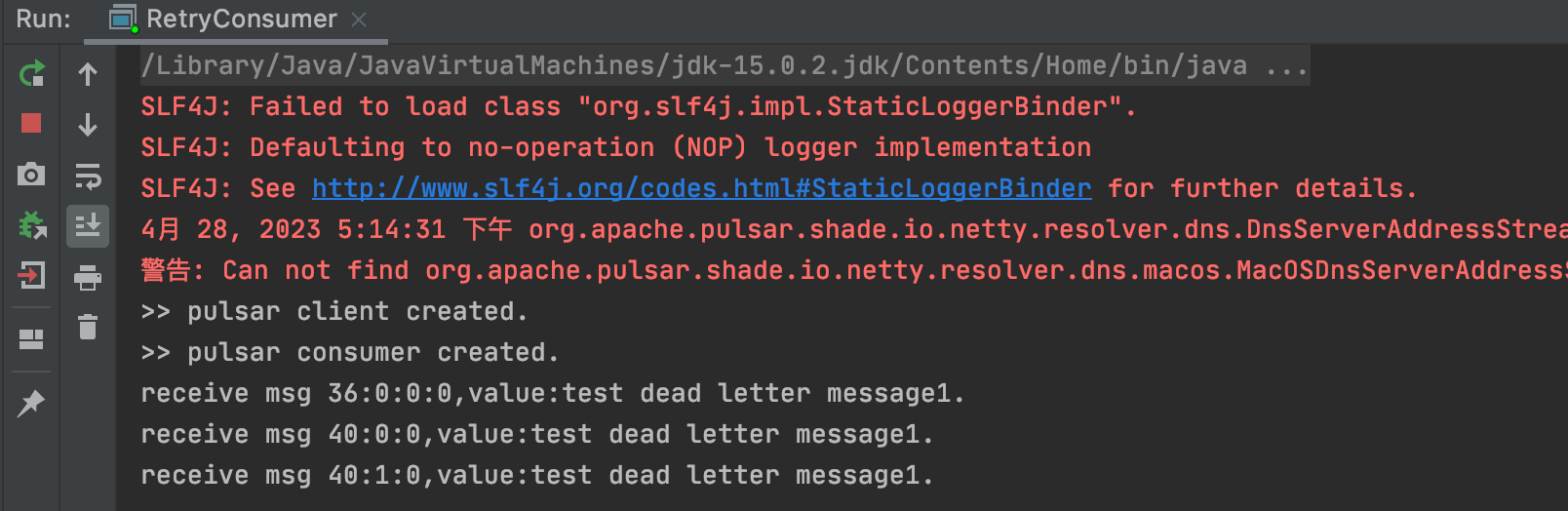
2. Compile and run the message retry program RetryConsumer.java. The result is as follows:
3. Log in to the TDMQ for Apache Pulsar console. On the Message Query page, you can see that the retry topic displays 2 messages, and the dead letter topic displays 1 message, indicating that after 2 delivery attempts, the message was delivered to the dead letter queue.
Step 5. Consuming Dead Letter Messages
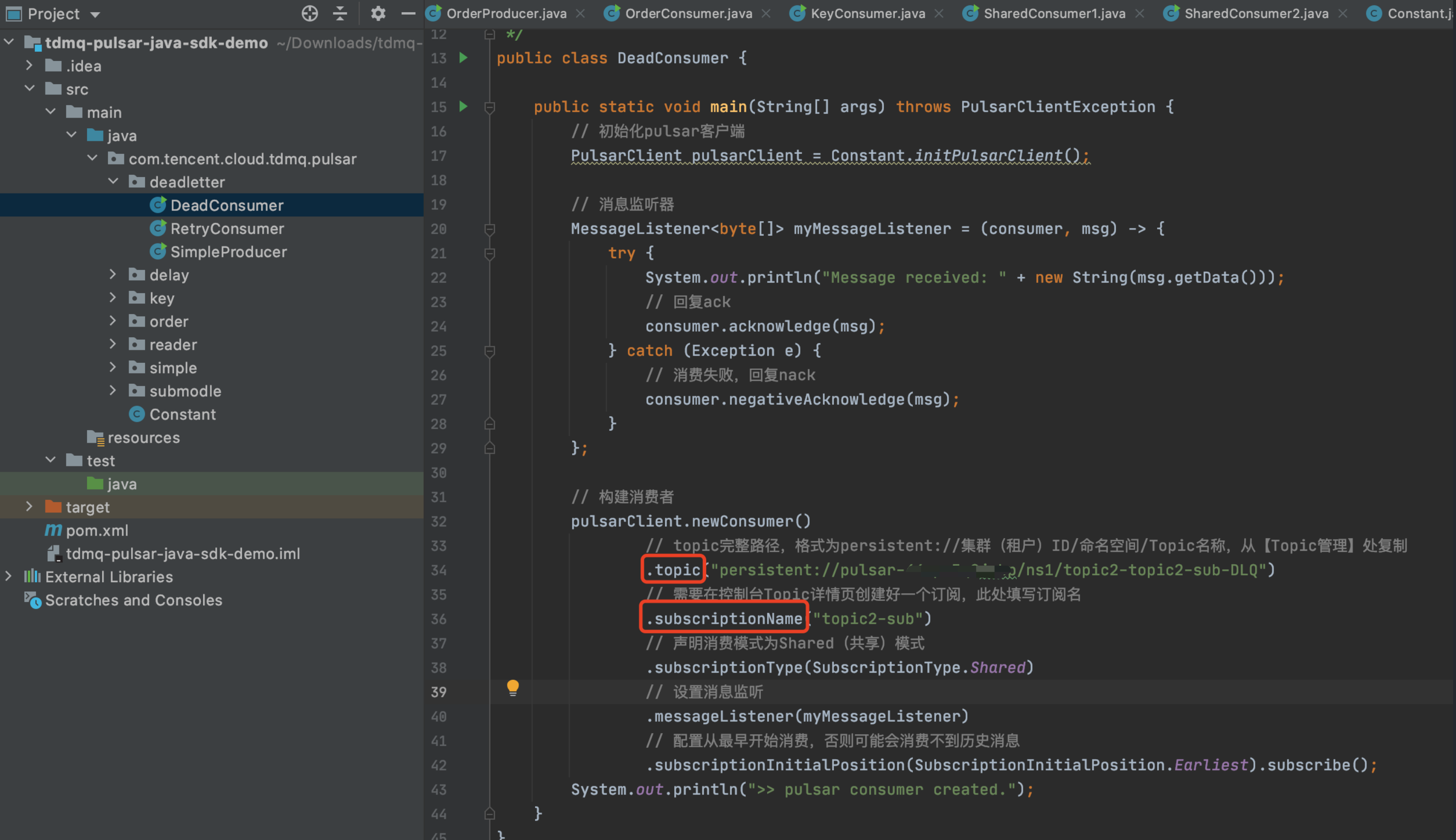
1. Modify the parameters in DeadConsumer.java.
.topic: Enter the name of the dead letter topic. You need to provide the full path in the format of persistent://clusterid/namespace/topic. You can copy the clusterid/namespace/topic part from the Topic page in the console.
.subscriptionName: Enter the subscription name. You can view the subscription name on the Consumer tab of the topic.
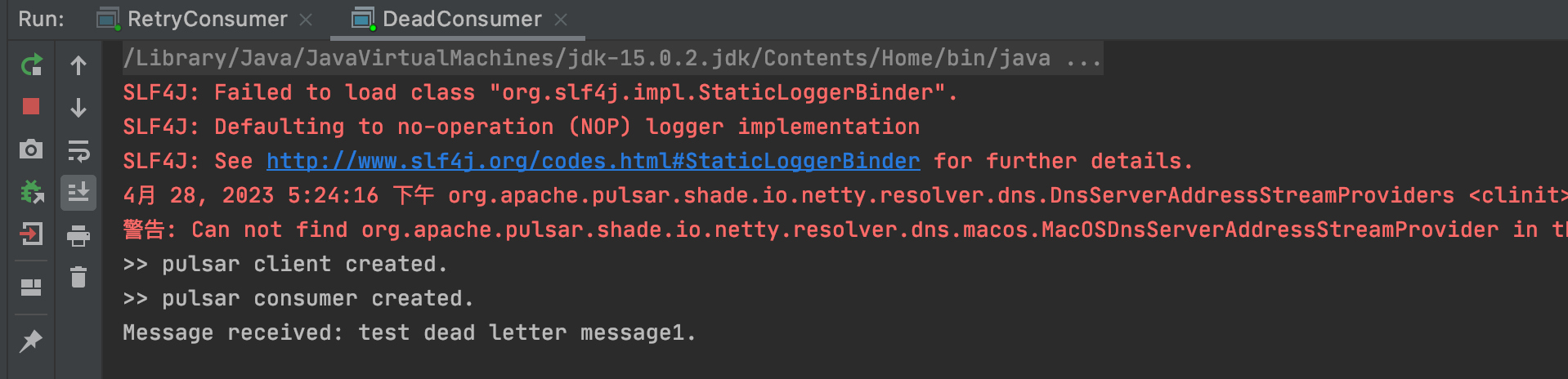
2. Compile and run the message retry program RetryConsumer.java. The result is as follows:
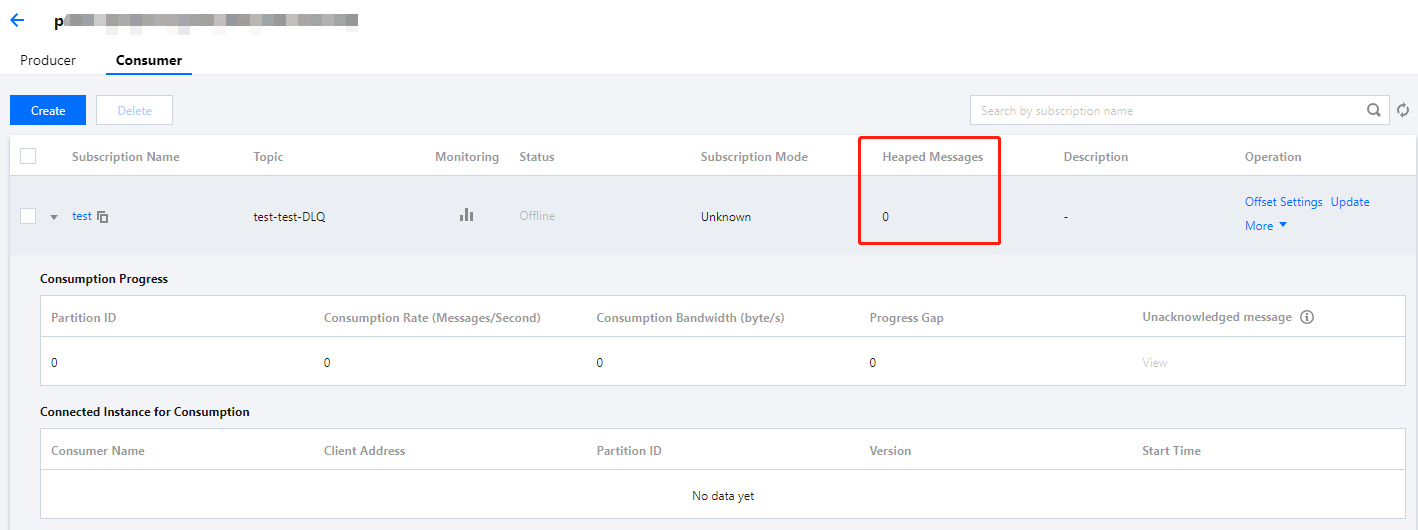
3. Log in to the TDMQ for Apache Pulsar console. On the Consumer tab of the dead letter topic, if the number of backlogged messages turns to 0, it indicates that the messages have been consumed.