tencent cloud

IoT Hub

Release Notes and Announcements
Release Notes
Product Introduction
Overview
Features
Strengths
Use Cases
Use Limits
Basic Concepts
Getting Started
Quick Start
Scenario 1: Device Interconnection
Scenario 2: Device Status Reporting and Setting
MQTT.fx Connection Guide
Console Guide
Product Management
Rule Engine
Sub-account Access to IoT Hub
Firmware Upgrade
Resource Management
Certificate Management
Developer Manual
Feature Components
Signature Algorithm
Device Authentication
Device Connection Protocol
Gateway Subdevice
Message Communication
Device Shadow
Device Firmware Upgrade
Remote Device Configuration
Resource Management
Device Log Reporting
NTP Service
Device Connection Manual
Device Connection Overview
Connection Based on SDK for C
Connection Based on SDK for Android
Connection Based on SDK for Java
Connection Based on SDK for Python
API Documentation
History
Introduction
API Category
Making API Requests
Device Shadow APIs
Device APIs
CA Certificate APIs
Product APIs
Data Types
Error Codes
FAQs
General
Device Connection and Reporting
Rule Engine
Console
IoT Hub Policy
Privacy Policy
Data Privacy And Security Agreement
Glossary

Overview

PDF
Focus Mode
Font Size
Last updated: 2024-12-27 10:29:42

Use

When communication is performed based on a topic, you can use the rule engine to process the data in the topic and then forward it to other Tencent Cloud services or your business backend services. You don't need to purchase a server or deploy a distributed architecture; instead, you can implement full-stack services for message acquisition, computing, and storage simply by configuring the rule engine in the console. The following forwarding types are supported:
Data forwarding to another topic
Data forwarding to a third-party service
Data forwarding to CKafka
Data forwarding to a CMQ topic
Data forwarding to a CMQ queue
Data forwarding to CTSDB
Data forwarding to TencentDB for MySQL
Data forwarding to TencentDB for MongoDB

Creating Rule

1. Log in to the IoT Hub console and select Rule Engine on the left sidebar.
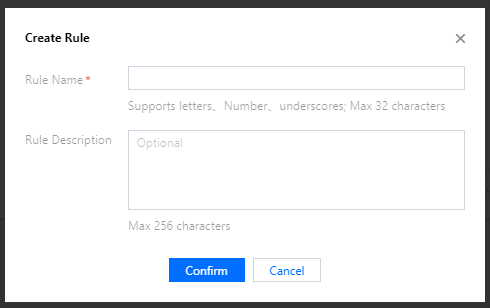
2. Go to the rule engine page, click Create Rule, enter the rule name, and click Confirm.
Rule Name: it can contain up to 32 letters, digits, and underscores (the name cannot be modified once confirmed).
Rule Description: it can contain 0–256 characters and can be modified.

3. After the rule is created successfully, you will be automatically redirected to the rule details page.
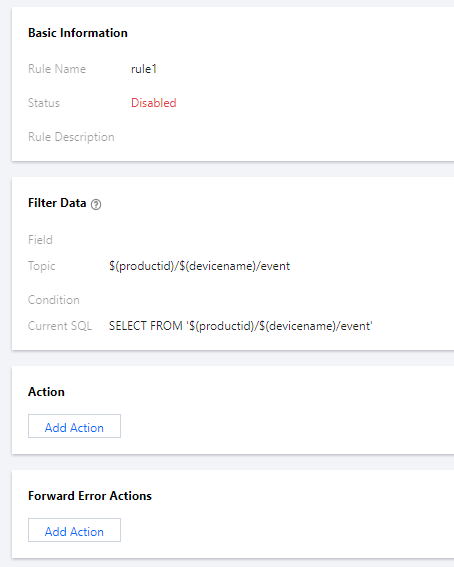
Then, you can write different forwarding rules.

Help and Support

Was this page helpful?

Help us improve! Rate your documentation experience in 5 mins.

Feedback