This document describes how to modify the display resolution for a Lighthouse Windows instance. You can refer to this document for the procedure.
Operation Steps
Select the corresponding procedure based on the login method you use:
Logging In to a Windows Instance via VNC
Logging In to a Windows Instance via Remote Desktop Connection
Note:
This document uses the system image Windows Server 2012 R2 as an example. Procedures may vary for different operating system editions. Please refer to this document and configure accordingly based on your actual situation.
For Windows images using the UEFI boot mode, you cannot adjust the VNC resolution if the qxldod driver is not installed. To install the driver, go to the directory containing qxldod.sys via the command line and run the pnputil -i -a qxldod.inf command. After the driver is installed successfully, you can usually adjust the VNC resolution without restarting.
Note that after this driver is installed, the VNC mouse pointer may appear as a small square, affecting the visual appearance but not the normal usage. The qxldod driver is optimized based on the upstream open source community. If you are concerned about the mouse pointer issue, it is recommended to select Windows images using the Legacy BIOS boot mode.
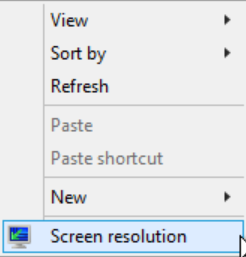
2. On the operating system interface, right-click and select Screen resolution. The following figure shows the operation:
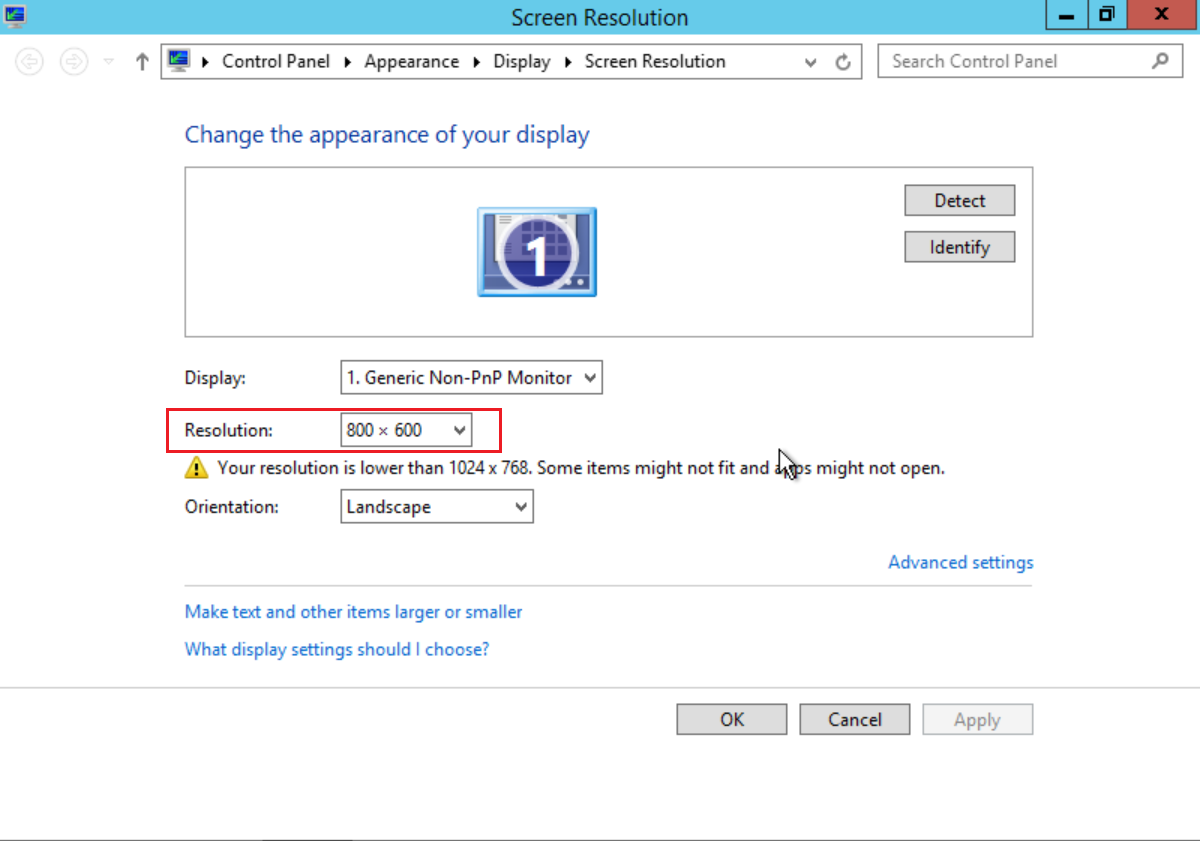
3. In the Screen Resolution window, set the Resolution and click Apply. The following figure shows the operation:
4. In the pop-up dialog box, click Keep Changes.
5. Click OK to close the Screen Resolution window.
After you log in to a Windows instance using Remote Desktop Connection, you cannot adjust the desktop resolution within the operating system. You need to set the instance resolution using a remote desktop tool before logging in. In the following procedures, the local system uses Windows 10 as an example:
1. On your local Windows computer, select
, right-click it, and then click Run in the pop-up context menu.
2. In the Run window, enter mstsc and click OK to open the Remote Desktop Connection dialog box.
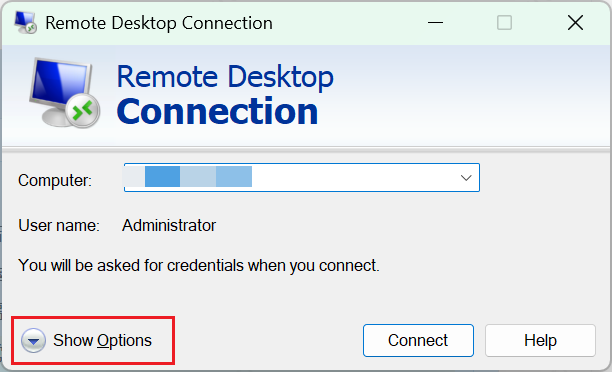
3. In the Remote Desktop Connection window, select Show Options. The following figure shows the operation:
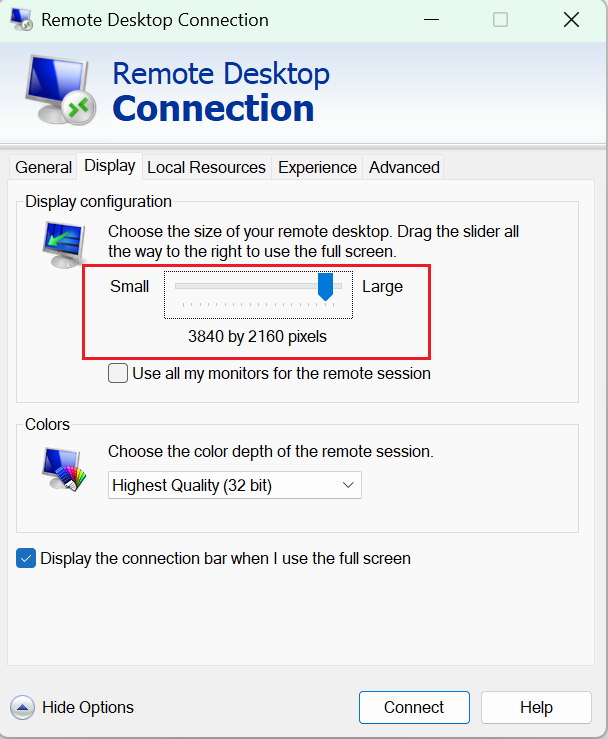
4. Select Display, and then adjust the resolution in the Display Configuration. The following figure shows the operation: