Delivery Response
Unduh
Mode fokus
Ukuran font
Real-time queue status
Through the Real-time queue status chart, you can obtain statistical data such as sent emails, deliveries, bounces, and rejected emails. You can select a specific search range from the sender domain and recipient domain options above. With an intuitive chart display, you can quickly understand the changing trends of various indicators, providing a basis for optimizing email services.
Note:
There is a certain delay in statistics. The data displayed in the console is for reference only.
Email Status
SES Console>Delivery Response>Email Status Supports searching and viewing the relevant status of email delivery from the dimensions of date range and recipient address.
Note:
There is a certain delay in statistics. The data displayed in the console is for reference only.
Open/Click
SES Console>Delivery Response>Open/Click This module supports viewing the number of times an email is opened and the number of times an email is clicked from the dimensions of the sender domain, recipient domain, and date range, and exporting the query results.
Email Open Count Query
Accurately filter the sender domain, recipient domain, date range, and email sending time to view the number of times an email is opened and support exporting the query results.
Email Click Count Query
Accurately filter the sender domain, recipient domain, date range, and email sending time to view the number of times an email is clicked and support exporting the query results.
Note:
1. When you open the downloaded CSV file with Excel or other tools, numbers might be displayed in scientific notation or other formats.
2. You can convert timestamps in milliseconds in the downloaded file to readable time using an Excel formula. Example: =TEXT(C2/86400000+DATE(1970,1,1), "YYYY-MM-DD HH:mm:ss"), where C2 is the cell that the timestamp is located in. The converted time is UTC time.
Spam Report
SES Console>Delivery Response>Spam Report This module supports viewing the number of times an email is reported as spam from the dimensions of the sender domain, recipient domain, and date range, and supports exporting the query results.
Bounced
SES Console>Delivery Response>Bounced This module supports viewing the number of corresponding bounced emails from the dimensions of the sender domain, recipient domain, and date range, and supports exporting the query results.
Unsubscription
SES Console>Delivery Response>Unsubscription This module supports viewing the number of corresponding unsubscribed emails from the dimensions of the sender domain, recipient domain, and date range, and supports exporting the query results.
Blocklist
The Blocking module (SES Console>Delivery Response>Blocklist) allows you to view detailed blocking information from the perspective of recipient email addresses, including reasons and timestamps.
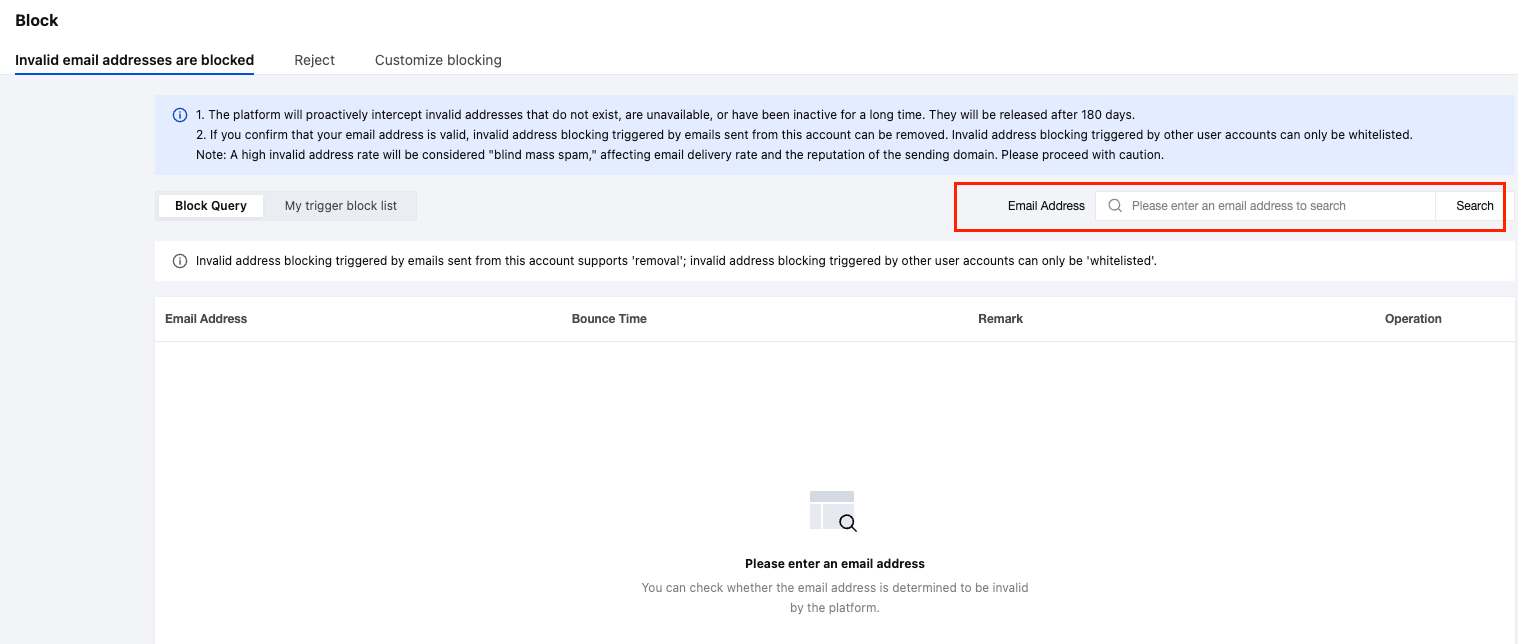
Invalid Address Blocking
The system proactively blocks invalid addresses—those that do not exist, are unavailable, or have been inactive for an extended period—and releases them after 180 days.
Blocking Query: Check whether an email address has been flagged as invalid by the system. If confirmed valid, you may whitelist or remove it.
Whitelist: If an address blocked by another user’s sending activity is verified as valid, you can add it to the whitelist to avoid future blocking.
Remove: If an address blocked due to emails sent from your account is verified as valid, you can directly remove it from the blocklist.
My Trigger Block List: View and batch remove invalid addresses blocked due to sending activities from your account.
Note:
A high invalid address rate may be perceived as "blind mass sending of spam," which can adversely affect email deliverability and domain reputation. Please operate with caution.
Blocked invalid addresses are automatically released after 180 days.
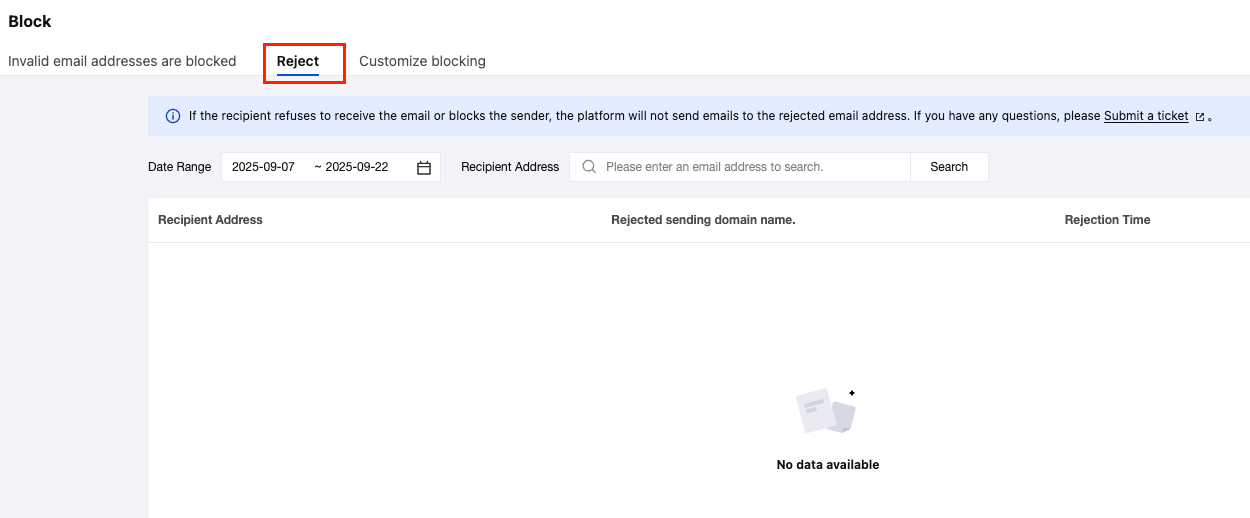
Reject Blocking
If a recipient unsubscribes or blacklists the sender, the system will stop sending emails to that address and proactively block it.
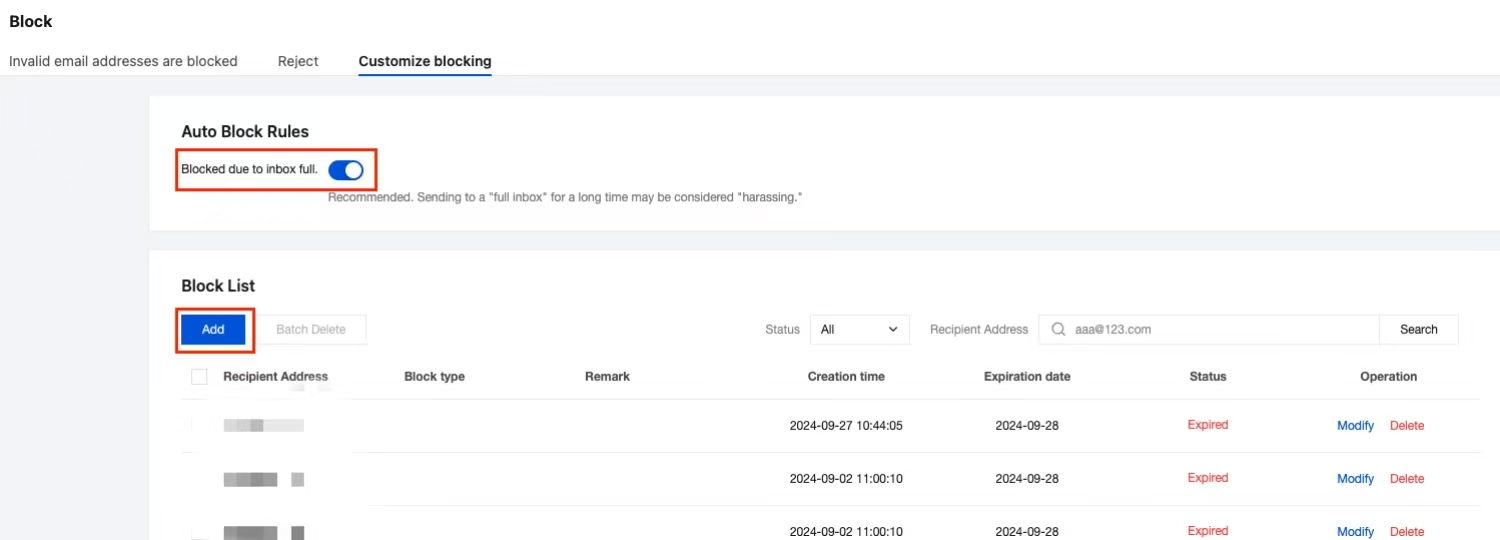
Custom Blocking
1. If there are specific email addresses you explicitly do not wish to reach, you can configure custom blocking rules on this page to prevent emails from being sent to them.
Auto-Blocking Settings: Enable this feature to automatically block emails sent to recipients with full inboxes.
Manual Upload: Click "Add" to directly upload a list of email addresses you want to block.
2. You can also click "Modify" to edit the effective period of a blocklist. The blocking will be automatically lifted once the expiration time is reached.
Bantuan dan Dukungan
Apakah halaman ini membantu?
Anda juga dapat Menghubungi Penjualan atau Mengirimkan Tiket untuk meminta bantuan.
masukan