This document describes how to use the Tencent Cloud Smart Advisor (TSA) console to create a visually intuitive and logically clear architecture diagram. For custom architecture diagrams, TSA provides you with a rich set of business architecture elements and convenient drawing capabilities to quickly create business architectures.
Operation Steps
Creating an Architecture Diagram
1. Log in to the TSA console and choose Cloud Architecture in the left sidebar.
2. On the Cloud Architecture page, create an architecture diagram.
3. The architecture diagram will be saved automatically after you edit it. You can also manually perform Save or Save As.
Drawing Guide
You can use the relevant operation buttons on the canvas to edit and design an architecture diagram.
To move the canvas, press and hold the space bar and click in a blank area of the canvas to drag it. If you are using a touchpad, you can use the two-finger swipe gesture to move the canvas.
To create a component, click the component name on the left to create it on the canvas, or drag the component icon from the left into the canvas.
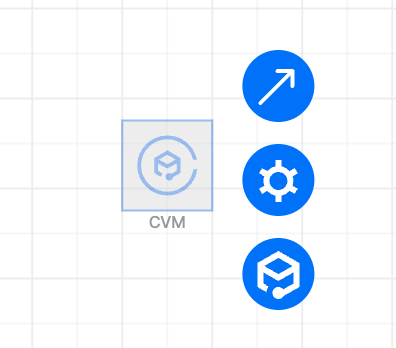
In the canvas, click the component to display an operation list. You can connect the component with a line, bind instances, and view bound instance operations, as shown in the following figure:
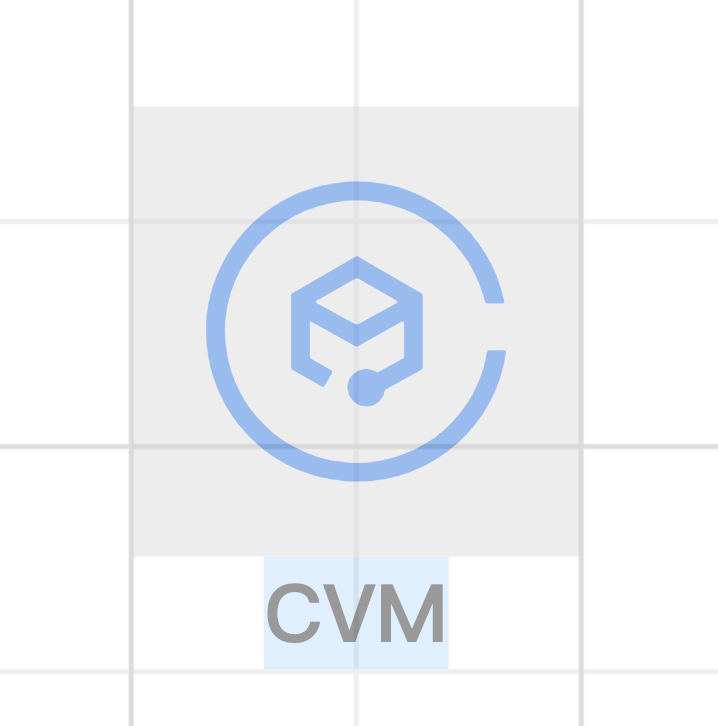
Double-click the component name to edit it, as shown in the following figure:
In the upper-left corner of the canvas, a quick action toolbar is available, as shown in the following figure:
indicates entering Select mode.
indicates entering Drag mode.
indicates 3D/2D display switch.
indicates canvas auto resizing to fully display the architecture diagram.