tencent cloud

Chat

제품 소개
제품 개요
Basic Concepts
응용 시나리오
기능 소개
계정 시스템
사용자 정보 및 관계망
메시지 관리
그룹 시스템
Official Account
Audio/Video Call
사용 제한
구매 가이드
과금 개요
요금 안내
Purchase Instructions
Renewal Guide
연체 안내
Refund Policy
다운로드 센터
SDK & Demo 소스 코드
업데이트 로그
시나리오 솔루션
Live Streaming Setup Guide
AI Chatbot
대규모 엔터테인먼트 협업 커뮤니티
Discord 구현 가이드
IM을 게임에 통합하는 방법
WhatsApp Channel-style Official Account Integration Solution
Send Red Packet
Firewall Restrictions
클라이언트 APIs
SDK API(Web)
Android
iOS & macOS
Swift
Flutter
Electron
Unity
React Native
C APIs
C++
서버 APIs
Secure authentication with UserSig
RESTful APIs
Webhooks
콘솔 가이드
New Console Introduction
애플리케이션 생성 및 업그레이드
기본 설정
기능 설정
계정 관리
그룹 관리
Official Channel Management
콜백 설정
모니터링 대시보드
Viewing Guide for Resource Packages
Real-Time Monitor
개발 보조 툴
액세스 관리
Advanced Features
FAQ
uni-app FAQs
구매
SDK 관련 질문
계정 인증
사용자 정보 및 관계망
메시지
그룹
라이브 방송 그룹
닉네임 및 프로필 사진
협약 및 인증
Service Level Agreement
컴플라이언스 인증
IM 정책
개인 정보 보호 정책
데이터 개인 정보 보호 및 보안 계약
에러 코드
문의하기
문서Chat

iOS(SwiftUI)

포커스 모드
폰트 크기
마지막 업데이트 시간: 2026-03-03 10:53:51
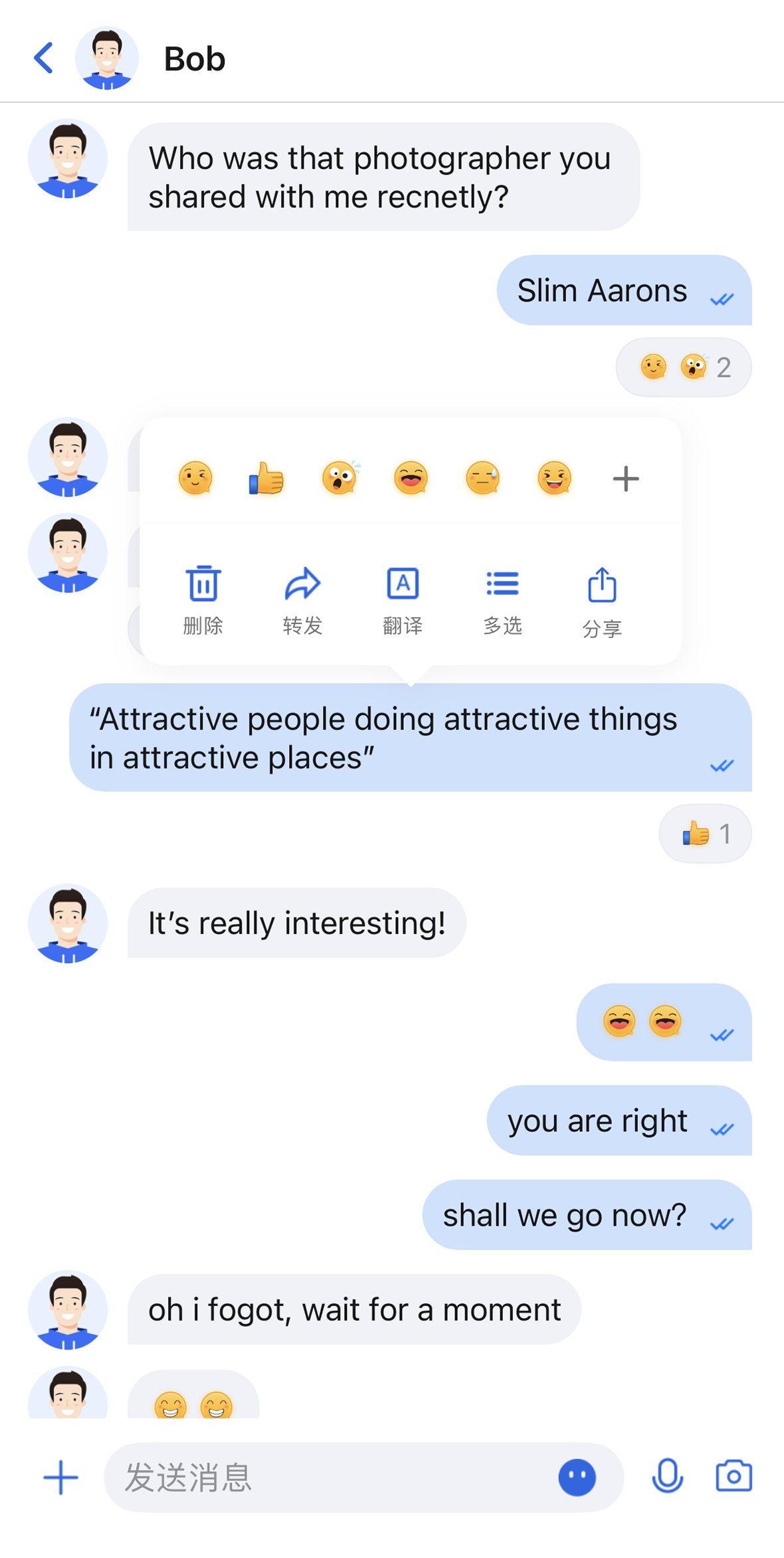
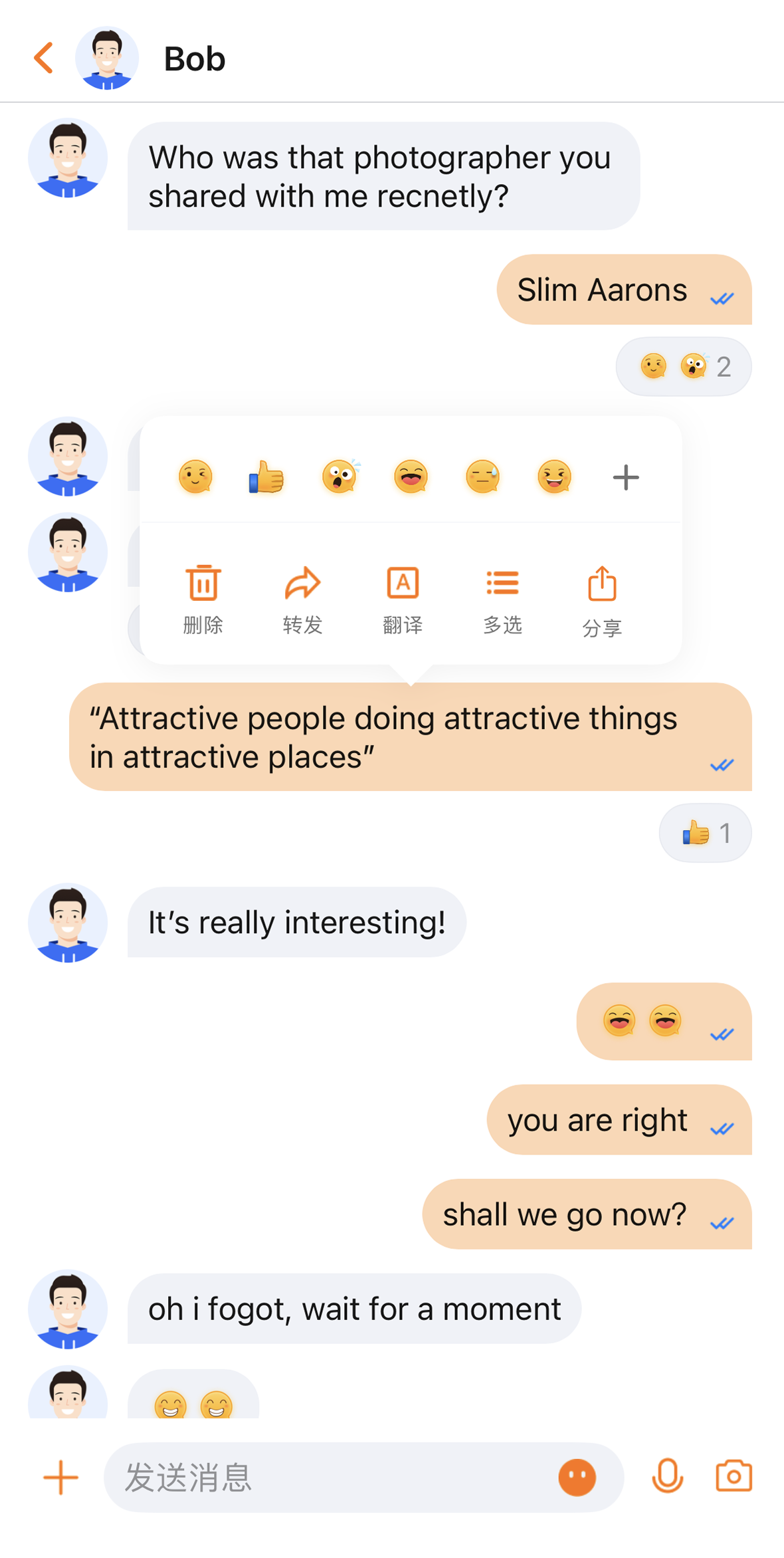
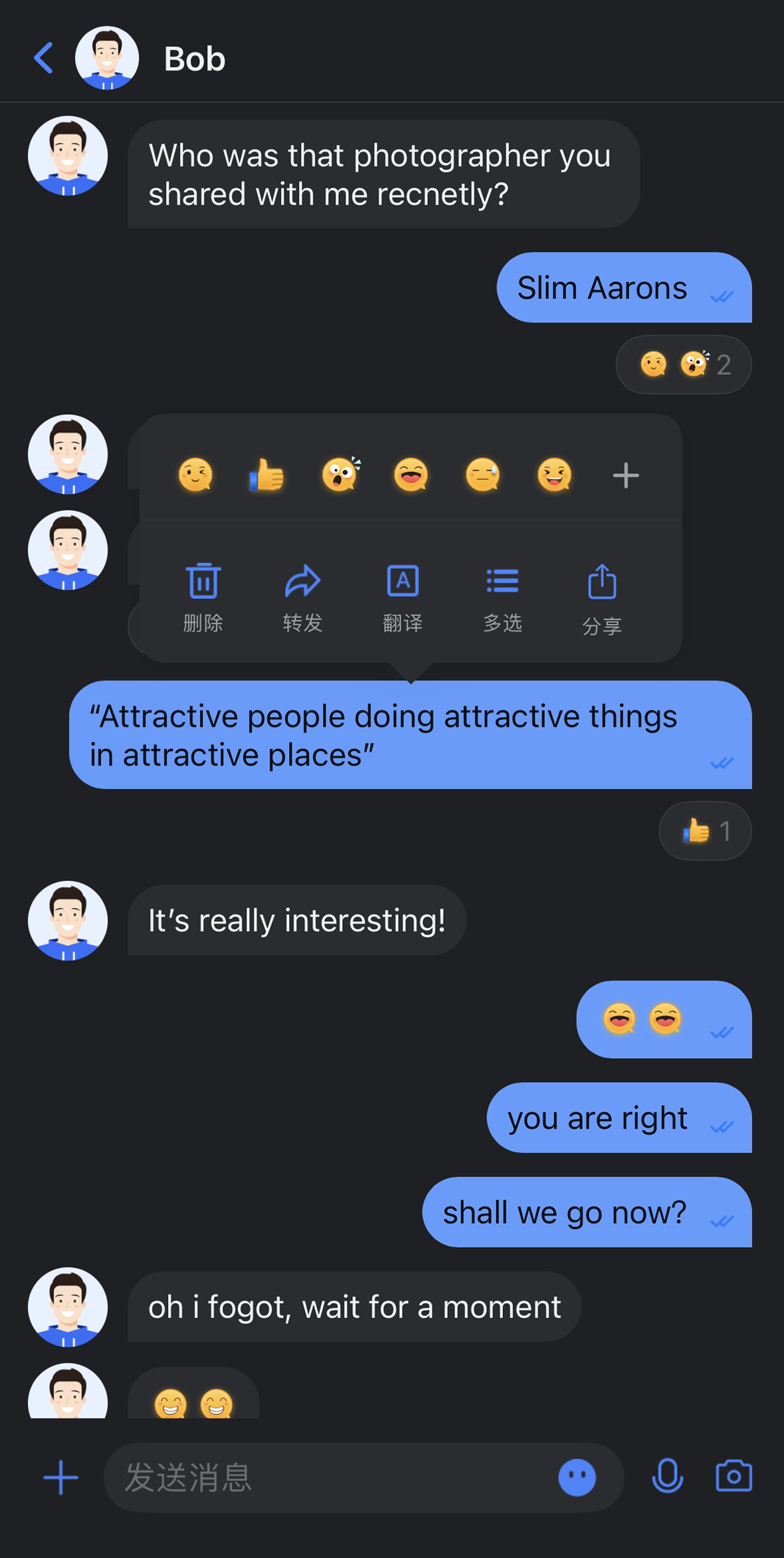
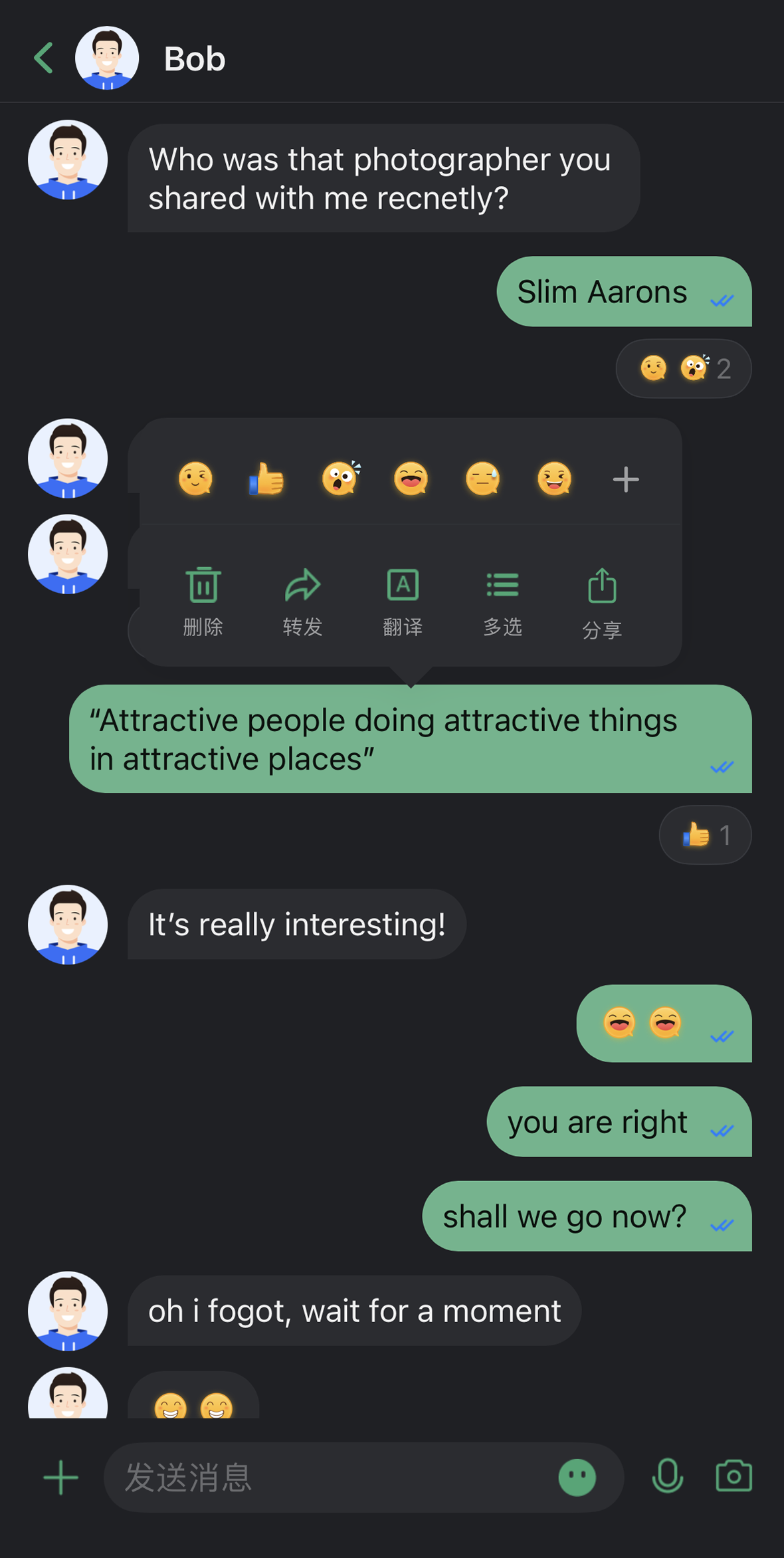
TUIKit offers flexible appearance customization with support for Light, Dark, and System theme modes, along with customizable primary colors. A simple configuration enables theme switching and brand color application throughout your app.
For example, in the message list, you can see how different theme modes and primary colors affect the UI:
Light + Default Color
Light + Orange
Dark + Default Color
Dark + Green Theme


Core Capabilities

Theme Mode
Light Mode: Bright interface for daytime use.
Dark Mode: Dim interface for nighttime use.
System Mode: Automatically matches the system appearance.
Primary Color Customization
Preset Theme Colors: Choose from standard colors like blue, green, red, orange, and more.
Custom Primary Color: Set any color using Hex format.
Smart Palette Generation: Automatically creates a full palette with 10 color variations.
Reset Customization: Instantly revert to the default theme color.

API Reference

All theme configuration and queries are handled through a simple set of APIs in ThemeState.

Set Theme Mode

Method
Parameter
Return Value
Description
setThemeMode(_:)
ThemeMode
Void
Sets the theme mode, automatically saves and refreshes.
ThemeMode.system: Follows system appearance.
ThemeMode.light: Forces light mode.
ThemeMode.dark: Forces dark mode.

Set Primary Color

Method
Parameter
Return Value
Description
setPrimaryColor(_:)
String
Void
Sets the primary color. Accepts Hex format (e.g., "#1C66E5").
clearPrimaryColor()
None
Void
Removes the custom primary color and restores the default blue.
Note:
1. After calling setThemeMode or setPrimaryColor, the configuration is automatically saved to UserDefaults. No manual saving is required. The settings will be loaded automatically when the app restarts.
2. When you update the theme configuration, the cache is cleared automatically to ensure the color scheme updates in real time. No manual cache management is needed.
3. Avoid frequent theme changes when using these APIs (for example, do not call them in a loop).

Query ThemeState Information

You can check the current theme configuration and status using these read-only properties:
Property
Type
Description
currentMode
ThemeMode
Current theme mode.
currentPrimaryColor
String?
Current primary color (Hex format).
hasCustomPrimaryColor
Bool
Whether a custom primary color is set.
isDarkMode
Bool
True if the current mode is dark mode.

Usage

This section explains how to integrate and use theme and primary color customization in your app, with three approaches from basic to advanced.

Option A: Configure with AppBuilder (Recommended)

AppBuilder is a centralized tool for feature and UI customization, managed via a JSON configuration file. It’s ideal for keeping Web and Native apps visually consistent.
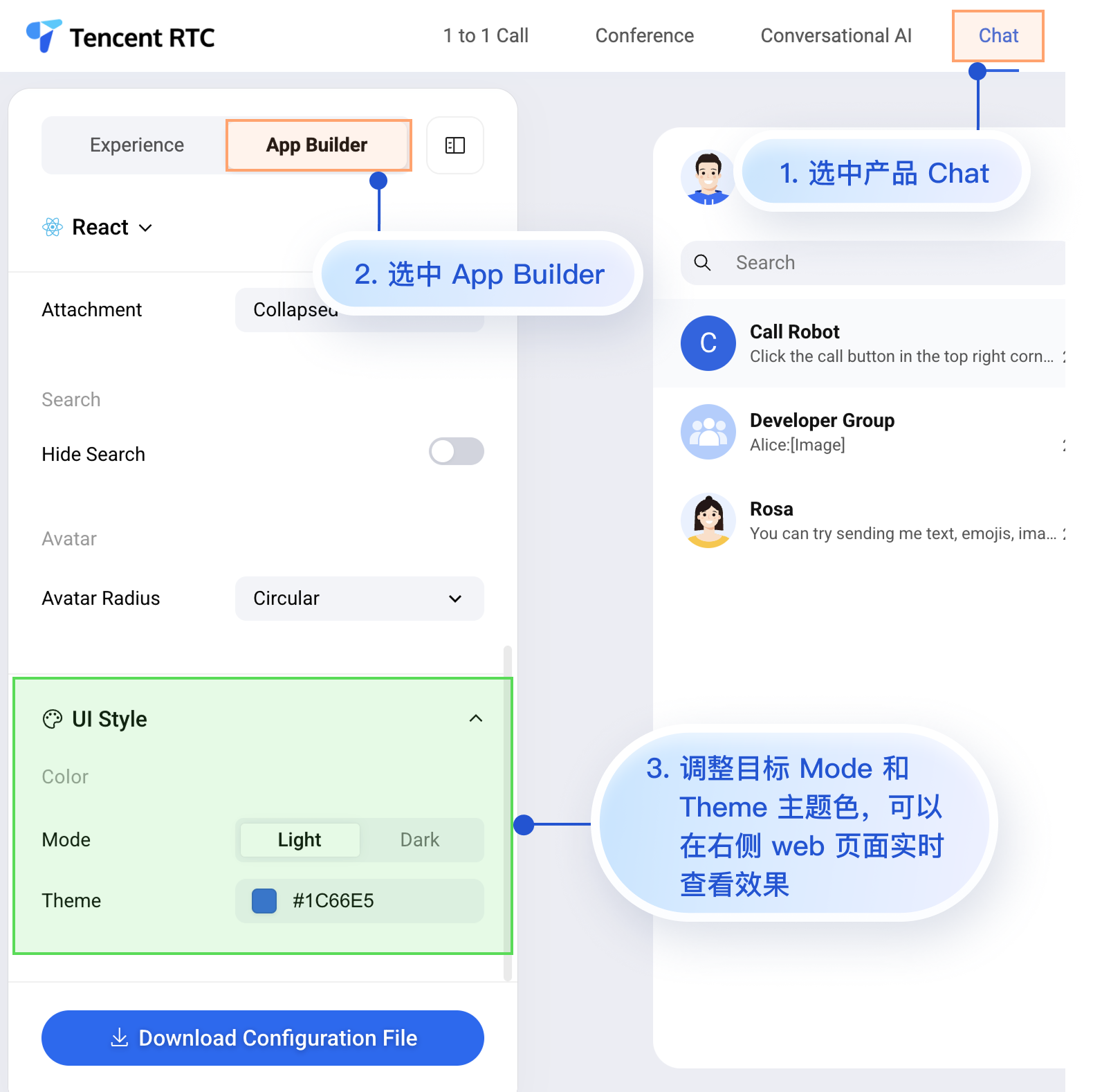
Try AppBuilder in the Chat Web Demo:

While the Chat Web Demo doesn’t support real-time preview for mobile configurations, mobile apps do support AppBuilder configuration.
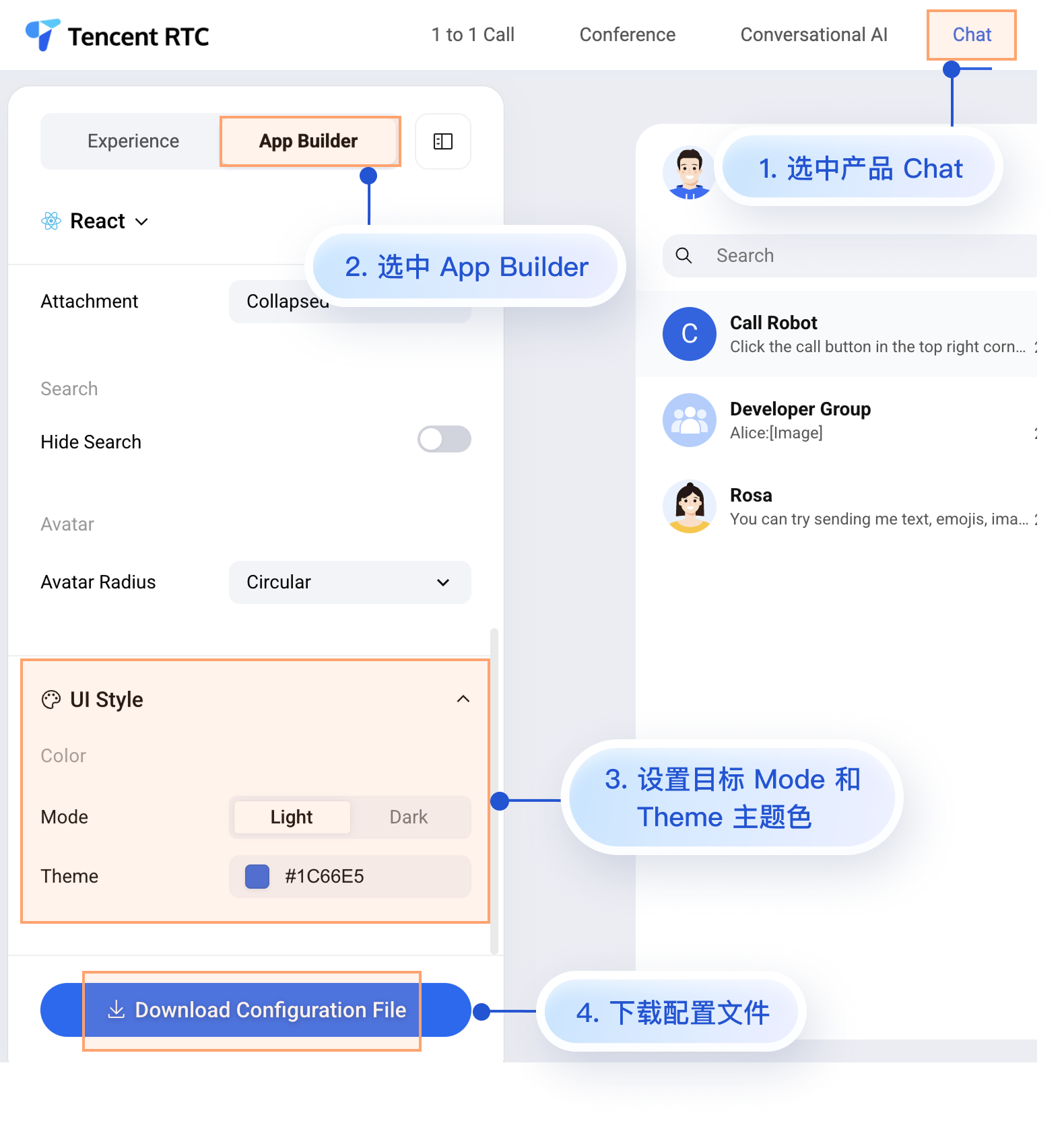
Here’s how to apply your custom configuration in a mobile project after setting up AppBuilder in the Web Demo. The process is simple and includes 3 steps:
1. Download the configuration file.
2. Add the appConfig.json file to your iOS project.
3. Load the configuration file when the app launches.

Step 1: Download the Configuration File

Go to the Chat Web Demo and download the appConfig.json configuration file. The download location is:

The appConfig.json file looks like this. The configuration options match those on the AppBuilder page. Appearance settings are under theme:
{
"theme": {
"mode": "light", // Theme mode: light - Light mode, dark - Dark mode, system - Follows system
"primaryColor": "#E65100" // Primary color, 6-digit hex value
},
"messageList": {
"alignment": "two-sided",
"enableReadReceipt": false,
"messageActionList": [
"copy",
"recall",
"quote",
"forward",
"delete"
]
},
"conversationList": {
"enableCreateConversation": true,
"conversationActionList": [
"delete",
"mute",
"pin",
"markUnread"
]
},
"messageInput": {
"hideSendButton": false,
"attachmentPickerMode": "collapsed"
},
"search": {
"hideSearch": false
},
"avatar": {
"shape": "circular"
}
}
Configuration Option Description
Parameter
Type
Optional Values
Description
mode
String
"system", "light", "dark"
Theme mode.
primaryColor
String
Hex color value, e.g. "#0ABF77"
Primary color.

Step 2: Add the Configuration File to Your Project

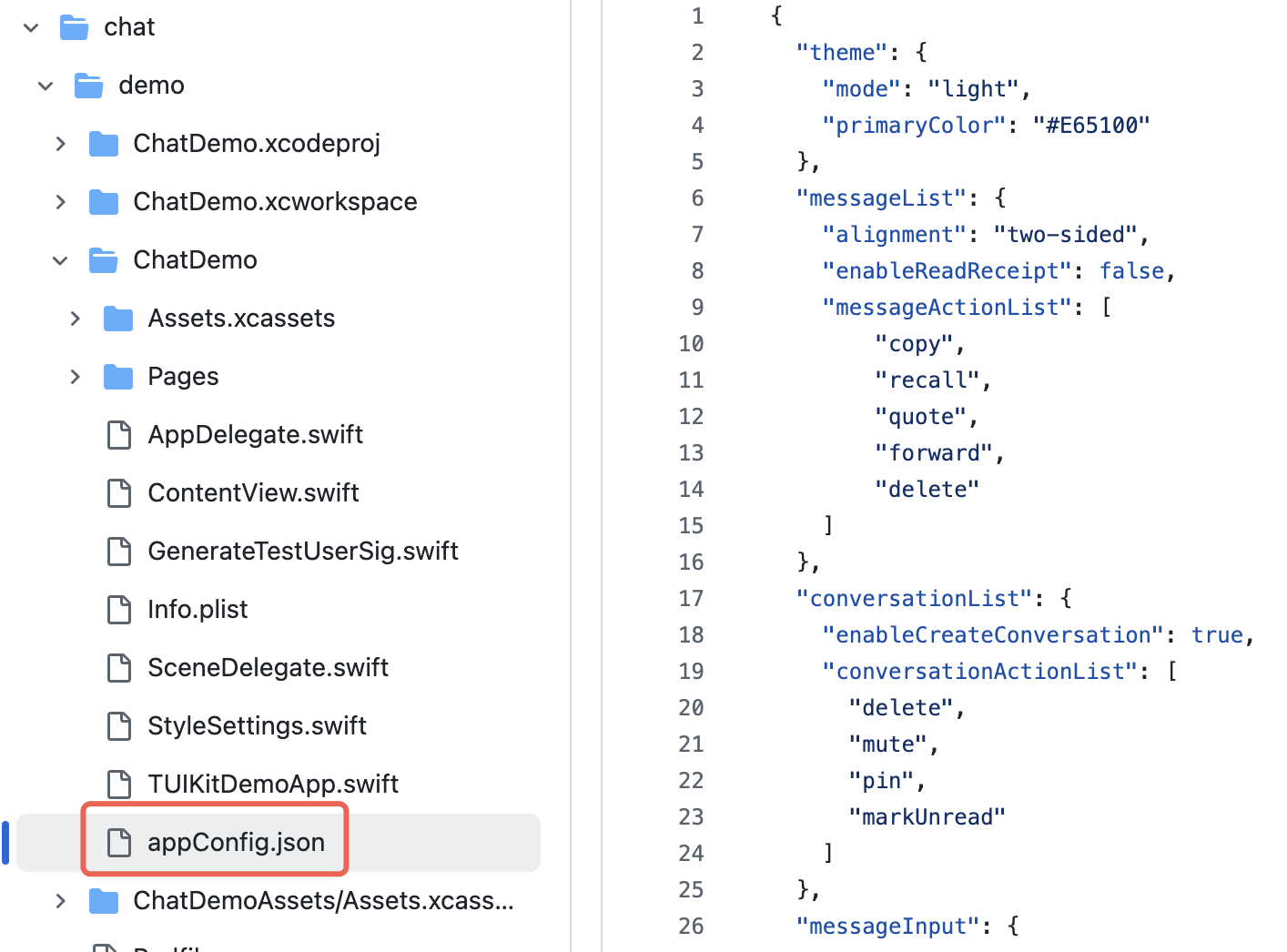
Drag appConfig.json into your project, select the correct Target, and check Copy Bundle Resources.
For example, in the open-source demo TUIKit iOS SwiftUI, appConfig.json is located in the main bundle under demo/ChatDemo:


Step 3: Load the Configuration File

Set the JSON file path and load the configuration at app launch. If appConfig.json is in the main bundle, you can access it like this:
import AtomicX

@main
struct MyApp: App {
init() {
// Load theme configuration file
if let path = Bundle.main.path(forResource: "appConfig", ofType: "json") {
AppBuilderHelper.setJsonPath(path: path)
}
}
var body: some Scene {
WindowGroup {
ContentView()
// Inject ThemeState.shared at the root view of the app
.environmentObject(ThemeState.shared)
}
}
}
Now, without writing any extra code, your app will automatically use the theme mode and primary color defined in appConfig.json when it launches.

Option B: Set Theme Mode in Code

You can set the theme mode directly using the setThemeMode API. themeState is the ThemeState.shared singleton object accessed from the environment. Example:
import SwiftUI
import AtomicX

struct SettingsView: View {
@EnvironmentObject var themeState: ThemeState
var body: some View {
List {
Section("Appearance Mode") {
Button("Follow System") {
themeState.setThemeMode(.system)
}
Button("Light Mode") {
themeState.setThemeMode(.light)
}
Button("Dark Mode") {
themeState.setThemeMode(.dark)
}
}
}
.navigationTitle("Settings")
}
}

Option C: Set Primary Color in Code

Set the primary color using the setPrimaryColor API. Just provide a Hex color value, and all TUIKit SwiftUI components will automatically adapt matching colors for different UI elements—no manual adjustments needed. Example:
struct CustomColorPicker: View {
@EnvironmentObject var themeState: ThemeState
@State private var customColor = "#1C66E5"
var body: some View {
VStack(spacing: 20) {
TextField("Enter color value", text: $customColor)
.textFieldStyle(RoundedBorderTextFieldStyle())
.placeholder(when: customColor.isEmpty) {
Text("#1C66E5").foregroundColor(.gray)
}
Button("Apply Primary Color") {
themeState.setPrimaryColor(customColor)
}
.disabled(!isValidHexColor(customColor))
}
.padding()
}
private func isValidHexColor(_ hex: String) -> Bool {
let pattern = "^#[0-9A-Fa-f]{6}$"
return hex.range(of: pattern, options: .regularExpression) != nil
}
}
Usage Recommendations:
For most apps, use the JSON configuration file method. It’s simple, reliable, and ensures cross-platform consistency.
Use colors from themeState.colors throughout your app to keep the appearance consistent when switching themes.

FAQs

How do I check if the current mode is dark mode?

if themeState.isDarkMode {
// Currently in dark mode
} else {
// Currently in light mode
}

How can I see the effect immediately after setting the primary color?

The UI updates automatically after you set the primary color, since ThemeState is an ObservableObject. Make sure your views use @EnvironmentObject or @ObservedObject to observe changes.

Can I set transparency?

Not supported. The primary color only accepts 6-digit Hex format (RGB), not 8-digit (RGBA). To add transparency, use the .opacity() modifier with your color.

How do I restore the default theme?

themeState.clearPrimaryColor() // Remove custom primary color
themeState.setThemeMode(.system) // Switch to system mode

Where is the theme configuration stored?

It’s saved in UserDefaults under the key "BaseComponentThemeKey". The configuration is removed when the app is uninstalled and resets to default after reinstalling.

How do I get the full configuration for the current theme?

let config = themeState.currentTheme
print("Mode: \\(config.mode)")
print("Primary Color: \\(config.primaryColor ?? "Default")")

Can I set both mode and primary color at the same time?

Yes. Call both methods separately; the system will automatically combine the settings:
themeState.setThemeMode(.dark)
themeState.setPrimaryColor("#0ABF77")

도움말 및 지원

문제 해결에 도움이 되었나요?

피드백