tencent cloud

Cloud Connect Network

Release Notes and Announcements
Announcements
Product Introduction
Overview
Strengths
Use Cases
Use Limits
Purchase Guide
Billing Overview
Expiration Reminder
Overdue Payment ‍Policies
Getting Started
Getting Started with the CCN
Connecting Network Instances Under the Same Account
Connecting Network Instances Across Accounts
Operation Guide
Operations Overview
Instance Management
Route Management
Bandwidth Management
Cross-Region Traffic Management
Monitoring and Alarms
API Documentation
FAQs
Troubleshooting
Failed to Ping VPCs Connected with a CCN Instance
Service Agreement
Service Level Agreement
Contact Us

Associating Network Instances

PDF
포커스 모드
폰트 크기
마지막 업데이트 시간: 2024-01-10 14:41:59

1. Log in to the CCN console and access the CCN management page.
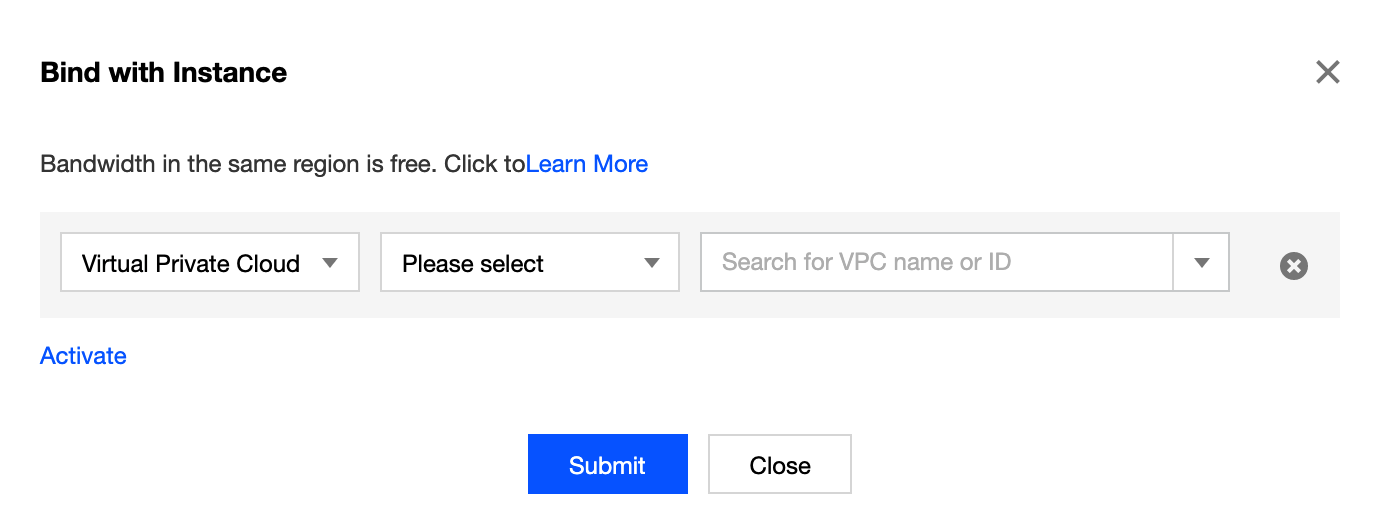
2. Click the ID/Name of the desired CCN instance to access the Associated Instances page. Click Add an instance.
3. In the pop-up window, select a network instance type from VPC, Direct Connect Gateway, BM Virtual Private Cloud, and VPN Gateway. Select the region to which the network instance belongs and the specific network instance.
Note
For CCN to automatically add the routes from the VPN gateway, the VPN gateway for CCN has the VPN tunnel created and SPD policy configured. For more information, see Connecting IDC to CCN.
(Optional) To associate more network instances, click Add and follow the preceding steps.
Click OK.


For more information on creating a network instance, refer to Creating VPCs and Creating Direct Connect Gateway.


도움말 및 지원

문제 해결에 도움이 되었나요?

피드백